
AI Inbox, sort and answer your email
AI Inbox connects to your own mailbox and does the first pass for you. It sorts your mail into smart folders, writes a short AI brief for each email with the amounts, dates and references in it, suggests the next step, and drafts replies that you check and send. It runs on your organisation’s own ZenithAI server.
AI Inbox is one of the ZenithAI Agents. Open Agents in the top bar and choose AI Inbox under Email and notes.
Connect your mailbox
Section titled “Connect your mailbox”-
Under Your mail provider, choose Your organisation, which fills in your organisation’s mail servers from your email address. If your server shows a ready tile for your organisation’s mail service, you can choose that instead. For any other mail server, choose Other mail (IMAP).
Gmail, Yahoo Mail, iCloud Mail, Microsoft 365 and Google Workspace are shown greyed out, with the note OAuth policy to be configured. These services no longer accept a plain password from apps, so they need a secure sign-in (OAuth) that your organisation has not set up yet. Until then they can’t be chosen.
-
Under Account, enter Your name (on replies), your Email address and your Password or app password. Use an app password if your mail service gives you one for apps.
-
For other mail, open Server settings and enter the IMAP server (to read) and the SMTP server (to send replies) with their port and security. Add a User name or a separate SMTP password only if your mail needs them. Only encrypted connections are used, and the server’s certificate is checked.
-
Choose how often to Check for new mail while the inbox is open: every minute, 5 minutes or 15 minutes.
-
Click Test connection. You see one line for reading mail (IMAP) and one for sending (SMTP).
-
Click Connect mailbox. The first sync brings in your newest mail from the last 30 days.
Reading needs only IMAP. If sending isn’t set up, you can still read and draft, and Send stays off until you add a working SMTP server in Settings.
Smart folders
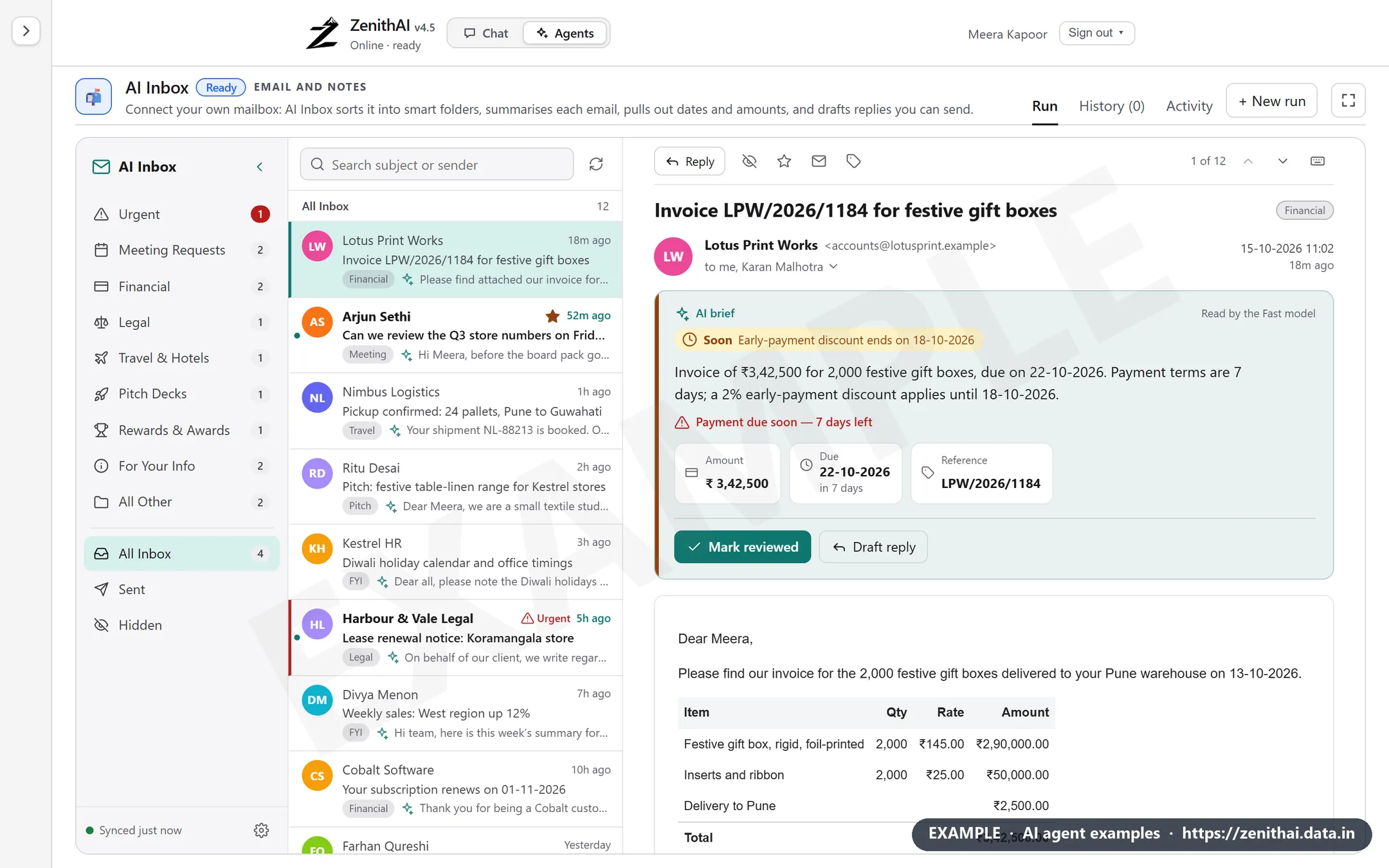
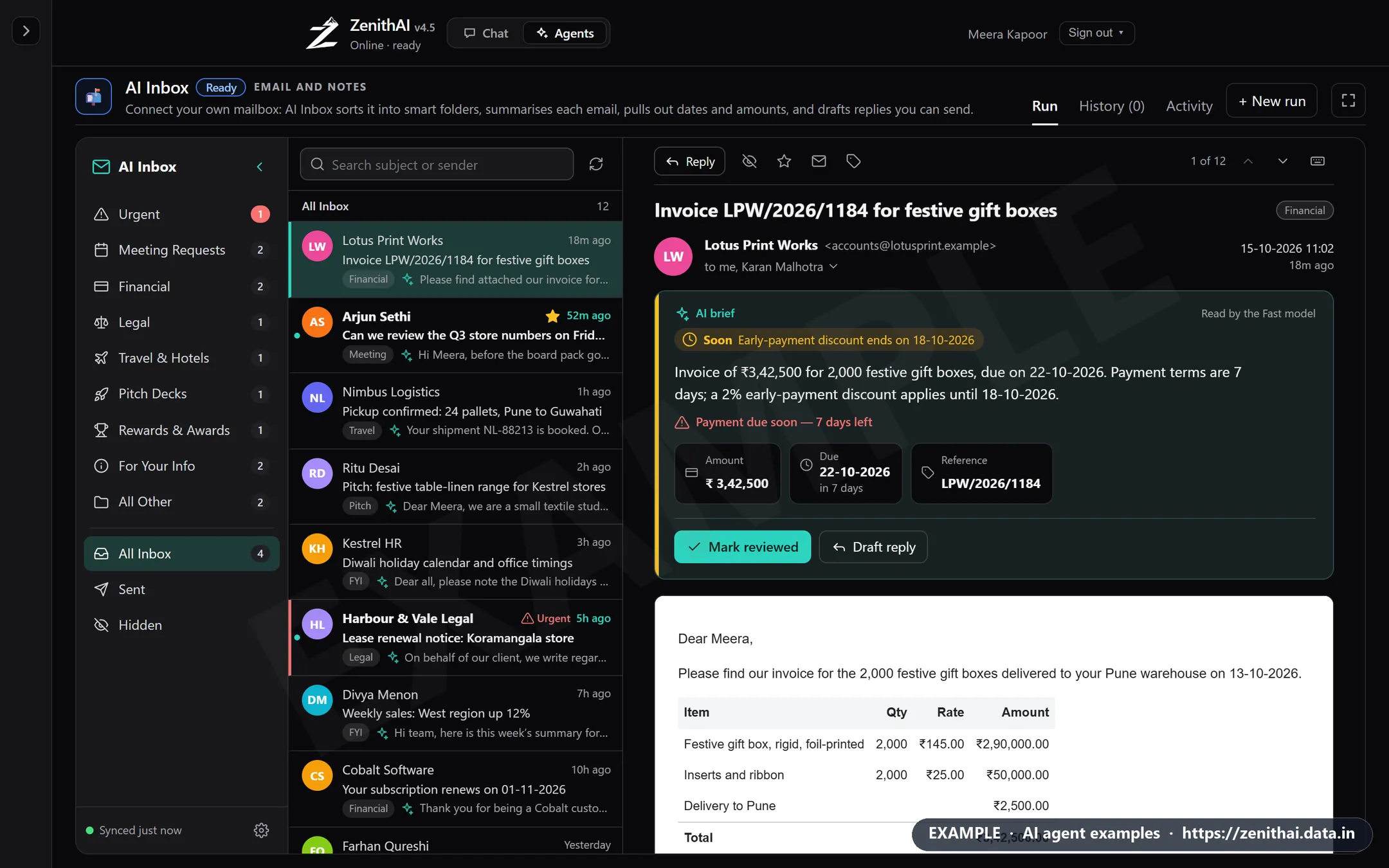
Section titled “Smart folders”Every email lands in one smart folder: Urgent, Meeting Requests, Financial, Legal, Travel & Hotels, Pitch Decks, Rewards & Awards, For Your Info or All Other. Below them are All Inbox, Sent (the replies you sent from AI Inbox) and Hidden.
New mail is sorted straight away by quick rules, then the Fast model reads it and writes the brief. While that runs you see Classifying. To put an email somewhere else, use Change category; your choice is final.
Search the list by subject or sender with Search subject or sender, and use Sync now to check for new mail at once. The list shows 30 emails at a time, with Load more below.
The AI brief
Section titled “The AI brief”Above each email, the AI brief gives you:
- A one-line summary of what the email wants.
- Urgency: Urgent or Soon, with the reason. Legal mail is always urgent.
- Key facts pulled from the email, such as Amount (in rupees, with lakh grouping), Due with the days left, Deadline, Reference, PNR and Departs for travel, Points and Expires for rewards, and the last four digits of an account.
- Reminders when a date is close, such as Payment due soon, 7 days left.
- Suggested next steps for the kind of email. For example Mark reviewed for an invoice, Accept, Decline or Add to calendar for a meeting, Flag for lawyer for a legal notice, and Draft reply almost everywhere.
The brief also says who sorted the email: Read by the Fast model, Quick rules, or Category set by you.
Reply with an AI draft
Section titled “Reply with an AI draft”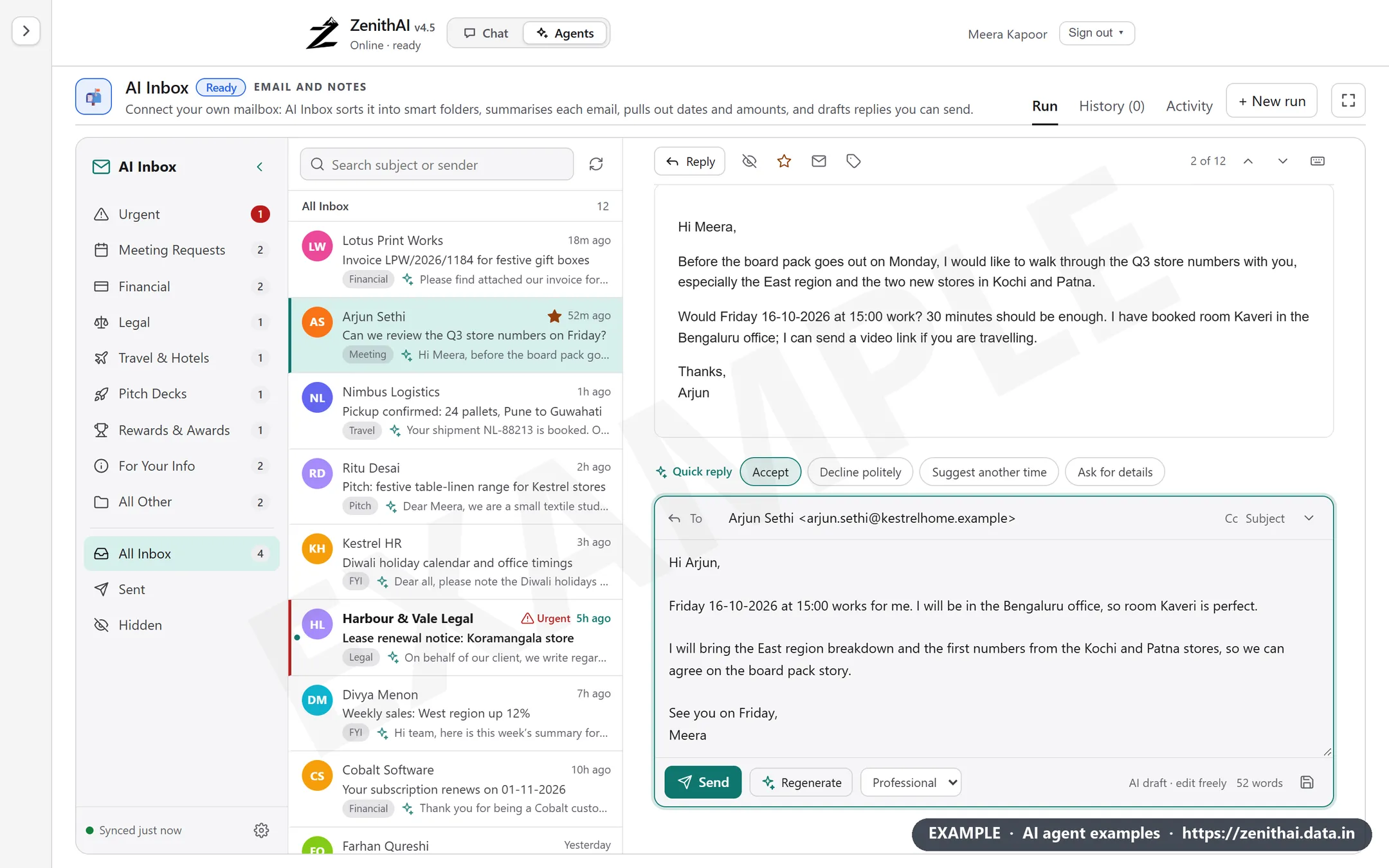
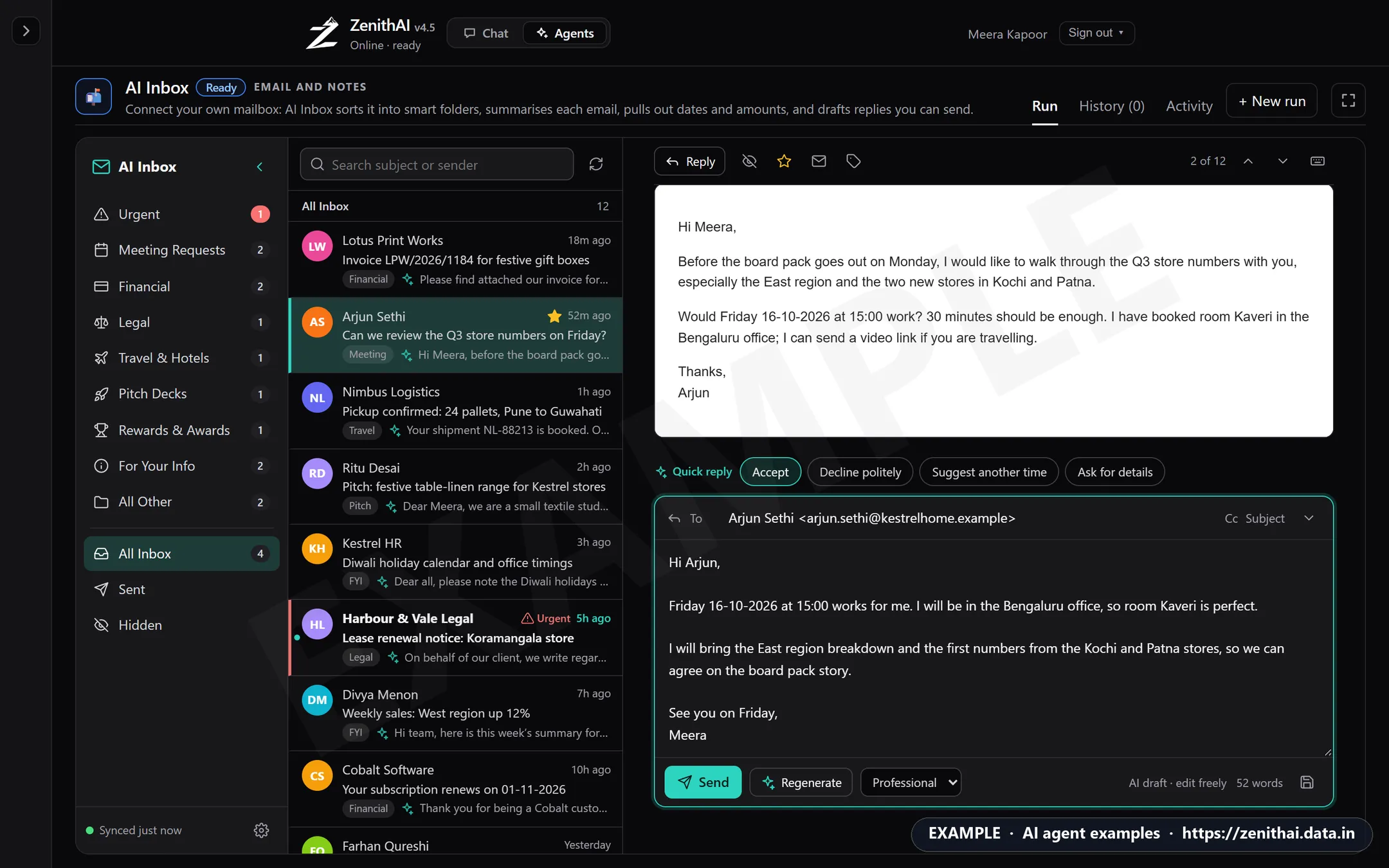
- Click Reply, or a Draft reply step in the brief.
- Pick a Quick reply, such as Accept, Decline politely, Suggest another time or Ask for details for a meeting, or Confirm receipt for an invoice. The Smart model writes a draft, signed with your name.
- Choose a tone: Formal, Professional, Friendly or Brief, and click Regenerate for a new draft. Stop ends a draft that is still being written.
- Edit the text freely. Add Cc or change the Subject if you need to. Your draft is saved as you type, and your own text is never replaced without asking.
- Click Send (or press Ctrl+Enter). Send this reply? shows the recipients and the subject. Confirm, and you still have 5 seconds to Undo.
The reply goes from your own mailbox, as plain text, in the same conversation thread. A copy is filed in your mailbox’s Sent folder and shown under Sent in AI Inbox.
Your mailbox stays as it is
Section titled “Your mailbox stays as it is”- AI Inbox reads your mailbox without changing it. Read marks, stars, Hide here and categories stay inside AI Inbox. Hidden mail stays in your mailbox.
- The only thing written to your mailbox is a copy of each reply you send.
- Mail you delete in your mailbox disappears from AI Inbox at the next check.
Privacy
Section titled “Privacy”- On your own server. Sorting, briefs and drafts run on your organisation’s ZenithAI server, on the Fast and Smart tiers. Nothing is sent to an outside AI service. The only outside connections are to your mail server, and only over encrypted connections.
- What is stored. A copy of your last 30 days of mail, at most 2,000 messages (starred mail is kept), so it can be sorted and summarised. Your password is stored encrypted and is never shown again.
- Safe reading. Emails are cleaned before they are shown and nothing in them can run code. Pictures loaded from the internet are blocked, so senders can’t tell you opened the mail. Links open in a new tab.
- Logs. Server logs hold no mail text and no email addresses.
- Usage. Each day’s work shows in the Activity tab, and AI use counts as your Agents use.
In Settings (the gear at the foot of the folders) you can enter a new password, Re-run AI on unclassified mail, Clear cached mail, or Disconnect, which deletes your password and every stored message at once.
Keyboard shortcuts
Section titled “Keyboard shortcuts”| Key | Does |
|---|---|
| j or ↓ / k or ↑ | Older / newer email |
| Enter | Open the email |
| r | Reply |
| Ctrl+Enter | Send (after the check) |
| s / e / u | Star / hide / mark as unread |
| / | Search |
| Esc | Close the reply, then back to the list |
| ? | Show all shortcuts |
The Full screen button gives AI Inbox the whole window.
Limits
Section titled “Limits”| What | Limit today |
|---|---|
| Mail kept | Last 30 days, at most 2,000 messages; the first sync brings the newest 200 |
| AI reading | The newest 100 emails of the last 10 days; older mail is sorted by quick rules |
| Attachments | Not read. AI Inbox works from the text of the email |
| Writing mail | Replies only. No new emails or forwards yet |
| Sending | Up to 10 recipients per reply, 20 replies an hour and 100 a day |
| Sign-in | Password or app password for your organisation’s mail. Gmail, Yahoo Mail, iCloud Mail, Microsoft 365 and Google Workspace need OAuth sign-in, not yet set up |
| Updates | Checked at your chosen interval while AI Inbox is open, and every 15 minutes otherwise |
Always read a draft before you send it. AI Inbox suggests; you decide.
Common questions
Which mail accounts work with ZenithAI AI Inbox?
Your organisation's own mail, reached with IMAP to read and SMTP to send. Choose Your organisation or Other mail (IMAP). Gmail, Yahoo Mail, iCloud Mail, Microsoft 365 and Google Workspace are shown but can't be chosen yet; they need a secure sign-in policy that is still being set up.
Does AI Inbox change anything in my mailbox?
No. It reads your mailbox without changing it. Read marks, stars, hidden mail and categories stay inside AI Inbox. The only thing written to your mailbox is a copy of each reply you send, in your Sent folder.
Can AI Inbox send an email without me?
No. Every reply opens a Send this reply? check that lists the recipients and subject, and Cancel is the default. After you confirm, you have 5 seconds to undo. Ctrl+Enter goes through the same check.
What does AI Inbox store, and for how long?
A copy of your last 30 days of mail, at most 2,000 messages, with starred mail kept, plus your password, stored encrypted. It all stays on your organisation's ZenithAI server. Disconnect deletes the password and every stored message at once.
Is my email sent to an outside AI service?
No. Sorting and summaries use the Fast tier and reply drafts use the Smart tier, on your organisation's own ZenithAI server. The only outside connections are to your own mail server, over encrypted connections. Server logs hold no mail text or addresses.
Why does an email say Classifying or Quick rules?
Quick rules sort new mail at once, then the Fast model reads it and writes the AI brief. The model reads the newest 100 emails from the last 10 days; older mail keeps the quick-rules result. You can also move any email to another category yourself.
Can AI Inbox open attachments or show images?
Not yet. Attachments are not read; AI Inbox works from the text of each email. Pictures loaded from the internet are blocked so senders can't tell you opened the mail, and the reader says how many were blocked. Nothing in an email can run code.