
ZenithAI Agents, Designer and dashboards
ZenithAI Agents are ready-made tools that each do one job, step by step, with you checking the result on the way. They live on their own page next to chat and use the same sign-in.
Open the Agents page
Section titled “Open the Agents page”Click Agents in the Chat | Agents switch at the top of the chat page. Click Chat to go back, and your open chat is there as you left it. On a narrow screen the switch gets smaller, and the same entry is in the account menu.
The list on the left shows every agent, grouped by kind of work. Ready agents can be used now:
| Agent | What it does |
|---|---|
| CSV to Dashboard | Turns a CSV file into a dashboard file you can share (below) |
| Note Taker | Listens to a meeting and writes the transcript and the notes |
| AI Inbox | Connects your own mailbox, sorts it into smart folders, briefs each email and drafts replies you send. New on 15-10-2026, after installer 4.6.0 |
| Designer | Turns a description into a finished web page as one .html file |
| Automation | Watches news feeds for what you describe in plain words and saves an alert for every new match. New on 16-10-2026, after installer 4.6.0 |
| Chess Coach | Play chess against the computer; every move gets a mark and a plain note, and each game ends with your accuracy. New on 18-10-2026, after installer 4.6.0 |
Soon agents are planned and can’t be started yet.
The top of an agent is one slim band: its icon and name, whether it is ready, its group, its full description, the tabs and New run. The agent itself fills the rest of the screen. The tabs are:
| Tab | What it shows |
|---|---|
| Run | The agent itself, where you do the work |
| History | Your earlier runs, marked Finished or Not finished |
| Artifacts | The files you saved, with Download and Open run. Note Taker has Recordings here instead |
| Activity | Every step of a run, including each AI call |
The left pane folds away with the arrow at its edge, so the agent can use the whole width. It stays folded until you open it again.
If you leave the page while an agent is running, ZenithAI asks first. The steps so far stay in History, marked Not finished.
Full screen
Section titled “Full screen”The Full screen button beside + New run gives an agent the whole window: the agent list and the top bar step aside, and a thin strip names the agent. Press Ctrl+Shift+F to switch it on, and Esc or Exit full screen to go back. Full screen is new on 15-10-2026: it is not in installer 4.6.0 and comes with the next installer.
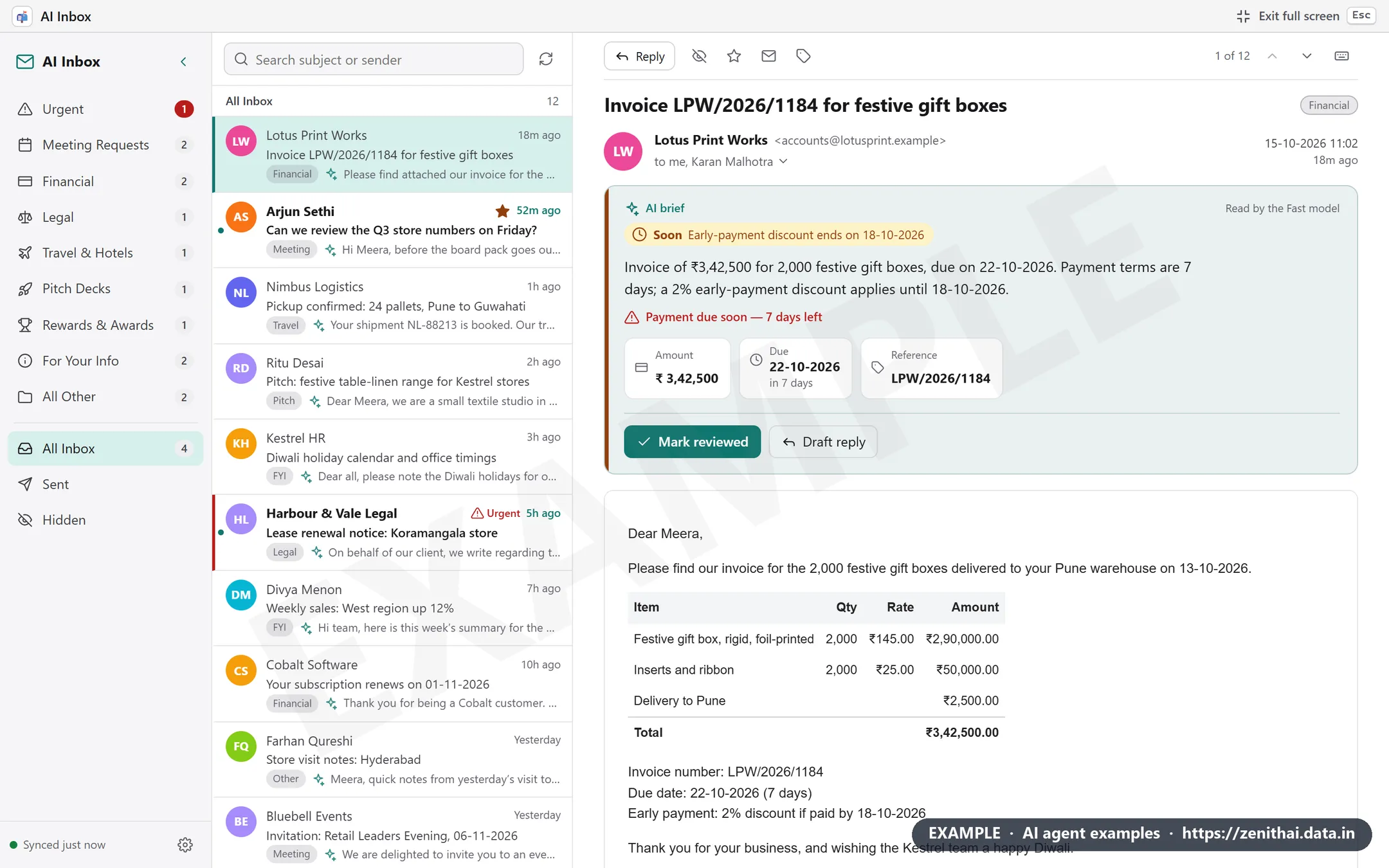
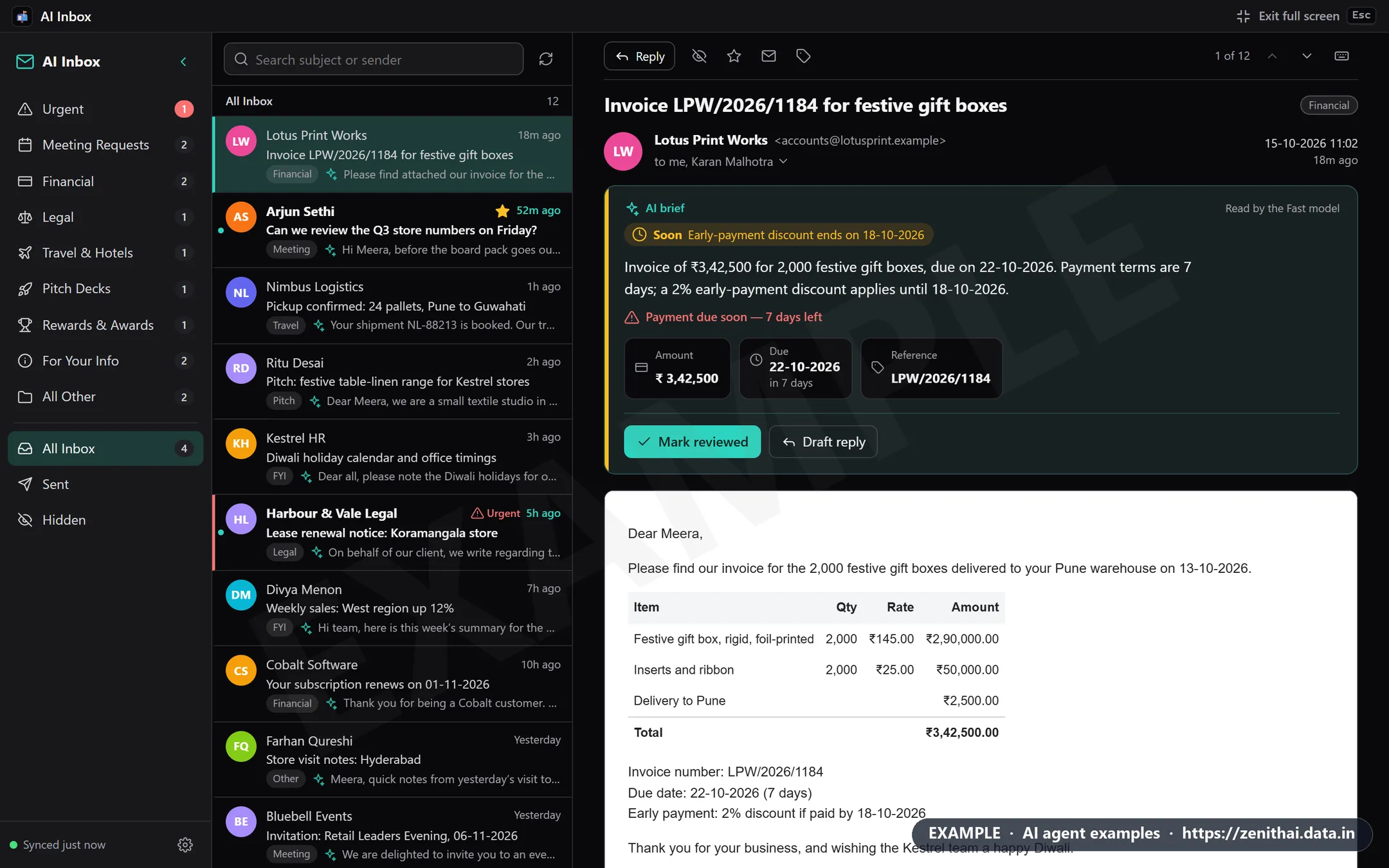
CSV to Dashboard
Section titled “CSV to Dashboard”CSV to Dashboard turns a data file into a dashboard, and gives it to you as one HTML file that opens in a browser. The file and its rows stay in your browser. They are not uploaded.
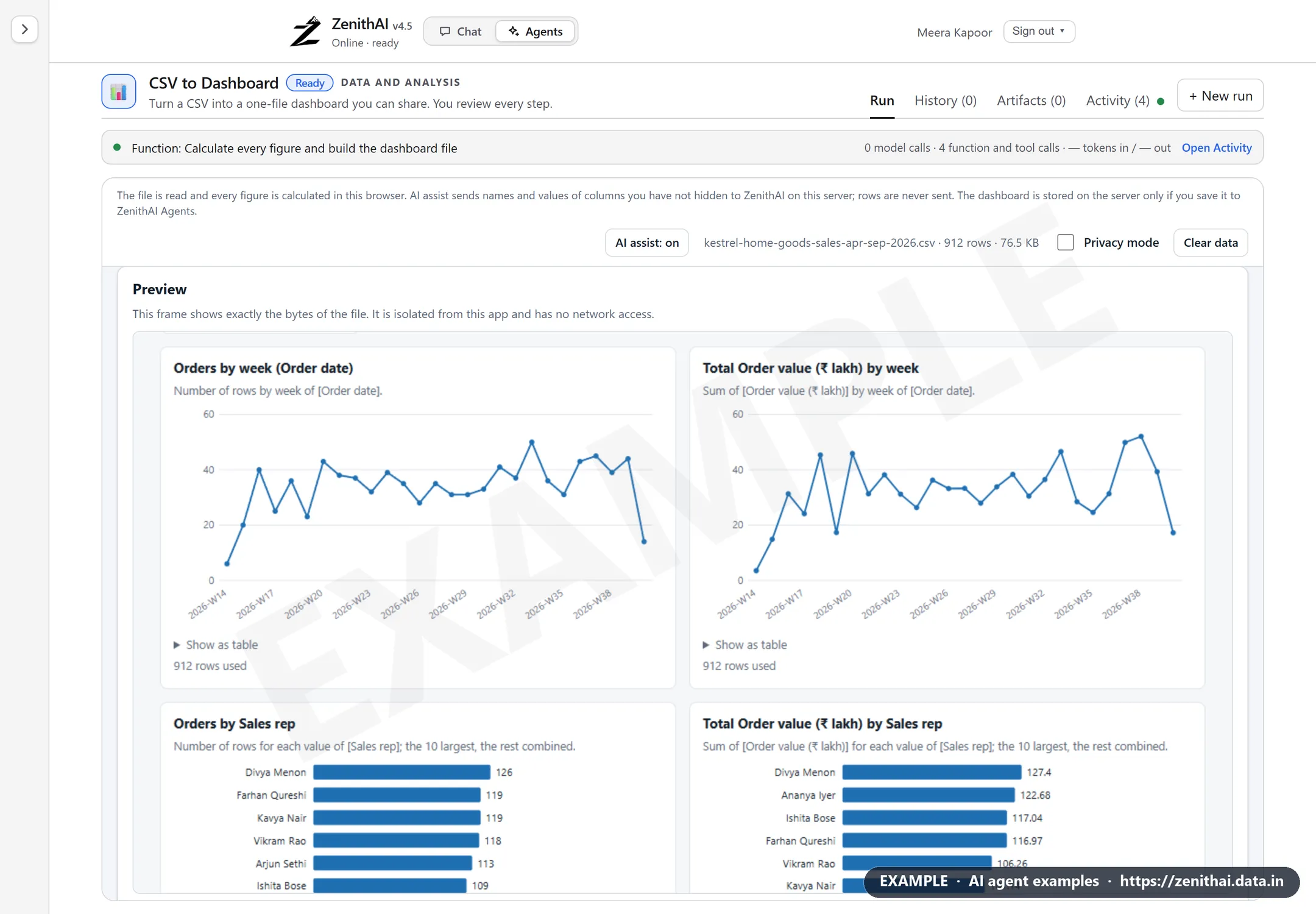
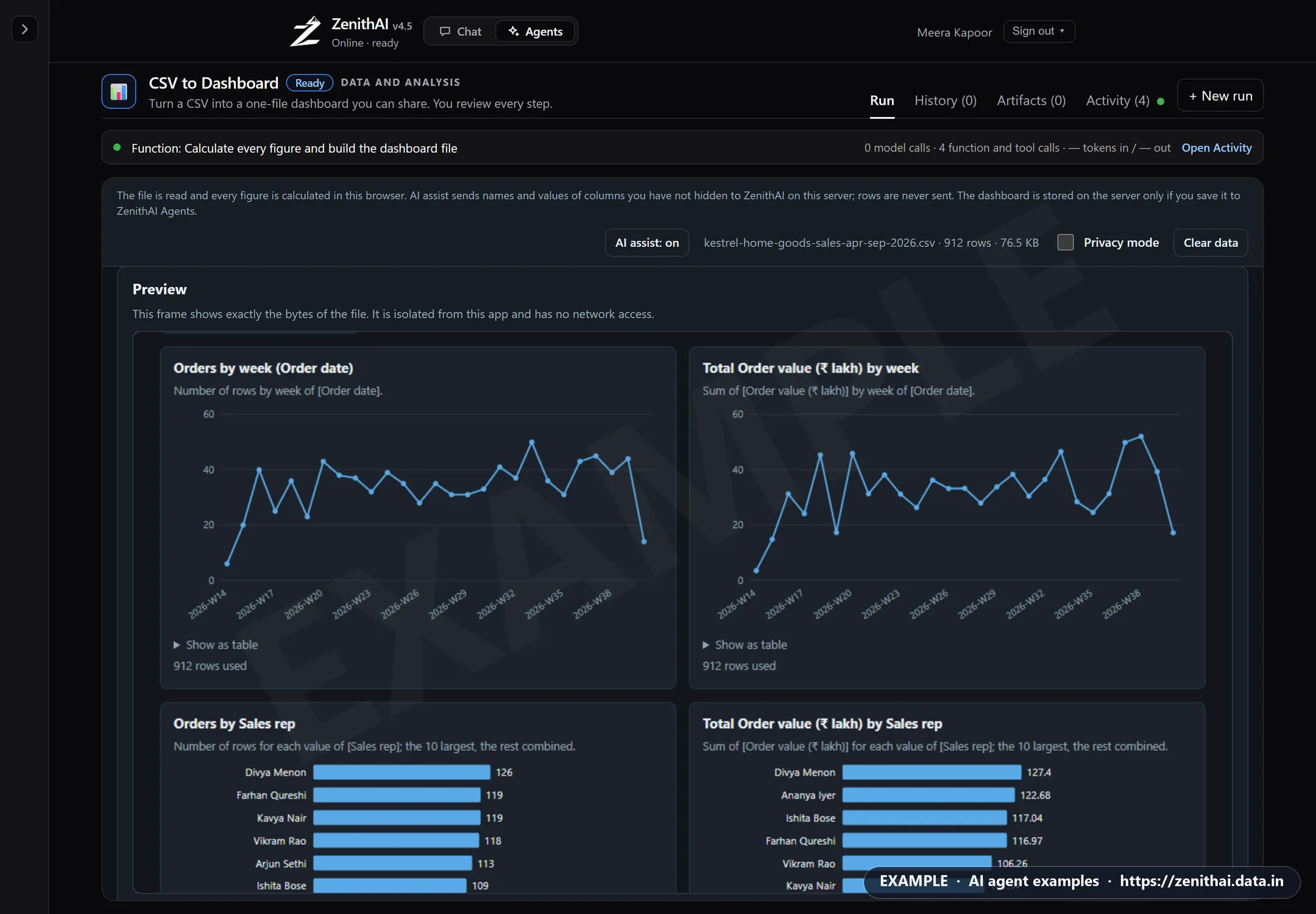
- Upload a
.csv,.tsvor.txtfile, up to 25 MB and 2,50,000 rows. - Understand. The tool shows what it read: a guess at the kind of data, a meaning for every column and any data-quality problems it found. Correct anything that is wrong, and hide any column that must not be used.
- Design. It proposes cards and charts from what the file contains. Remove, reorder or rename them. Suggest with AI can propose more.
- Preview and download. You see the exact file you will get, then download it.
How the figures are made
Section titled “How the figures are made”- Code calculates every number. An AI model never supplies a figure.
- Totals are exact sums. Averages leave out blank and unreadable cells, and those cells are counted and shown.
- Each card and chart carries a fixed definition, such as Sum of [Amount], next to its title. Renaming a card never changes what its number means.
- Items the file can’t support are left out, with the reason. For example, there is no trend for a single period and no total of a rate or a price.
Hide columns
Section titled “Hide columns”On the Understand step, every column is shown or hidden. Tick Hide for a column that must not be used.
- A hidden column never leaves the tool. It isn’t used in the dashboard or in answers, it isn’t in any downloaded file, and neither its name nor its values are sent to an AI model.
- No column is hidden unless you hide it. Columns that look personal, such as names, email addresses, phone numbers and ID numbers, are pointed out in the last column of the table, but they stay usable.
The file you download
Section titled “The file you download”| Kind | What it contains |
|---|---|
| Summary | Totals and charts only, with no individual rows. This is the default |
| Interactive | The columns you ticked for every row, so readers can filter. You must confirm this first |
The file needs no internet and loads nothing from outside (tested in Chrome and Edge). It is a snapshot: anyone who has it can open it and edit it, so share an interactive file with care.
Ask the data
Section titled “Ask the data”Ask the data answers questions in your own words, such as Which region has the highest total amount? You don’t need the column names. The tool shows how it read the question (I read your question as), offers other readings in one click, and says exactly what it calculated. A follow-up such as and only for the North? continues the previous question.
The built-in rules read the question first, and then nothing is sent anywhere. Only a question the rules can’t read goes to the AI model, when AI assist is on. The model only proposes what to calculate; the tool checks the plan and calculates every figure itself.
When AI is used
Section titled “When AI is used”AI assist is optional. AI requests are sent without a confirmation step, so hide sensitive columns first. It works in four places:
- Suggest with AI on the Design step proposes more cards and charts. Ask for a change sends your request exactly as you type it.
- Ask the data sends a question the built-in rules can’t read.
- Explain in plain language, under an answer, sends that answer’s figures (up to 25 table lines) to be explained.
- The wording of the Findings can be improved. The model gets each finding with its figures taken out, and the tool puts the real figures back.
What is sent: column names, types and up to 40 values from each column you have not hidden, with your question or request. Rows are never sent, and nothing from a hidden column. View what is sent shows the exact text before you use AI assist.
Every AI request is measured against your server’s size limits before it is sent. A request that is too large is cut down, for example by sending fewer values per column. If it still doesn’t fit, it is not sent, and the tool tells you the size, the limit and what helps, such as hiding columns you don’t need.
Every AI call is listed in the Activity tab and counted as Agents use. Anything an AI model wrote is labelled in the tool and in the downloaded file.
Designer
Section titled “Designer”Designer turns a description into one finished web page: an event invitation, a product page, a
course outline, a notice for staff. The page is a single .html file with its fonts inside, so it opens
anywhere, even offline, and you can send it by email or put it on any web server.
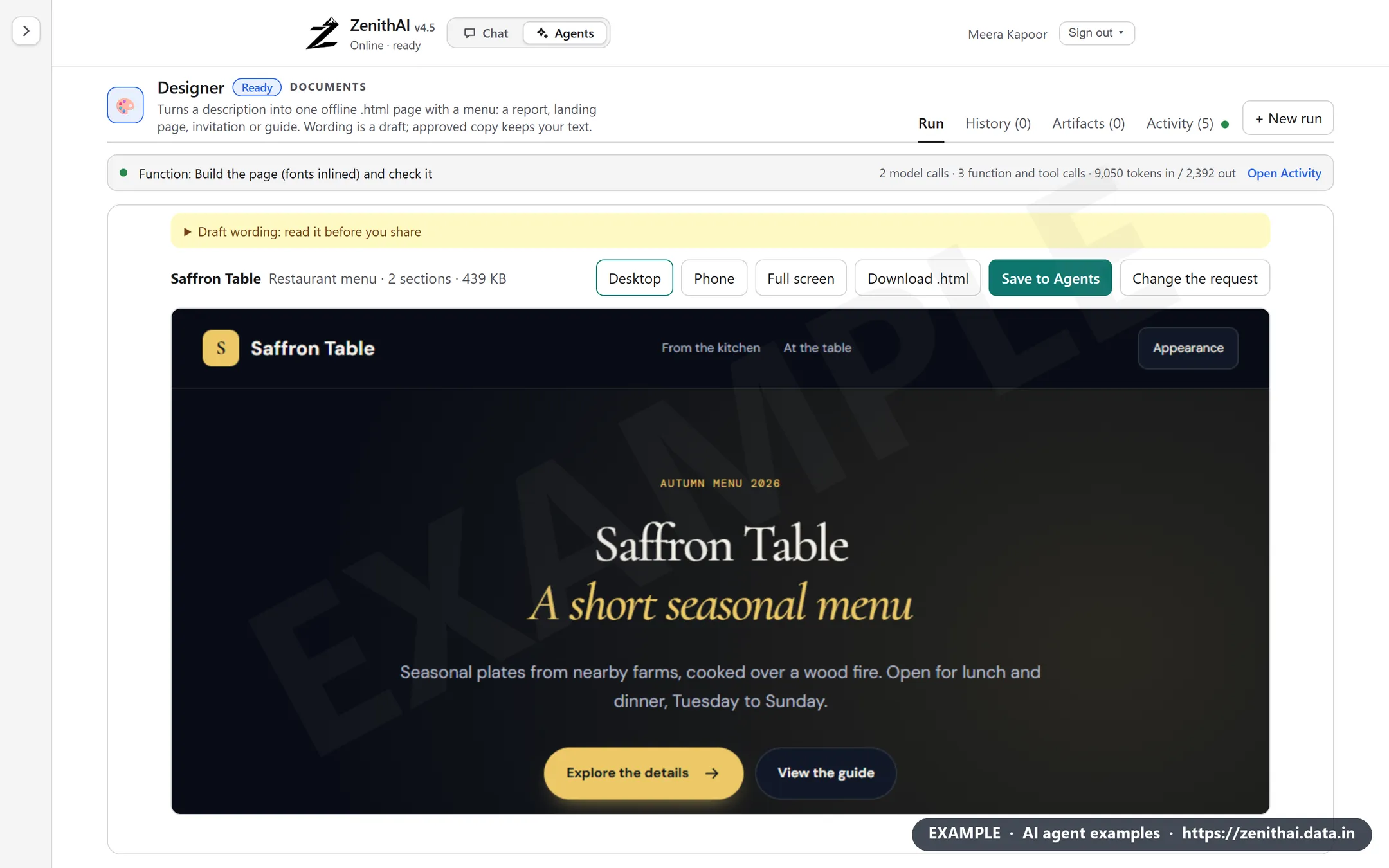
- Open Agents and choose Designer.
- Describe the page: who it is for, what it should say, and any facts such as dates, prices or addresses (up to 8,000 characters). Add your brand name if you like.
- Choose a format, the layout the page follows.
- Optional: under Must appear, list exact text the page has to contain, such as a tagline or a legal line. Under Must not appear, list words to keep out. If your team has approved wording, paste it and Designer uses it as written.
- Press the button to make the page. The steps show while it works.
- Check the page in the preview. Switch between Desktop and Phone, or press Full screen to see it like a website. Esc brings you back.
- Download the
.htmlfile, and save it to Artifacts if you want it later.
Every page has a section menu, a menu button on phones, a light and dark switch, a skip link and a back to top button.
Designer never invents facts. When the page needs something you didn’t give, such as a price or a venue, it puts a [placeholder] in its place, and the result tells you how many to fill in before you share the page. Anything it could not make, such as a booking form, is listed as Left out.
Saved files and limits
Section titled “Saved files and limits”On the last step, Save to ZenithAI Agents and finish stores the dashboard on your ZenithAI server under your account, so you can get it again from Artifacts. Saving is optional and separate from Download.
- Saved files are yours alone. Other users can’t see them, and administrators have no page that shows them.
- They stay until you delete them. Delete on a run in History removes the run and its files.
- One file can be up to 20 MB, and your saved files up to 500 MB together.
- You can keep up to 500 runs. Delete old ones to start more.
- Run again starts a fresh run, and you choose the file again.
When an administrator deletes a person’s data, that person’s Agents runs and saved files are removed too. See Users and admin.
Common questions
What are ZenithAI Agents?
ZenithAI Agents are ready-made tools for one job each, on their own page next to chat. You open the page with the Chat and Agents switch in the top bar. Ready agents include CSV to Dashboard, Designer, Note Taker, AI Inbox, Automation and Chess Coach, and more are listed as Soon.
Is my CSV file uploaded to the server?
No. CSV to Dashboard reads the file in your browser, and the file and its rows are not uploaded. Only a dashboard you choose to save is stored on your ZenithAI server, under your own account.
Who calculates the numbers in the dashboard?
The tool's own code calculates every number, with exact totals and counted blanks. An AI model never supplies a figure. Optional AI assist can suggest cards, read a question the built-in rules can't, or reword findings. It gets column names and values, never rows.
What does the Designer agent make?
One finished web page as a single .html file, from your description. It has a section menu, a phone menu and a light and dark switch, and it opens offline with its fonts inside the file.
Why can't I see the Agents switch?
ZenithAI Agents is switched on for each server by the server team. If the top bar shows no Chat and Agents switch, it is not on for your server yet. Ask your administrator. Installer 4.6.0 switches Agents on, on x86 and ARM64 servers alike.