
Note Taker for meeting notes and minutes
Note Taker writes your meeting notes for you. It listens to a meeting in the room or in a browser tab, writes down the words as people talk, and when you stop it writes the notes: a summary, tasks with owners and dates, decisions, points discussed and questions still open. Everything happens on your organisation’s own ZenithAI server.
Note Taker is one of the ZenithAI Agents. Open Agents in the top bar and choose Note Taker under Email and notes.
Take notes of a meeting
Section titled “Take notes of a meeting”- Choose where the sound comes from:
- This room listens through your computer’s microphone. Tell the people in the room that notes are being taken.
- An online meeting listens to a browser tab. You are asked to pick the tab your meeting is in. Switch on Also share tab audio so Note Taker hears the others. Your voice and theirs are kept apart, so the notes know which side said what.
- Click Start listening. The words appear while people talk.
- Click Stop and write the notes when the meeting ends. Writing takes a few seconds for a short talk and longer for a long meeting.
What the notes hold
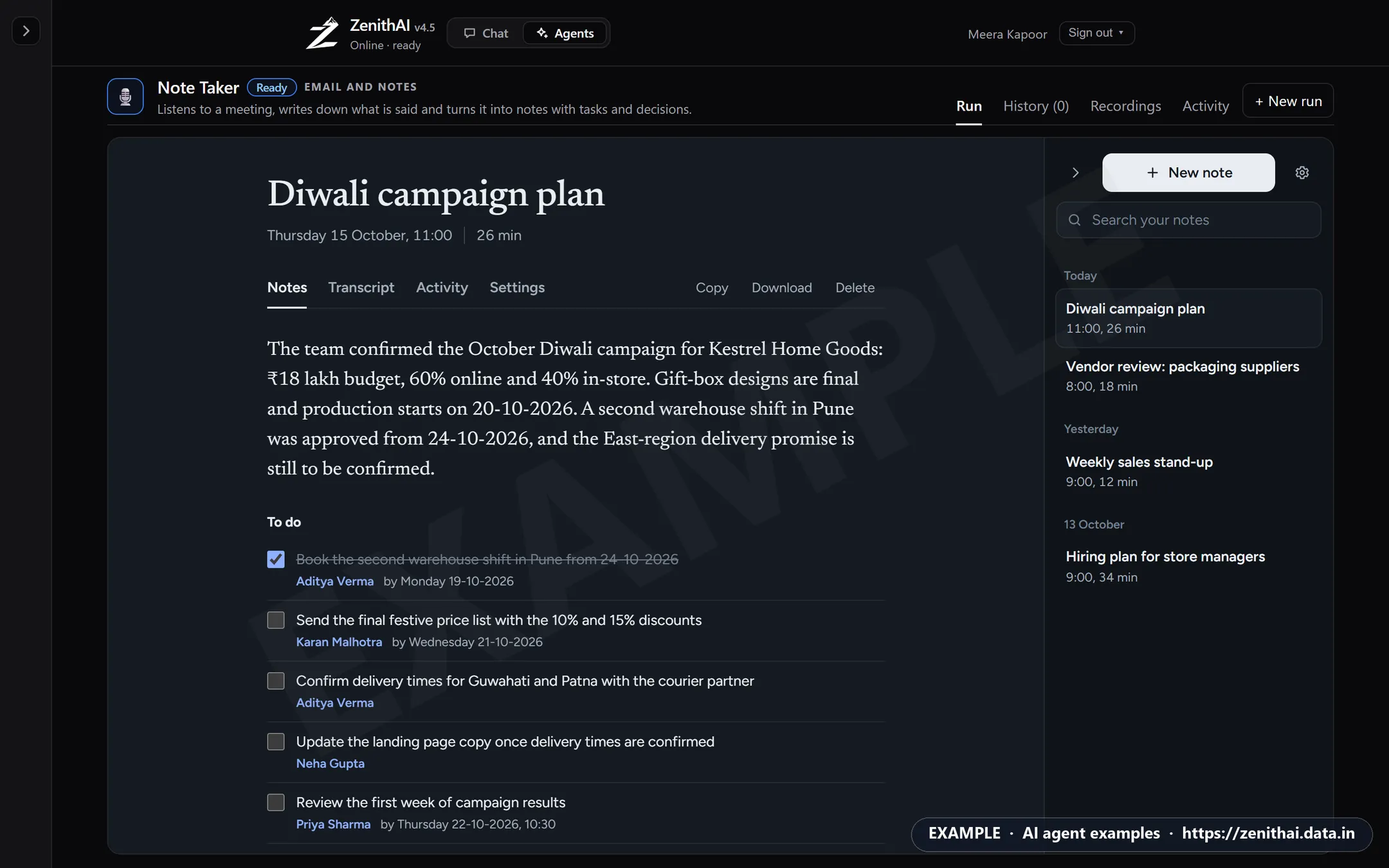
Section titled “What the notes hold”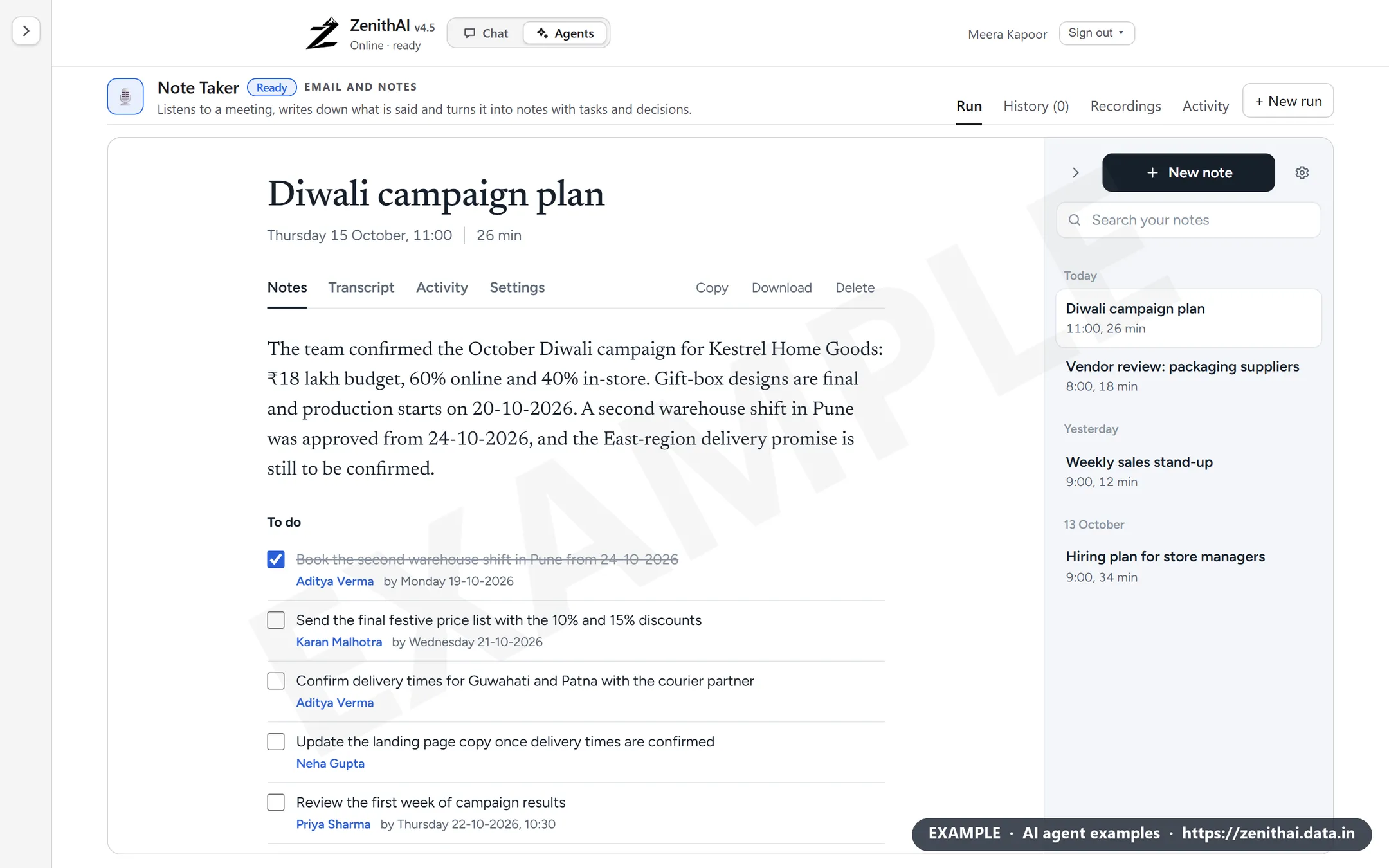
| Part | What it is |
|---|---|
| Summary | A few sentences on what the meeting was about |
| To do | Tasks, with who owns each and by when |
| Decided | What was actually agreed |
| Discussed | The main points that came up |
| Still open | Questions left unanswered |
| People | Everyone named, and what each is responsible for |
Next to the notes are the Transcript (every word that was heard), Activity (each step and model call) and Settings. You can edit the title, tick tasks as done and search all your notes from the list on the left.
Tell speakers apart
Section titled “Tell speakers apart”Switch on Tell speakers apart in Settings. After the meeting, Note Taker works out who said what by voice, guesses whether each voice sounds male or female, and picks up people’s names when the talk makes them clear. It then writes the notes again with the speakers known.
- The transcript shows Speaker 1, Speaker 2 and so on. Type a name next to each speaker, and the name is used everywhere in the note.
- With speakers and As first heard switch between the speaker transcript and the words as they were written down live.
- It takes a few minutes, longer for a long meeting. You can keep working meanwhile.
- By default it works on up to 60 minutes of sound. A longer meeting gets no speakers, and its notes and recording are still complete.
Choose who writes the notes
Section titled “Choose who writes the notes”In Settings, Who writes the notes offers the tiers your server has:
| Tier | Good for |
|---|---|
| Instant | Quickest. Good for short, simple talks |
| Fast | Balanced speed and care. The usual choice |
| Smart | More careful with long or tangled meetings. Slower |
| Genius | The most thorough. The slowest |
You can also set how much detail you want, which parts the notes include, the language of the notes (Same as the meeting by default) and standing instructions such as “always list deadlines”. Changes apply to the next note. Write this note again with these settings rewrites the current one.
Listening and writing down the words is always done by Instant.
Download, copy and play back
Section titled “Download, copy and play back”- Download saves the note as a Word document (
.docx) with the title, date and time, speakers, summary, key points, decisions, tasks, open questions, people and the full transcript. A very long note, over 2,50,000 characters, can’t be saved as Word. Use Copy for it. - Copy puts the note on the clipboard as formatted text, ready to paste into an email or a document.
- Load the recording plays the meeting back. Click a line in the transcript and choose Play from here to hear that moment.
Recordings
Section titled “Recordings”The Recordings tab lists every recording you have, with its title, date and time, length, size and the days left before it is deleted. It also shows how much of your space you have used.
- Recordings are kept for 30 days, then deleted. The notes and transcript stay.
- Play plays a recording. Delete removes the recording only. The notes and the transcript are kept, and the note then says Recording deleted.
- A recording can’t be deleted while the meeting is still being recorded. Stop it first.
- Once its recording is deleted, a meeting’s speakers can’t be worked out again.
Note Taker has four tabs: Run, History, Recordings and Activity. Each meeting is one run in History. Deleting a note deletes its run; deleting a run in History leaves the note.
Limits
Section titled “Limits”| Limit | Value |
|---|---|
| Recordings per person | 5 GB in total |
| How long a recording is kept | 30 days |
| Notes per person | Up to 2,000 notes, 1 GB in total |
| Written notes of one meeting | Up to 256 KB of text |
| Telling speakers apart | Up to 60 minutes of sound by default |
| Word download | Up to 2,50,000 characters |
Online meetings need Chrome or Edge, with the meeting open in a browser tab. Firefox, Safari and phones can use the microphone only. Another browser or device shows your changes the next time it loads the page.
For administrators
Section titled “For administrators”- Note Taker comes with ZenithAI Agents, which the server team switches on for the server. See ZenithAI Agents.
- Where the data lives: sound and notes stay on your ZenithAI server. Notes and transcripts are kept in the server’s database. Recordings are kept as files on the server’s disk for 30 days.
- Recordings are not encrypted and not included in backups in this version. Plan your retention and disk access with this in mind.
- Each person has up to 5 GB of recordings. When the server’s disk has less than 5 GB free, new sound is not kept.
- Telling speakers apart runs on the server’s processor, one meeting at a time, and does not use the graphics cards. The 60-minute limit is a server setting.
- Listening uses the Instant tier and is counted as Agents use in Top 10 by usage.
- When you delete a person’s data, their notes, recordings and runs are deleted too.
- Make sure your staff know a meeting may be recorded. Many organisations add this to their meeting or IT usage policy.
Common questions
What does ZenithAI Note Taker do?
Note Taker listens to a meeting through your microphone or a meeting's browser tab and writes down the words as people talk. When you stop, it writes the notes, with a summary, tasks, decisions, points discussed and open questions. You can then name the speakers and download a Word file.
Can Note Taker take notes of an online meeting?
Yes, when the meeting runs in a browser tab in Chrome or Edge. Choose An online meeting, pick the meeting's tab and switch on Also share tab audio. Your voice and the others' are kept apart. Firefox, Safari and phones can use the microphone only.
Is my meeting audio sent to the cloud?
No. The sound goes to your organisation's own ZenithAI server to be written down, and the notes are written there too. Nothing goes to an outside AI service. The recording is kept on that server for 30 days so you can play it back.
How long are Note Taker recordings kept?
Recordings are kept for 30 days and then deleted. The Recordings tab shows the days left for each one. Notes and transcripts stay in your account until you delete them, and you can delete a recording sooner without losing its notes.
How does Note Taker tell speakers apart?
After the meeting, Tell speakers apart works out who said what by voice, and you can then type each speaker's name. It works on meetings up to 60 minutes of sound by default. Similar voices, or people who only speak briefly, can be joined into one speaker.
Can I download meeting notes as a Word document?
Yes. Download saves the note as a Word file with the title, date, speakers, summary, key points, decisions, tasks, open questions and the full transcript. Copy puts the same note on the clipboard as plain formatted text.