
ZenithAI Explorer for Windows
ZenithAI Explorer is a desktop app for Windows that puts your files, an AI assistant and a few everyday tools in one window. Your files are searched on your own PC, and the assistant touches a tool only after you switch it on.

A tool is switched on only after you allow it, for this chat only.
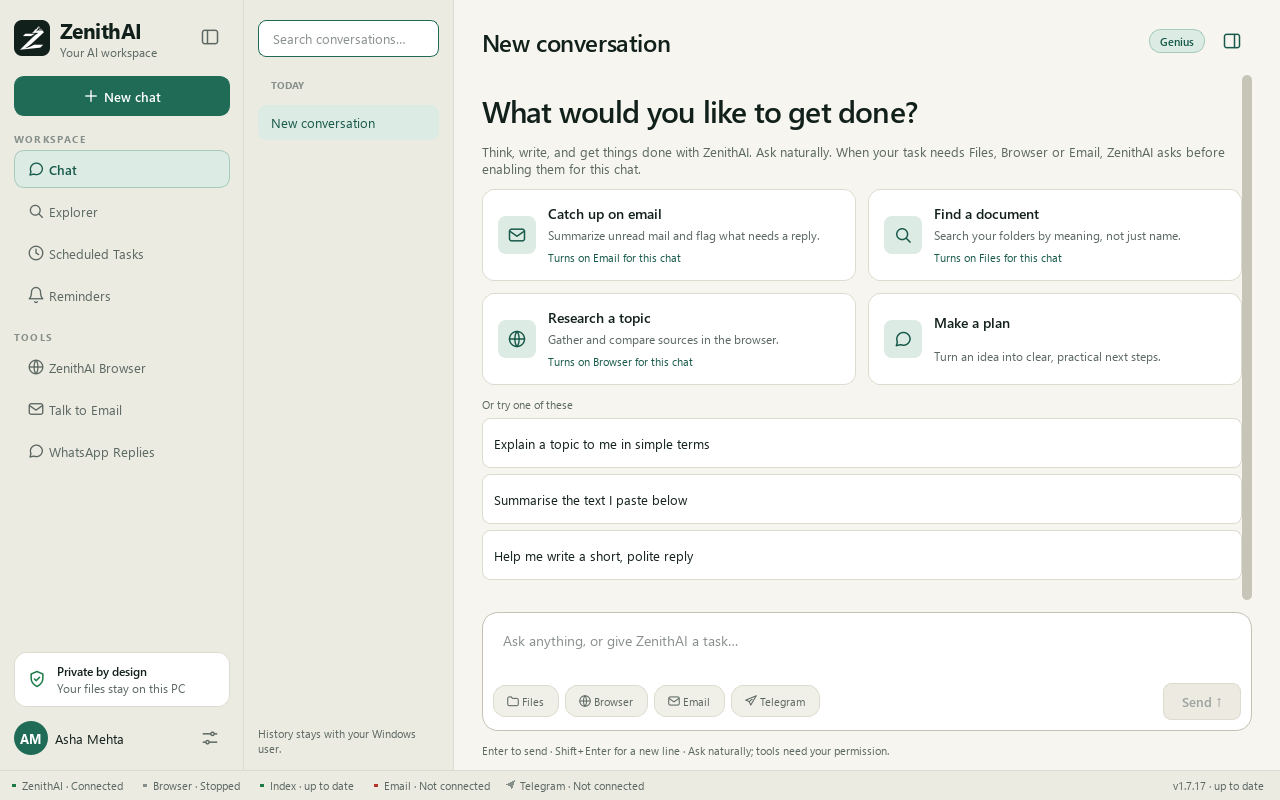
ZenithAI Chat: start a conversation and switch on only the tools it needs.
The current version is named in the changelog. Download and install takes a few minutes.
What you get
Section titled “What you get”- Chat: ask questions in plain words. Switch on Files, Browser, Email or Telegram for a chat when it needs them. See Chat.
- Explorer: search your documents, PDFs, images, audio and video by exact words or by meaning. See Explorer: search your files.
- ZenithAI Browser: a separate, visible browser that the assistant can drive. It stops and tells you when a website blocks automated browsing. See ZenithAI Browser.
- Teach a task: show a website task once. The app works out the steps, tests them at once without sending anything, saves the task and repeats it from a prompt, without the AI model. Passwords, PINs, one-time codes and card numbers are never recorded. It was tried live on travel searches only. See Recipes and Teach a task.
- Talk to Email: talk to your XgenPlus mailbox, with an approval card before anything is sent or changed. See Talk to Email.
- WhatsApp Replies: reply to the WhatsApp chats waiting for you, one chat at a time, with you choosing who gets the reply. See WhatsApp Replies.
- Scheduled Tasks and Reminders: run a prompt on a schedule and get reminders on your PC, and on your phone through Telegram. See Scheduled Tasks, Reminders and Telegram.
- Lists of companies, people and products: ask for “20 IT companies in Jaipur with key person, email and phone” and Chat builds a table with a Source column, reading each entry from its own website or an official list and never guessing an email or phone. Ask for “a CSV of this data” and it saves the file on your PC, and, when your mailbox accepts attachments, it can attach that file to an e-mail you approve. See Research reports and deep research and Chat.
- Research reports: research answers laid out as reports that you can copy into Word or save as a Word file. Deep research designs the sections of each report for your request and says how far to trust it. See Research reports and deep research.
Who it is for
Section titled “Who it is for”- Professionals and small-business owners on Windows who keep their work in local folders and mail, and want one assistant to find, summarise, research and draft.
- People who repeat the same website task and want it done the same way every time.
- Teams that use XgenPlus mail and want to search and draft mail by asking, with a person approving every send in Chat and Talk to Email.
- Anyone who wants AI help without handing over the whole PC. See Use cases for worked examples.
Local-first, and what that means
Section titled “Local-first, and what that means”“Local-first” here means the following, and only this:
- Your files are indexed and searched on your PC.
- Your settings, chat history, schedules, reminders, browser profile and taught tasks are stored on your PC, in your Windows user’s application data folder.
- The AI model itself is not on your PC. Content goes to the ZenithAI service only when you use Chat, the browser agent, Talk to Email, research, scheduled tasks, Telegram free-text or the AI refine button in Explorer (which sends only the words you typed).
The full picture is on How your data is handled.
You stay in control
Section titled “You stay in control”- Tools start off in every new chat. If a request needs one, Chat asks first, for that chat only. Only a starter card you click turns on the tool it names.
- E-mail sends and changes in Chat and Talk to Email show an approval card with the full message. Nothing is sent until you press Send this email. Two exceptions, both set up by you: a scheduled task with a standing e-mail permission sends on its own, and the shipped XgenPlus Send mail recipe sends from a prompt in the ZenithAI Browser panel without a card, unless something is doubtful and the app asks Run this task?.
- WhatsApp replies go only to chats you tick, after a confirmation that shows the exact text.
- The assistant is instructed never to type or ask for your passwords, PINs or one-time codes. You sign in to websites yourself.
More on Automations and safety.
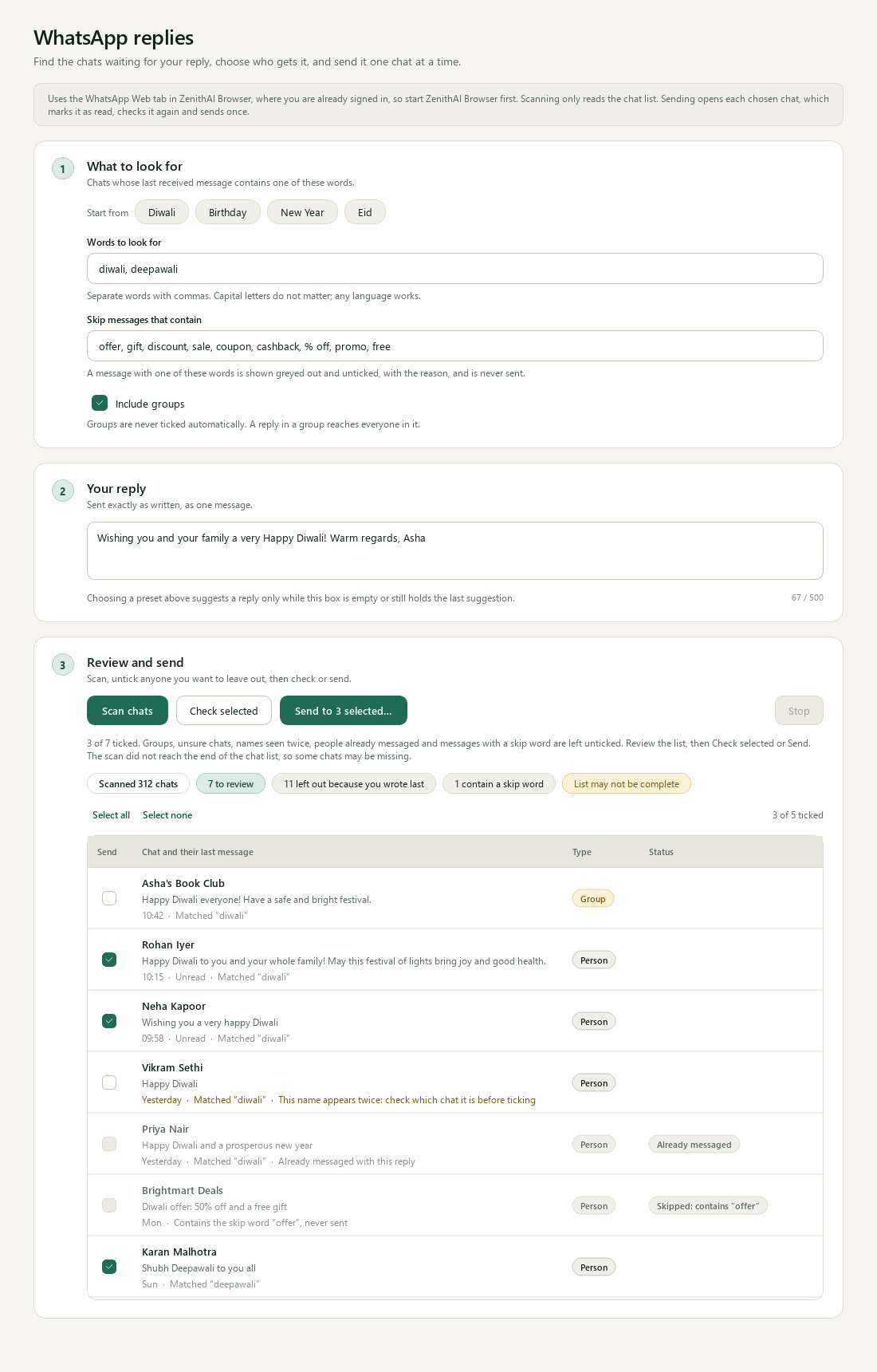
You see who qualifies, and why others were left out, before anything is sent.
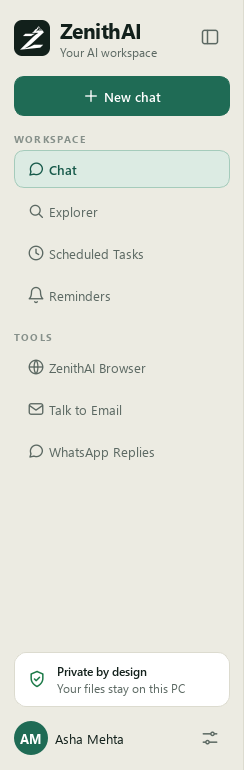
The sidebar: your workspace first, then the tools.
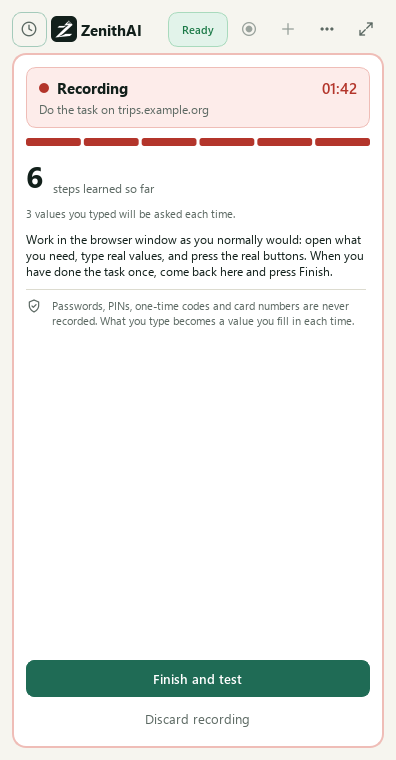
Teach a task: while it records, the panel turns red and counts the steps it learns.
Get started
Section titled “Get started”- Check the requirements.
- Download and install ZenithAI Explorer.
- Follow the first-run setup. It needs a ZenithAI API key.
- Open Chat and ask your first question.
You get your ZenithAI API key in your ZenithAI account, under Settings > API Keys. ZenithAI is a product of Data Ingenious. Visit zenithai.data.in for the product.
Looking for what changed? See the changelog and Updates. To update an installed copy of 1.7.13 or later, use the small update installer; see Download and install.
Common questions
What is ZenithAI Explorer?
ZenithAI Explorer is a desktop app for Windows. It searches your own files, chats with an AI assistant, drives a dedicated browser, works with your XgenPlus mailbox and can message you on Telegram. Every tool is off until you switch it on.
Does ZenithAI Explorer run the AI on my PC?
File search runs on your PC. The AI assistant does not. Chat, the browser agent, Talk to Email and research send your messages and the content they need to the ZenithAI service, and only when you use those features.
Which versions of Windows does ZenithAI Explorer support?
It installs on 64-bit Windows 10 or 11, for your own Windows user, without administrator rights. See the requirements page for what else it needs, such as a ZenithAI key and an internet connection.
Where can I download ZenithAI Explorer?
The download page of this site leads to the current version in the changelog. The changelog entry shows the version, the file size and the SHA-256 checksum, and the download page names the signer, so you can check the file before you run it.