
Updates in ZenithAI Explorer
ZenithAI Explorer tells you about new versions. It never downloads or installs one by itself.
How the check works
Section titled “How the check works”About once a day, in the background, the app reads a small update file from the ZenithAI docs site at https://docs.zenithai.si/updates/stable.json. That is the only thing it asks for. It sends no account, key, machine or file information.
The reply is accepted only over HTTPS from ZenithAI hosts and only in the expected format. Anything else is ignored silently, and nothing else in the app is affected.
What you see in the corner
Section titled “What you see in the corner”The bottom-right corner of the window shows the state.
| Corner text | Meaning |
|---|---|
v1.7.20 |
No check has run yet. |
v1.7.20 · up to date |
The last check found nothing newer. Click it to check again. |
Update 1.8.0 available · v1.7.20 |
A newer version exists. Click it to open the release notes and download page. The version number here is only an example. |
Update 1.8.0 required · v1.7.20 |
A newer version is required. A banner also appears at the top of the window. The version number here is only an example. |

When a newer version is published, the corner says so. Click it to open the release notes and download page. The version 1.8.0 here is only an example.

Up to date. Click the version to check again.
A required update also adds a banner at the top of the window that cannot be hidden.
Check now
Section titled “Check now”Any of these checks at once:
- Settings > General > Check for updates now
- The tray menu > Check for updates…
- A click on the version in the corner
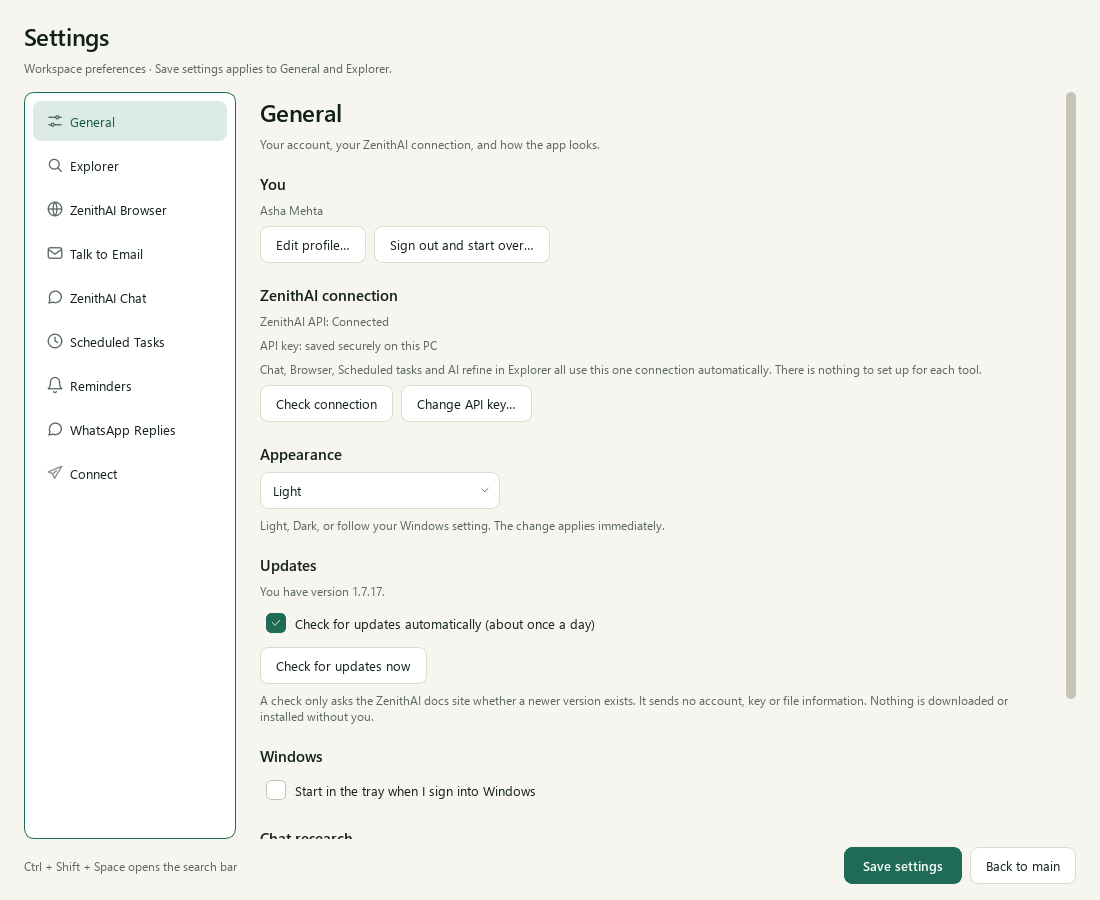
Settings > General shows your version and the automatic check switch.
Install an update
Section titled “Install an update”- Click the corner text to open the release notes and download page. The changelog lists every version.
- Pick the installer that fits (see below), download it and run it.
- Your data is not touched. See Uninstall and your data.
Update installer or full installer
Section titled “Update installer or full installer”From 1.7.20, each changelog entry offers two downloads.
- Update installer: a small download that brings any installed 1.7.13 or later straight to the new version. There is one update installer, not one per version. Close ZenithAI Explorer first. It checks every file before replacing it and puts everything back if anything fails. Your data, sign-ins and settings are not touched.
- Full installer: for a new install, and for anyone on 1.7.12 or older. It installs over the existing copy.
If the update installer finds an older or changed installation, it changes nothing and points you to the full installer. If the app is already on the version it carries, it says the app is up to date.
For the full install steps, see Download and install.
Switch the check off
Section titled “Switch the check off”Untick Check for updates automatically (about once a day) in Settings > General. You can still use Check for updates now at any time.
What you need
Section titled “What you need”Internet access to docs.zenithai.si. If the site cannot be reached, you may see “Could not check for updates just now. It will try again later.” Nothing else is affected.
Common questions
Does ZenithAI Explorer install updates by itself?
No. Updates are notify-only. The app tells you a newer version exists. You open the release notes and download page, download the small update installer or the full installer, and run it yourself. Your data is kept.
What does the update check send?
A plain request for one small file on the ZenithAI docs site. It sends no account, key, machine name or file information. The reply is accepted only if it arrives over HTTPS and has the expected format.
How do I check for an update right now?
Open Settings > General and press Check for updates now, choose Check for updates from the tray menu, or click the version in the bottom-right corner. The corner shows the result.
Which installer should I use to update?
If 1.7.13 or later is installed, use the small update installer from the changelog entry. Close the app first. On 1.7.12 or older, or for a new install, use the full installer. Your data is not touched.
Can I turn the update check off?
Yes. Untick Check for updates automatically (about once a day) in Settings > General. You can still check by hand whenever you like.