
Explorer settings reference
Settings is one window for every preference and connection, with a list on the left: General, Explorer, ZenithAI Browser, Talk to Email, ZenithAI Chat, Scheduled Tasks, Reminders, WhatsApp Replies and Connect.
Open Settings
Section titled “Open Settings”- Open Settings from the account menu at the bottom of the sidebar, from the tray menu (Settings…), or by clicking a status in the bottom bar.
- Choose a section on the left.
- On General and Explorer, change what you need and press Save settings. Indexing restarts only if the search scope or options changed.
- On connection pages, use that page’s own buttons, such as Test & save connection. Credentials are saved only after they have been checked.
- Press Back to main to return to the app.
General
Section titled “General”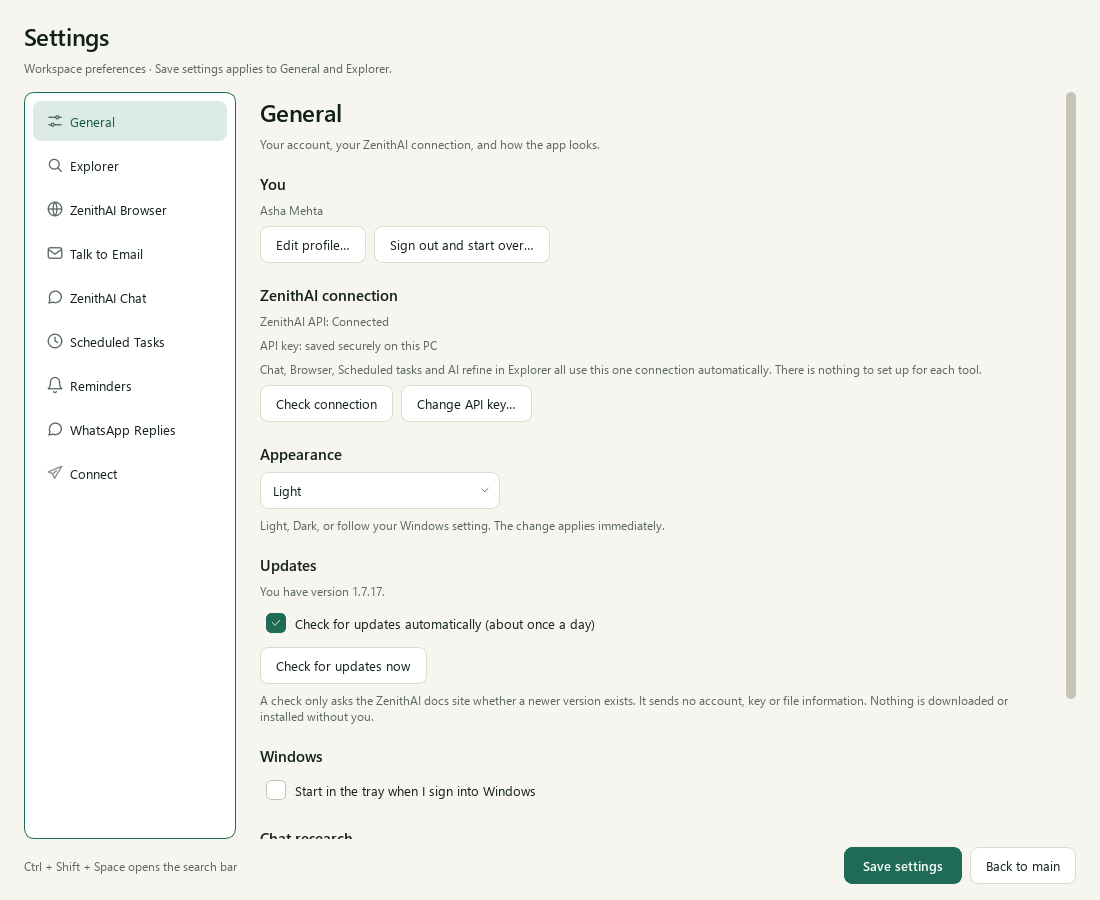
Settings > General: one connection for every tool, appearance and updates.
- You: your profile. Edit profile… reopens the profile step of setup. Sign out and start over… removes the saved ZenithAI key, your profile and the e-mail token from the PC, clears the browser extension’s copy of the key if the browser is running, keeps your search index, chats and files, and runs first-time setup again.
- ZenithAI connection: the status of the connection. Check connection tests it. Change API key… takes you to the connection step. There is no separate “remove key” button.
- Appearance: Match Windows, Light or Dark. It applies at once.
- Updates: the automatic check about once a day, and Check for updates now. See Updates.
- Windows: Start in the tray when I sign into Windows, so scheduled tasks and reminders work after a restart.
- Chat research: Always include in competitive research takes company names or websites that every competitive report must cover. See Research reports.
Explorer
Section titled “Explorer”- Folder selection: your main folder, the subfolder tree, the option to include source code, and search by meaning.
- Activity status: indexing progress, pause, refresh, and the one-time download of the search files.
See Explorer search.
ZenithAI Browser
Section titled “ZenithAI Browser”This page has four tabs:
- Connection & model: the browser’s model connection (read-only), its context capacity, the key status and Re-apply the connection to the browser. The key itself is set in Settings > General.
- Diagnostics & logs: help when the browser does not start.
- Websites: the list of websites to use or avoid in research (see below).
- Advanced: the guidance sent with each new browser task (see below).
See ZenithAI Browser.
Websites: use or avoid
Section titled “Websites: use or avoid”The Websites tab is titled “Websites to use or avoid for research”. When a website blocks the ZenithAI browser (a robot check, or “too many requests”), the app adds it here and uses other websites for 14 days, then tries it once more. Websites it read without trouble are marked Works well. Your own choices are never changed by the app.
- The table has four columns: Website, Status (Works well, Avoid, Suggested, or Will try again once the 14 days have passed), Set by (You, Learned or Built-in) and Why / last checked.
- Type a website, for example
bing.com, and press Use this site or Avoid this site. - Remove selected removes your entry and anything learned for that website. Built-in rows cannot be removed.
- Forget what the app learned asks first, then removes every entry the app added itself. Your own choices stay.
See ZenithAI Browser for how the list is used.
Advanced: guidance for browser tasks
Section titled “Advanced: guidance for browser tasks”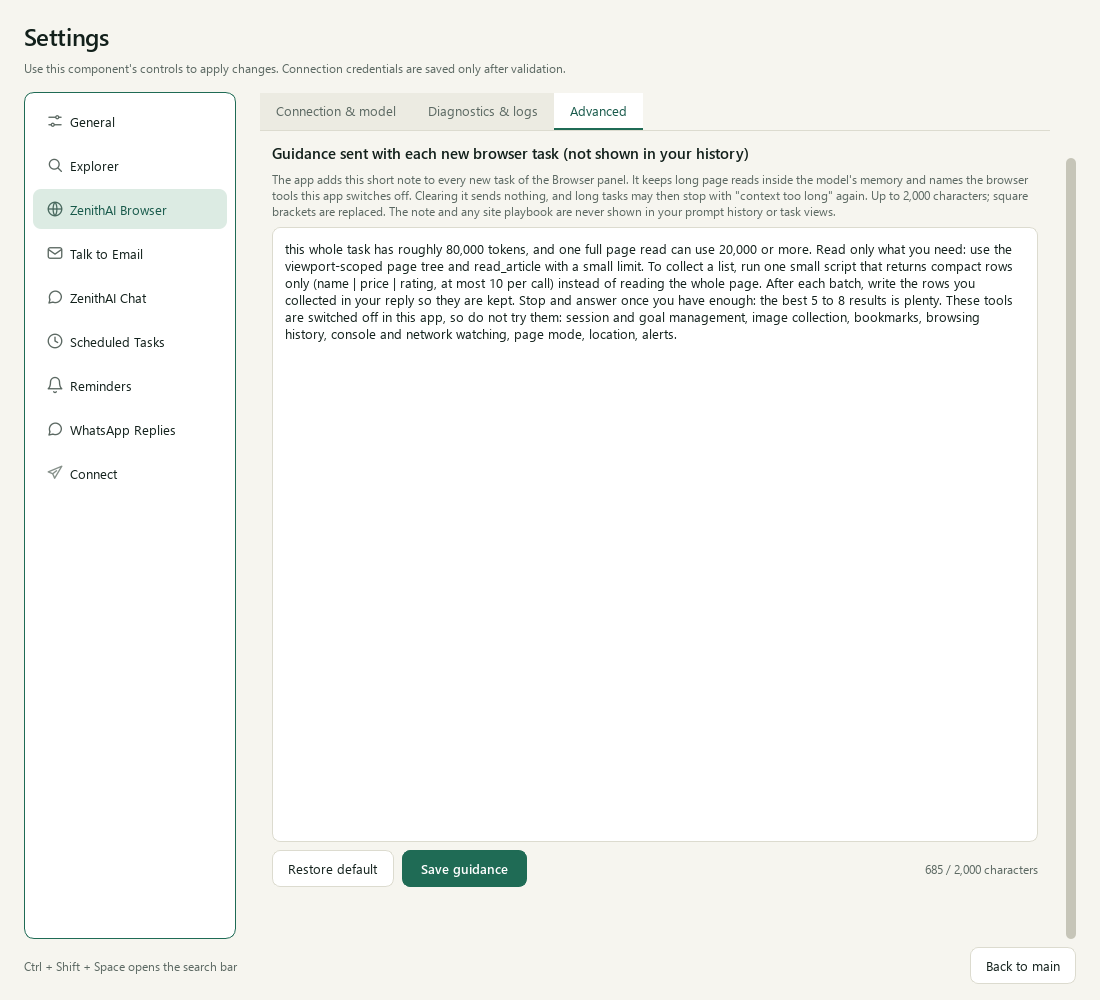
The short guidance sent with each browser task is never shown in your history; edit it here.
Each new task you give the browser agent in the side panel carries a short working-memory note, and for a known site its built-in guidance. The Advanced tab shows the note and lets you change it.
- The text can be up to 2,000 characters. The counter under the box shows how much you have used.
- Save guidance keeps your version. Restore default puts the built-in text back; press Save guidance afterwards to keep it.
- Your prompt history, search, task views and titles show only what you typed, not this note.
- If you clear the box, the note is not sent. Long tasks on heavy pages may then stop with “context too long” again, so leave the default unless you have a reason to change it.
Talk to Email
Section titled “Talk to Email”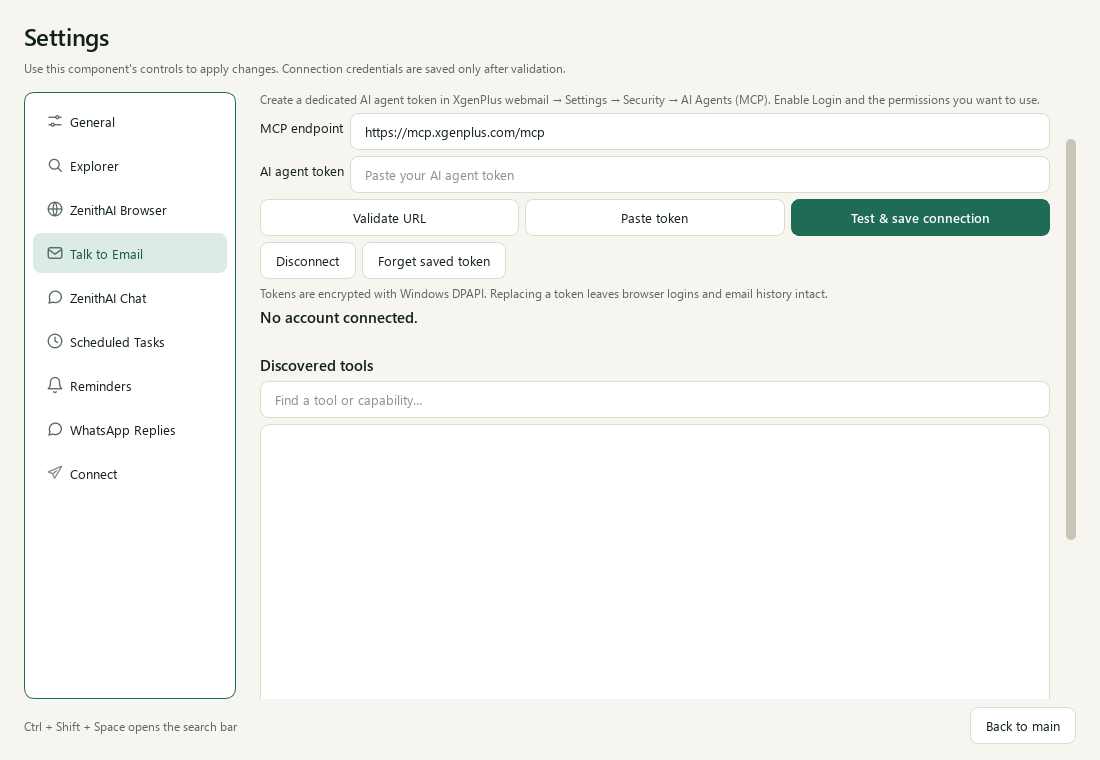
Connect your XgenPlus mailbox with a dedicated AI agent token.
- The endpoint, normally
https://mcp.xgenplus.com/mcp, and a masked token field. - Validate URL, Paste token and Test & save connection. The page then lists the tools and permissions it found.
- Disconnect and Forget saved token to replace or remove the connection.
See Talk to email.
ZenithAI Chat and Scheduled Tasks
Section titled “ZenithAI Chat and Scheduled Tasks”These pages hold short explanations and a link to the shared connection or the task list. See Chat and Scheduled Tasks.
Reminders and WhatsApp Replies
Section titled “Reminders and WhatsApp Replies”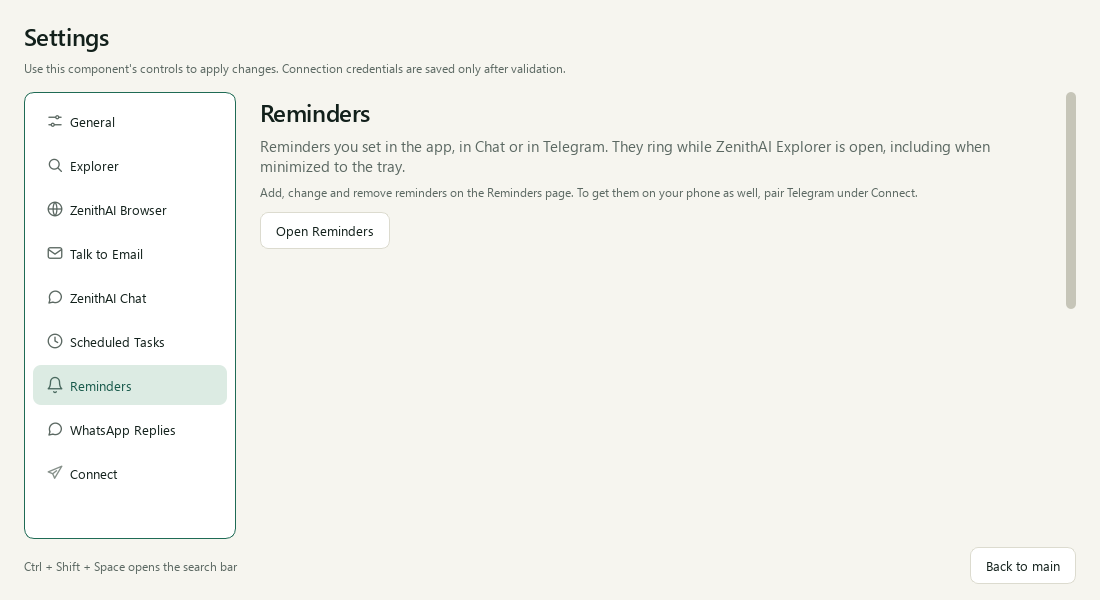
Reminders are set up on their own page; Settings points there.
The Reminders and WhatsApp Replies pages in Settings each give a short description of the feature and a button that opens it, such as Open Reminders. The feature itself, including adding and cancelling reminders, lives on its own page in the sidebar. See Reminders and WhatsApp Replies.
Connect
Section titled “Connect”Telegram pairing, alerts, commands and contacts live here. See Telegram.
Common questions
Where do I open Settings in ZenithAI Explorer?
Use the account menu at the bottom of the sidebar, choose Settings from the tray menu, or click a status in the bottom bar. Press Back to main to return. Save settings applies changes on the General and Explorer pages.
How do I change my ZenithAI API key?
Open Settings > General and press Change API key. It takes you to the connection step of setup. The key is saved encrypted for your Windows user only after it has been validated.
How do I remove my keys without uninstalling?
Use Sign out and start over in Settings > General. It removes the saved ZenithAI key, your profile and the e-mail token from the PC. Your search index, chats and files stay, and first-time setup runs again. Your Telegram connection stays; to remove it press Disconnect in Settings > Connect.
What is the Advanced tab under ZenithAI Browser settings?
It holds the short guidance the app sends with each new browser task. You can edit it, press Save guidance, or press Restore default. The guidance is not shown in your prompt history. Clearing it can make long tasks stop with "context too long".