
How your data is handled
This page says where ZenithAI Explorer keeps your data, what it sends out, and when. It describes version 1.7.20. It makes no claims about certifications, audits or compliance.
The short version
Section titled “The short version”- Your files are indexed and searched on your PC.
- Your settings, chats, schedules, reminders, browser profile and recipes stay on your PC.
- The AI assistant is a service. Your messages, and the content a tool reads for you, go to the ZenithAI service when you use it.
- Nothing is sent to a mailbox, phone or website unless you connect or use that feature.
What stays on your PC
Section titled “What stays on your PC”Everything personal lives in one folder: %LOCALAPPDATA%\ZenithAIExplorer.
| Data | How it is kept |
|---|---|
| Settings and profile (first name, last name and e-mail typed at setup) | Plain file in your user profile |
| ZenithAI API key | Encrypted with Windows data protection for your Windows user |
| XgenPlus e-mail token | Encrypted for your Windows user, and tied to the exact endpoint it was saved for |
| Search index (includes text taken from your files), previews and local search models | Local files in your user profile. The app does not encrypt them. |
| Chat history, drafts, schedules and run history | Encrypted for your Windows user |
| Telegram token, pairing and contacts | Encrypted for your Windows user |
| Reminders | Encrypted for your Windows user |
| Research notebooks (the newest 20 are kept) | Encrypted for your Windows user |
| ZenithAI Browser profile (your website sign-ins) and browser history | Profile folder restricted to your Windows user; prompts in history are encrypted |
| WhatsApp reply ledger (who already got which reply) | Local file |
| Taught tasks (recipes) | Local files. What you typed is not stored in a task, except a value you chose to fix with Always use this value. That is never a password, PIN, code or card number. |
| Raw recordings of taught tasks | Local files, saved when you press Finish (before the test). They stay after you save, after a failed test and after the task is deleted. Only Discard, or Teach again before saving, removes one; there is no button for it in the app, and you may delete the files yourself. They hold what you typed in ordinary boxes, but never passwords, PINs, one-time codes, card numbers or file paths. |
| Taught-task counts | Local file. Test and run counts and outcomes only, never values. |
| Values you type for a later Test | Kept in memory only until the app closes. Secret-looking values are not kept. The values you typed while teaching are in the raw recording. |
| Screenshots of the page where a taught task or its test failed | Local files, kept until you delete them. They can show what was on the page, including values you entered. |
| Sites that blocked automated browsing, for a quick answer | Kept in memory only, as the site name and a short reason, for 30 minutes. Nothing of the page is kept. |
| Websites to use or avoid | Plain local file. It holds website names, a short reason, the date, and your own choices from Settings > ZenithAI Browser > Websites. A site that blocked the browser stays on the avoid list for 14 days. Nothing of the page is kept. Forget what the app learned clears what the app added. |
| CSV files saved from Chat | Plain files in an exports folder inside the data folder, with an index of their names. They stay until you delete them. They hold only the rows you asked Chat to save. |
| Browser task guidance text | Plain file. The default text, or your edited version from Settings > ZenithAI Browser > Advanced. |
| Logs | Counts, start and stop events and error codes. When a site blocks automated browsing, its host name and the reason are written to the log. They are written to keep prompts, message bodies and keys out. |
The search index stays on your PC. It holds text taken from your files, and the app does not encrypt it, although it does encrypt your chats and keys. To protect the index and the rest of your files, turn on Windows disk encryption (BitLocker or Device Encryption).
Uninstalling the app leaves this folder in place. See Uninstall and your data.
What is sent, where, and when
Section titled “What is sent, where, and when”| Destination | What is sent | When |
|---|---|---|
| ZenithAI service | Your chat messages and the tool results the assistant needs: passages found in your files, page content read by the browser, mailbox content read through Email. A side-panel browser task also carries the short guidance note. | Only when you send a chat message or a browser task, run a scheduled task, use research, use Telegram /zprompt, or when Telegram free-text needs reading. Teaching, testing, and a run started by a prompt that matches the task use no AI model. |
| ZenithAI service | A connection check, sent with your key | At setup, every time the app starts, after Sign out and start over…, when you press Check connection (Settings > General), and when you press Status (Settings > ZenithAI Browser > Diagnostics & logs). Opening the ZenithAI Browser page does not run a check. |
| ZenithAI service, “AI refine” in Explorer | Only the search words you typed. No paths, excerpts or files. | Only when you press the AI refine button. The button is shown whenever ZenithAI is connected, and nothing is sent unless you press it |
| XgenPlus | The mailbox operations you ask for, with your token | When you use Talk to Email or the Email tool. If a token is saved, the app also reconnects to XgenPlus each time it starts |
| XgenPlus (CSV attachment) | A CSV saved from Chat, only when you ask to email it and press Send this email on the approval card, which lists each attached file | Only when you press Send this email. If the mailbox does not accept attachments, a short CSV may go in the body instead. |
| Websites you or the assistant open | Normal browsing from ZenithAI Browser. Nothing is done to disguise the browser or get around checks for automated browsing. | During browser tasks, taught tasks and their tests, recipes, WhatsApp Replies and research |
| Telegram | Alerts, reminders, answers you asked for and messages you type for contacts | Only after you connect your own bot in Settings |
| ZenithAI docs site | A plain request for the update feed. No account, key, machine name or file information. | About once a day, or when you choose Check for updates now. Can be switched off. |
| A public model host | A one-time download of the local search model files, checked against known checksums | Once at first setup, if meaning search is on |
You enter the service address in first-run setup. To see or change it later, reopen setup from Settings > General with Edit profile… or Change API key…. The ZenithAI connection block in Settings > General shows only the status of the connection and whether a key is saved.
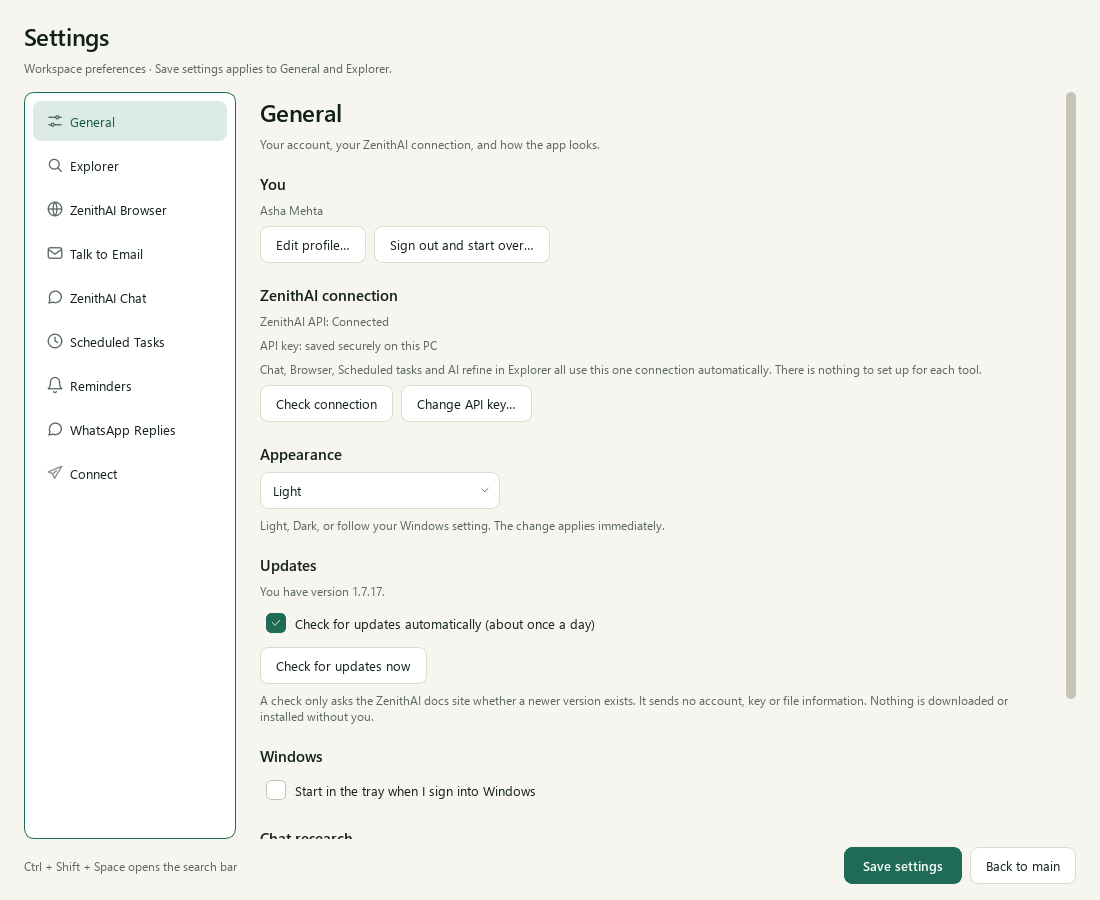
Settings > General: one connection for every tool, appearance and updates.
Tools and your consent
Section titled “Tools and your consent”Tools start off in every new chat. Only a starter card you click turns one on for you, and the assistant cannot switch one on by itself. When a request needs a tool, Chat shows a card and asks. If you decline, nothing is read from that account. Your choice applies to that chat only.
File passages leave your PC only through the Files tool in Chat, or through Telegram /zprompt with Files ticked, and
only the passages relevant to the request.
Points worth knowing
Section titled “Points worth knowing”- The browser keeps its own key copy. The browser extension that lets the assistant drive ZenithAI Browser keeps a copy of your ZenithAI key in the browser’s own storage. That copy is not protected the same way as the app’s. The browser folder is restricted to your Windows user. Sign out and start over… in Settings > General removes that copy if ZenithAI Browser is running. Removing the app’s key any other way does not.
- Telegram chats with bots are not end-to-end encrypted. The app says so on its Connect page.
- Your own account is trusted. Software that runs as your Windows user, and administrators, can read what your user can read. Windows data protection guards against other users and against copies of the files, not against your own account.
- Some sites block automated browsing. When a site shows a robot check or refuses the browser, the app stops and says so when it recognises the block, and never tries to get around it. A site that blocks silently, for example by showing empty results, is not recognised. It remembers the site name for 30 minutes in memory so it can answer at once if you ask again. Chat browser tasks and research also keep the site on a local avoid list for 14 days. See Automations and safety.
- Passwords and codes are yours. The assistant is instructed never to type or ask for passwords, PINs, one-time codes or card numbers, and recorded website tasks never record them. That is a rule given to the assistant, not a check the app can enforce on every site.
Related pages
Section titled “Related pages”- Requirements and dependencies lists every outside service and what stops without it.
- Automations and safety explains the approval steps.
- Settings shows where each switch lives.
Common questions
What does ZenithAI Explorer send off my PC?
Chat messages and the content a tool needs go to the ZenithAI service, only when you use Chat, the browser agent, Talk to Email, research, scheduled tasks, AI refine or Telegram free-text. Mail operations go to XgenPlus, and Telegram messages go to Telegram, only if you connect them.
Are my files uploaded when I search them?
No. Explorer search runs on your PC and sends no file content. Passages from your files leave the PC only when the Files tool is switched on in a chat and the request needs them, and then only the relevant passages.
Where does ZenithAI Explorer store my data?
In a folder under your Windows user profile, %LOCALAPPDATA%\ZenithAIExplorer. It holds settings, chats, schedules, reminders, the search index, the browser profile, taught tasks and their recordings. Uninstalling the app leaves this folder in place.
Does the update check send my information?
No. The update check is a plain request for a small public file. It sends no account, key, machine name or file information. It runs about once a day, and you can switch it off in Settings.
Can I stop the app sending data to the ZenithAI service?
Content is sent only when you use a feature that needs the assistant. Keep Chat tools off, and use only Explorer search, to keep file content on your PC. The app itself needs a ZenithAI key to finish setup.
Where are CSV files saved from Chat kept?
In an exports folder inside the data folder on your PC, with an Open folder button in Chat. A file is only ever created new there. Nothing leaves the PC unless you ask Chat to email it and approve the card.
What does Teach a task keep on my PC?
The saved task, a raw recording of what you showed, and test and run counts. The recording holds what you typed in ordinary boxes, never passwords, PINs, codes or card numbers, and stays after you save or delete the task. Teaching, testing and prompt-matched runs use no AI model. All of this stays on your PC.