
Automations and safety
ZenithAI Explorer can do real work on your PC: read files, drive a browser, send e-mail and reply on WhatsApp. This page explains how that automation is organised and which rules keep it safe. It describes how the app behaves; it makes no certification or guarantee claims.
The kinds of automation
Section titled “The kinds of automation”| Kind | Uses the AI? | Started by | Good for |
|---|---|---|---|
| Chat tools (Files, Browser, Email, Telegram) | Yes | You, in a chat | One-off tasks in plain words |
| Site playbooks | Yes, guided by a rule for the site | A chat or browser task that names a known site | Reading prices, rates, company details, trains, products |
| Recipes | No | A prompt that names the website and gives the values | The same website task done the same way each time |
| WhatsApp Replies | No | You, on its page | Replying to many waiting chats with one message |
| Scheduled tasks | Yes | The clock, or Run now | Recurring briefings, reports, e-mails |
| Reminders | No, except a fallback for unclear wording | Chat, the Reminders page, Telegram | Personal reminders on PC and phone |
| Telegram commands | Yes for /zprompt |
Your phone | Asking for something while away from the PC |
All browser automation runs in ZenithAI Browser. Only one automation uses it at a time, whether it is a browser task, a recipe, a recording or a WhatsApp operation. A second one is refused with a clear message until the first finishes.
Safety rules that apply everywhere
Section titled “Safety rules that apply everywhere”These rules are built into the app, not only stated in documents.
| Rule | How it works |
|---|---|
| Tools start off in every new chat | Files, Browser, Email and Telegram are chips under the message box. Tools that are off are not offered to the AI, so it cannot switch them on itself. |
| Ask before enabling a tool | If a request needs a tool that is off, a card offers Enable … for this chat or Not now. Declining reads nothing from that account. The choice applies to that chat only. |
| E-mail approval cards | Every send, draft change, move, delete or other mailbox change shows the full message first. Send this email approves it. Cancel does nothing. |
| Webmail recipes send only on an explicit prompt | A recipe sends only when your prompt names the site and gives every value word for word. It asks once when anything is in doubt. Dry run: rehearses without sending. |
| Robot checks are never worked around | When a site shows a robot check or refuses the browser as automated, the task stops with a plain message. The assistant may not retry or reword it, and nothing in the app tries to get past the check. |
| Saving a CSV needs no approval, emailing one does | Chat saves a CSV only as a new file in its own exports folder and never replaces a file. If you ask to email it, the approval card lists every attached file with its size, and each such e-mail needs Send this email. |
| Sends are never retried blindly | An uncertain e-mail, recipe or WhatsApp send is reported as “unknown” and is not repeated. |
| No credentials handled | The assistant is instructed never to type or ask for passwords, PINs, one-time codes or card numbers. Recorded tasks never record those fields. |
| WhatsApp replies are chosen by you | Only people matching your words are ticked, groups are never ticked for you, a confirmation shows the exact text and count, and each chat is re-checked before sending. |
| Telegram requests are limited | Commands are off until you switch them on, only your paired chat is accepted, and a reminder or schedule is set only after you reply YES. |
| Interrupted work is not replayed | After a crash or restart, unfinished runs are marked Interrupted and are not resubmitted automatically. |

A tool is switched on only after you allow it, for this chat only.
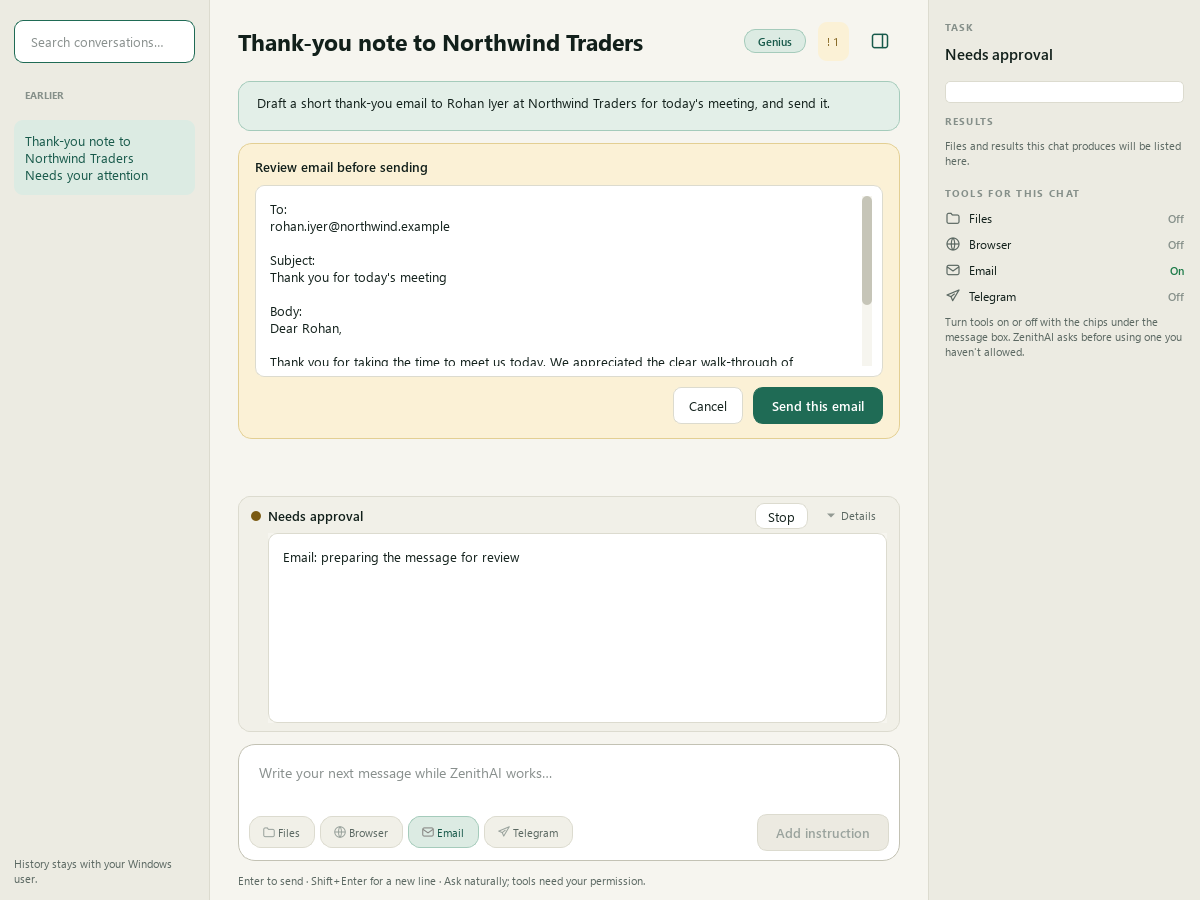
Nothing is sent until you press Send this email.
Safety design in short
Section titled “Safety design in short”- Least privilege per conversation. Tools are off by default, and enabling one needs your click.
- Approval before irreversible actions. E-mail approval cards, the WhatsApp confirmation, the first real send of a taught recipe, and YES for Telegram reminders and schedules.
- Exactly once. A recipe send runs once. A WhatsApp send counts only when the new message is visibly there. An uncertain result is reported as unknown.
- Values come from you. Recipes take values word for word from your prompt. Nothing is invented.
- Rehearsal.
Dry run:for recipes and Check selected for WhatsApp. See the next section. - Honest status. Problems are explained with a next step.
Rehearse before you trust
Section titled “Rehearse before you trust”Run anything new as a rehearsal first.
- Teach a task tests what it learned straight away. Finish and test replays the task step by step with the values you typed, and stops before anything is sent. A task is saved as usable only after a passed test. If a step fails, you see which one and why, nothing usable is saved and nothing is sent. Keep as draft leaves it in Taught tasks as a draft that no prompt runs.
- The example prompt a taught task gives you always starts with
Dry run:, so pressing Enter on an unedited example cannot send anything. A rehearsal stops before the first step that may commit something. - A task that learned only part of what you did is marked Partly learned and never shown as Tested.
- A taught task that sends asks you once before its first real send.
- A rehearsal is not a promise. Websites change, so test again before you rely on a task. See Recipes and Teach a task.
Robot checks are never bypassed
Section titled “Robot checks are never bypassed”Some websites show a CAPTCHA or a page such as “Just a moment”, or refuse automated browsers. The app recognises this in browser tasks, taught tasks, WhatsApp Replies, deep research and scheduled tasks. It stops, says which site and what it saw, and does not retry. You can do that step yourself in the browser window, try later or use another site. For 30 minutes the app answers at once that the site blocked automation, and “try anyway” tries once more. It has no CAPTCHA solving and no disguise. A site that blocks a Chat browser task or deep research is also put on a list of websites to avoid for 14 days, which you can see and change under Settings > ZenithAI Browser > Websites. Details are on the ZenithAI Browser page.
Scheduled e-mail permission
Section titled “Scheduled e-mail permission”A scheduled task can carry a standing permission so its e-mail goes out without asking each time. It is narrow on purpose:
- It covers only new e-mails to the exact approved recipients with the exact approved subject, at most one per run.
- Replies, forwards, attachments and anything else still need approval. A standing permission never covers an attached file, including a CSV saved from Chat.
- Editing the task, or changing the token, account or endpoint, cancels the permission.
- Revoke future-send permission removes it at any time.
Site rules
Section titled “Site rules”Knowledge about websites lives in files shipped with the app, not in program code. For travel and shopping sites the site rules tell the assistant to stay read-only: never press Book or Reserve, and never enter traveller or payment details. These are instructions to the assistant, not a block in the program. Tasks you teach never change a shipped site’s rules. A taught task may replace a shipped recipe of the same name only if it does the same kind of thing (sends or does not send). A taught task that sends asks you once before its first real send.
Limits of the safety design
Section titled “Limits of the safety design”- The “read-only” wording for Telegram
/zpromptis an instruction to the AI, not a hard block. Untick tools if you need certainty. - Browser tasks on sites without a rule rely on the AI following its instructions. The approval cards and the no-credentials rule still apply.
- Website changes can break recipes, site playbooks and WhatsApp Replies. There is no automatic check for this yet.
- Schedules run only while the app is running and the PC is awake.
- Block detection reads what the page and the site’s answers show. A very short page that quotes “are you a robot” can be taken for a robot check, and a site that blocks silently, with empty results, is not recognised.
- Teach a task is live-tested on travel searches only. Banking, shopping and mail sites are untested.
- Some paths are not verified live, such as sending, moving and drafting e-mail, and messages to Telegram contacts.
Related pages
Section titled “Related pages”Common questions
Can ZenithAI Explorer send an e-mail without asking me?
Not by default. Every send or mailbox change shows an approval card, and Cancel sends nothing. The one exception is a scheduled task where you ticked the standing permission, which covers only the exact recipients and subject you approved.
Does the assistant ever type my passwords?
No. It is instructed never to type or ask for passwords, PINs, one-time codes or card numbers. You sign in to websites yourself. Recorded website tasks never record those fields either.
What happens if a send result is unclear?
The result is reported as unknown, the send is not repeated, and you are told where to check, such as the Sent folder or the WhatsApp chat. An unclear send is never shown as a success.
Are tools on in a new chat?
No. Files, Browser, Email and Telegram start off in every new chat, except the tool a starter card turns on when you click it. When a request needs one, a card asks whether to enable it for that chat only. The assistant cannot switch a tool on by itself.