
Telegram in ZenithAI Explorer
Telegram links your own bot to ZenithAI Explorer. Through it you get alerts and reminders on your phone, you can send requests to your PC from anywhere, and you can send short messages to a few contacts.
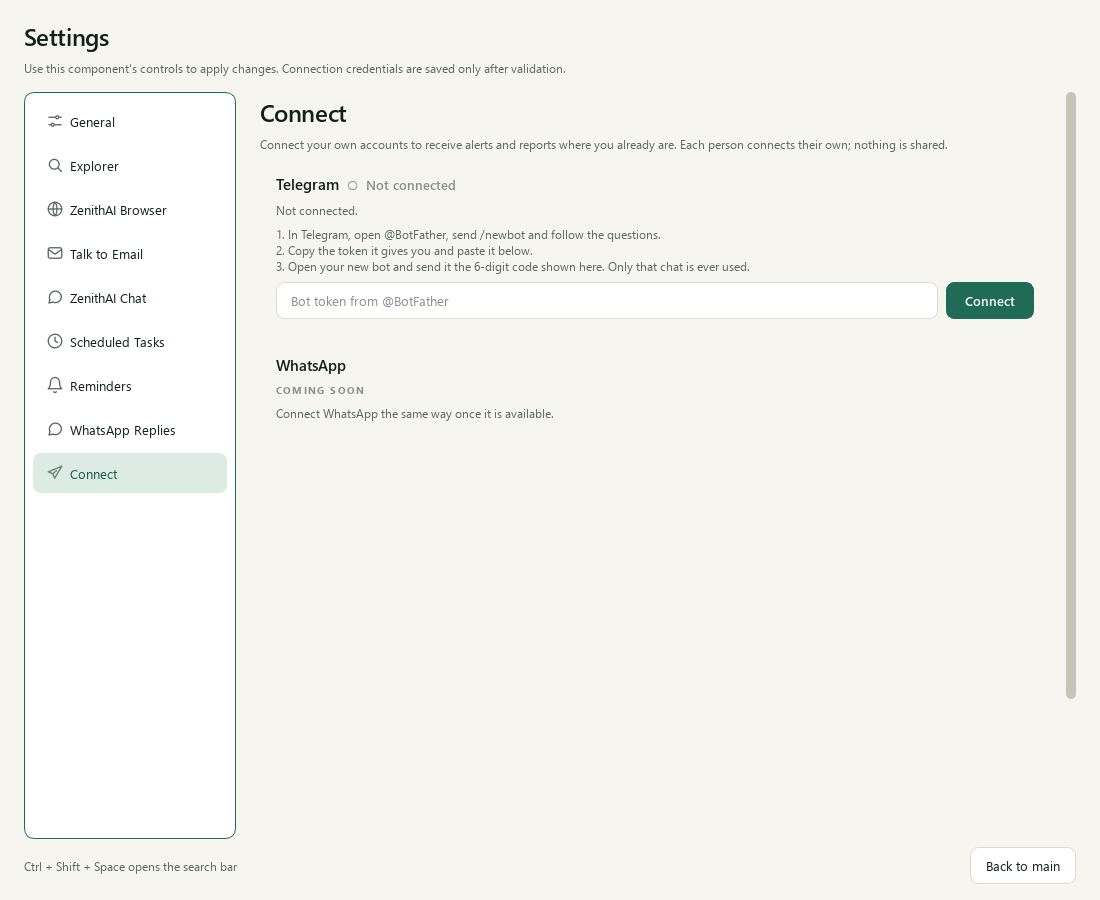
Connect your own Telegram bot for alerts, reminders and commands.
What you need
Section titled “What you need”- A Telegram account and a bot you create yourself.
- ZenithAI Explorer running on your PC, open or in the tray.
Connect your bot
Section titled “Connect your bot”- In Telegram, open @BotFather, create a bot and copy its token.
- In ZenithAI Explorer, open Settings > Connect and paste the token.
- Open your bot in Telegram and send
/start <code>, using the 6-digit code shown on the page. The code is valid for 10 minutes. - Settings shows a Connected label and
Connected to <your chat> through @<your bot>.The bot also sends “ZenithAI is connected. You will get alerts and reports here.” in your Telegram chat. Choose the alerts you want and use the test message to check. - Optional: switch on Accept Telegram commands and tick which tools a Telegram request may use. Files and Browser are ticked by default. Email is off.
If you see “That does not look like a bot token”, paste only the token from @BotFather. It looks like 123456789:AA....
Alerts
Section titled “Alerts”You can switch each of these on or off:
- a scheduled task finishing or needing you. A run stopped by a website says “blocked by the site” with the site’s host.
- a browser task finishing or needing you
- a report being ready
Reminders also arrive on your phone once Telegram is connected.
Commands from your phone
Section titled “Commands from your phone”Commands are off until you switch them on. Typos and short forms of command names are understood.
| Command | What it does |
|---|---|
/zprompt <request> |
Runs a Chat task on your PC and sends the reply. Long answers arrive as a Word file. |
/reminder <time> <text> |
Sets a reminder after you confirm. |
/schedule <when> <request> |
Creates a scheduled task after you confirm. |
/status |
Shows what ZenithAI is doing. |
/stop |
Stops the current run. |
/help |
Lists the commands. |
Example: /zprompt find the latest price list for Orion Paints in my documents and summarise the changes.
Safety limits on commands
Section titled “Safety limits on commands”- Only your paired private chat is accepted. Messages from anyone else are ignored and not stored.
- Commands older than 5 minutes are dropped. The bot replies “Ignored: that command is more than 5 minutes old. Send it again.”
- At most 20 commands per hour.
/reminderand/scheduleare read back to you, and nothing is set until you reply YES. NO cancels, and the question expires after 10 minutes.- At most 20 reminders waiting at a time. This limit is shared by all reminders, not only those made from Telegram. At most 10 schedules can be made from Telegram, and they never get Email.
- Anything that needs an approval card waits for you at the PC.
Contacts
Section titled “Contacts”You can add up to 20 people in Settings > Connect. After a contact presses Start on your bot, or sends it a one-time code, you can send them a message that you type on that page.
- A message can be up to 1,500 characters, and each contact can receive 10 per hour.
- Contacts cannot run commands, and their replies are not read.
- Chat’s Telegram tool sends only to your own paired chat, at most 10 messages per run.
Status
Section titled “Status”Pairing, alerts, commands from a phone and /zprompt with browser tasks have been tried on a real phone. Sending messages to another person’s Telegram account is not verified live.
If a message did not arrive
Section titled “If a message did not arrive”A report or message that Telegram did not accept used to disappear without a sign. The app’s log now records the code and the error type, and for a scheduled task’s report also the task id. It never records the text of the message or the bot token. First check that the app was running and that Telegram shows as connected in Settings > Connect.
Privacy
Section titled “Privacy”Telegram bot chats are not end-to-end encrypted. Your bot token is stored encrypted for your Windows user and is never logged. To stop a bot completely, also delete it in @BotFather.
Related pages
Section titled “Related pages”- Reminders
- Scheduled Tasks, which can send each answer to Telegram
- Automations and safety
- Settings reference
Common questions
Whose Telegram bot does ZenithAI Explorer use?
Your own. You create a bot with @BotFather in Telegram, paste its token into Settings > Connect, and pair it with a short code. Only your paired private chat is accepted. Messages from anyone else are ignored and not stored.
Why did my Telegram command do nothing?
Commands are off until you switch on Accept Telegram commands in Settings > Connect. Commands older than 5 minutes are dropped, there is a limit of 20 per hour, and the PC must be on with ZenithAI Explorer running.
Does /reminder set the reminder straight away?
No. The bot reads back what it understood, including the time and the text. Nothing is set until you reply YES within 10 minutes. Replying NO cancels it. Slash dates are day/month, so 9/11 is 9 November.
Are Telegram bot chats end-to-end encrypted?
No. Telegram bot chats are not end-to-end encrypted. Your bot token is stored encrypted for your Windows user on the PC and is never written to logs. Keep that in mind before sending sensitive text through the bot.
A report never arrived on Telegram. What now?
Check that the app was running and Telegram is connected. If Telegram did not accept a report or message, the app's log records the code and the error type, and for a scheduled task's report also the task id. It never records the text or the token.
Can the bot message other people?
Yes, in a limited way. You can add up to 20 contacts in Settings > Connect and send each a typed message once they have pressed Start on your bot. Contacts cannot run commands. Sending to another person's account is not verified live.