
Reminders in ZenithAI Explorer
Reminders in ZenithAI Explorer work from three places: a sentence in Chat, the Reminders page, or a command from your phone through Telegram. All three end up in one list.
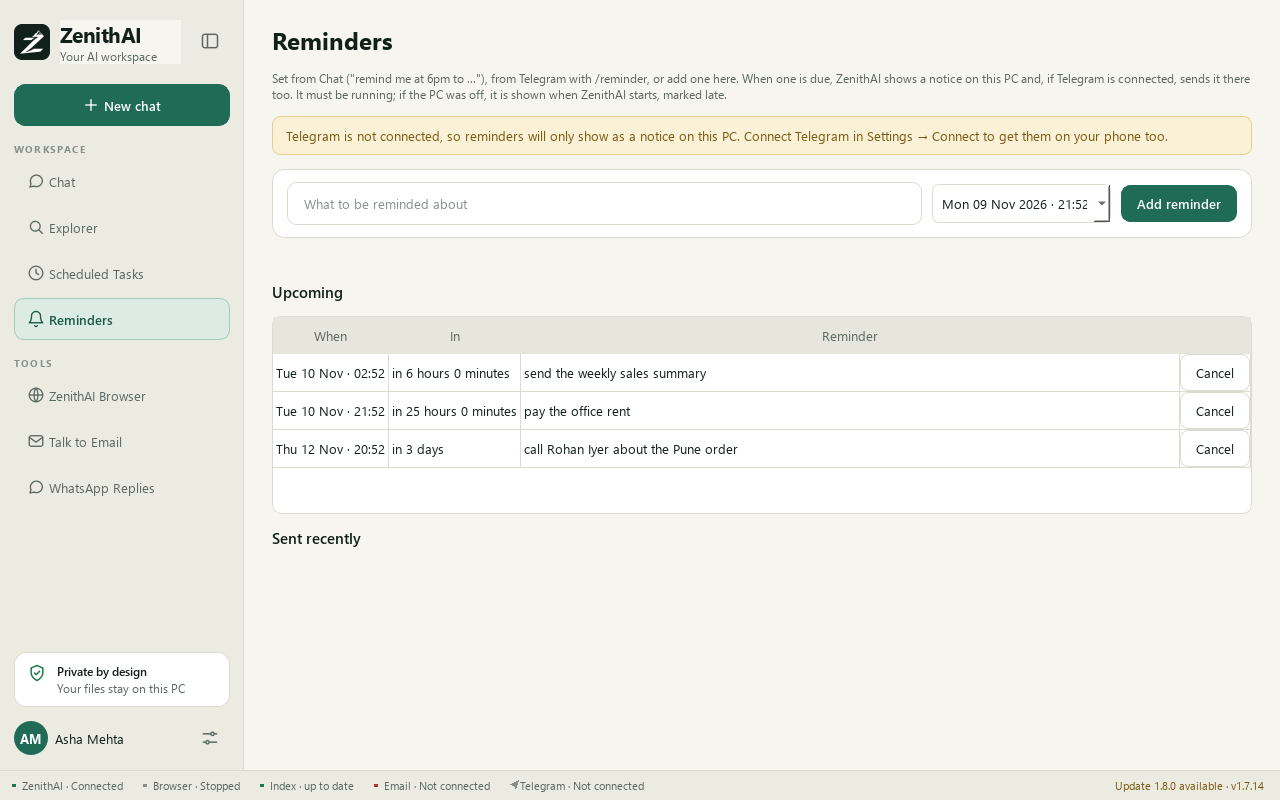
Reminders from Chat, Telegram or this page, in one list.
Set a reminder
Section titled “Set a reminder”In Chat
Section titled “In Chat”Type a sentence such as:
remind me tomorrow 9am to pay rentremind me in 2 hours to call the auditorremind me fri 5:30pm to send the reportremind me 15 nov 10am to renew the insurance
Short forms and small typos are understood. The reply tells you what was understood, when the reminder is due and how it will be delivered. If the time is unclear, ZenithAI asks you and sets nothing.
Slash dates are read as day/month, so 9/11 means 9 November.
On the Reminders page
Section titled “On the Reminders page”- Open Reminders in the sidebar.
- Type what you want to be reminded about.
- Pick the date and time.
- Press Add reminder.
From Telegram
Section titled “From Telegram”Send /reminder 6pm call the auditor to your bot. Nothing is set until you reply YES. See Telegram for the details.
What happens when a reminder is due
Section titled “What happens when a reminder is due”- A notice appears on your PC. Clicking it opens the Reminders page.
- If Telegram is connected, a message also goes to your Telegram chat.
The page lists your upcoming reminders, each with Cancel. Below them it shows the last 20 reminders that were sent and where each one went:
- shown on this PC
- sent to Telegram
- Telegram did not accept it
- Telegram not connected
A reminder that was sent late because the PC was off is marked as late.
Limits
Section titled “Limits”- Reminders fire only while ZenithAI Explorer is running, either open or in the tray. Tick Start in the tray when I sign into Windows in Settings so it is ready after a restart.
- At most 20 upcoming reminders, each up to 500 characters.
- Your reminders are stored encrypted for your Windows user.
- Reminder wording is read by fixed, forgiving patterns first, without any AI call. Only if those fail is a ZenithAI model asked to read the message, and its answer is checked before anything is set. That fallback needs your ZenithAI key.
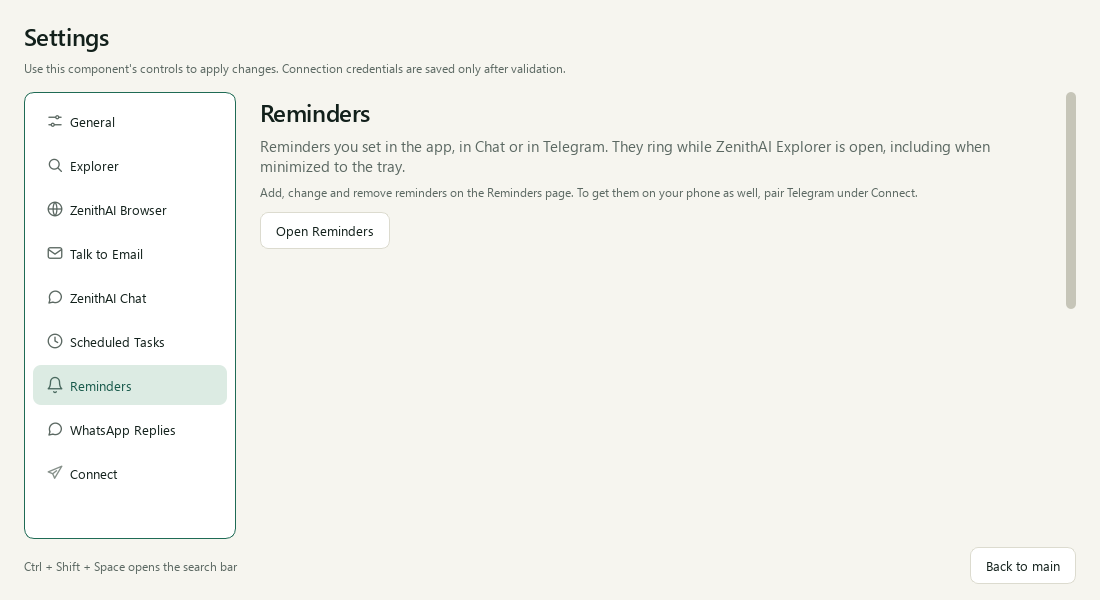
Reminders are set up on their own page; Settings points there.
Related pages
Section titled “Related pages”- Scheduled Tasks for prompts that run on a clock.
- Telegram for phone delivery and commands.
- FAQ and troubleshooting
Common questions
Do reminders need Telegram?
No. Without Telegram, a due reminder shows as a notice on your PC. If you connect Telegram, the same reminder also arrives as a message on your phone. The Reminders page notes which of the two applies.
Why did my reminder come late?
Reminders fire only while ZenithAI Explorer is running. If the PC was off or asleep at the due time, the reminder is sent the next time the app runs and is marked as late on the Reminders page.
How do I cancel a reminder?
Open the Reminders page and press Cancel next to it. You can also type "show my reminders" in Chat to see the list first. A cancelled reminder will not be sent.
How many reminders can I keep?
Up to 20 upcoming reminders at a time, each up to 500 characters. The page also keeps the last 20 reminders that were sent, with where each one went.