
Scheduled Tasks
A scheduled task is a Chat prompt with a timetable and a fixed set of tools. Use it for a morning briefing, a weekly competitor check or a regular report. Each run starts a fresh chat that you can open, follow and stop.
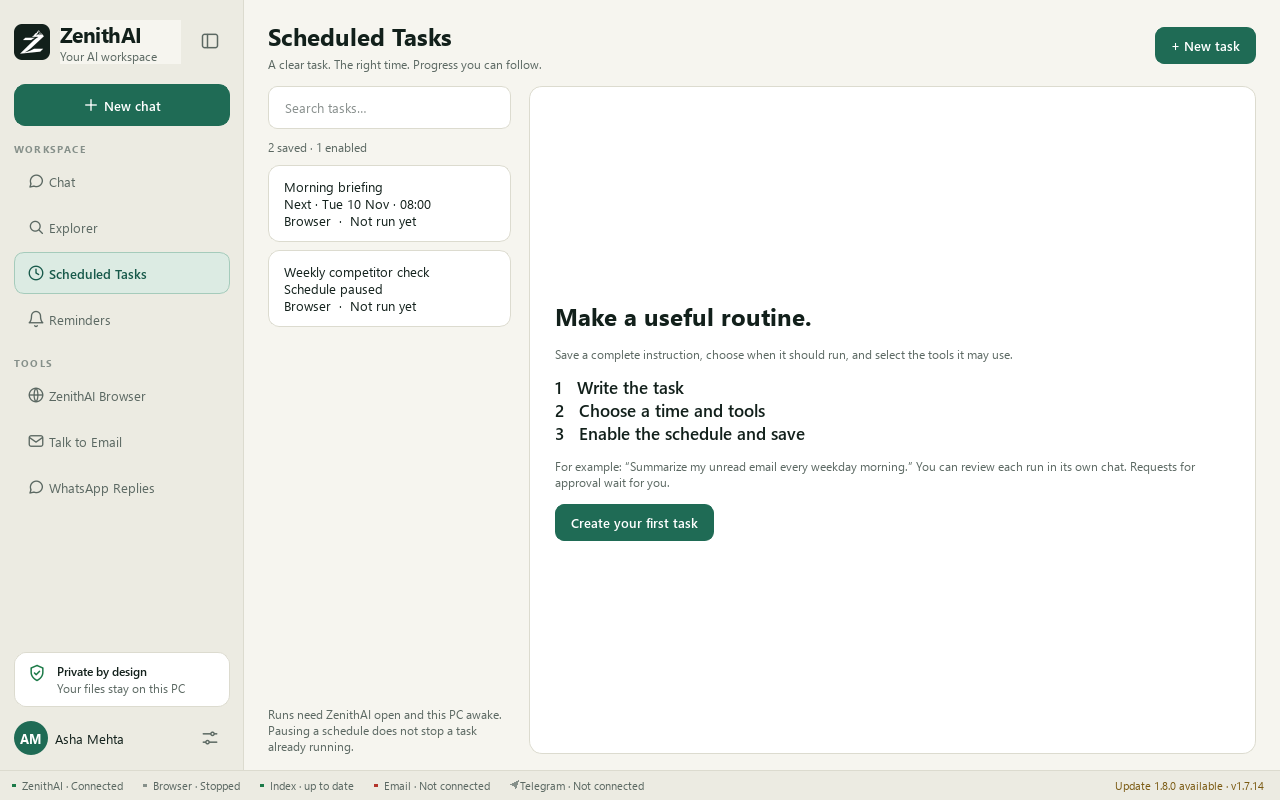
Scheduled Tasks: a clear task, the right time, progress you can follow.
Create a task
Section titled “Create a task”- Open Scheduled Tasks > New task, or choose Schedule from a chat.
- Enter a name and the task text, and tick the tools it may use.
- Choose the schedule, in your PC’s local time: once, every N minutes, daily, or on chosen weekdays.
- Optional: tick Send the answer to my Telegram when a run finishes.
- Tick Enable this schedule and save.
Use Run now to run a task once at any time, Pause schedule to stop future runs (the button then reads Enable schedule), and Open chat to see a run.
Send the answer to Telegram
Section titled “Send the answer to Telegram”If you have connected your own bot, a finished run can send its final answer to your phone. A long answer arrives as a Word file. See Telegram. If a run was stopped by a website, the alert says “blocked by the site” and names the host.
E-mail tasks with a standing permission
Section titled “E-mail tasks with a standing permission”Normally every e-mail needs your approval on a card. For a task that must send by itself, you can give a standing permission.
- Make sure Talk to Email is connected and the Email tool is ticked for the task.
- Tick No further permission required to send this email.
- Enter the fixed To, Cc and Bcc addresses and the exact subject.
- Choose Approve and save task.
Example: every Monday at 9:00, summarise last week’s files in the Projects folder and e-mail the summary to the team, with the tools Files and Email.
What the permission covers:
- Only new e-mails to the exact approved recipients with the exact approved subject.
- At most one automatic e-mail per run. The body can be freshly written each time.
- Replies, forwards, attachments and anything else still need approval. A standing permission never covers an attached file, including a CSV saved from Chat.
- Editing the task, or changing the token, account or endpoint, cancels it. Revoke future-send permission removes it at any time.
Status: works with setup. The standing e-mail path has not been verified live from start to end.
When tasks run
Section titled “When tasks run”- ZenithAI Explorer must be open or in the tray. Closing the window with the X hides it to the tray and tasks keep running. Quit stops them.
- Tasks do not run while the PC sleeps or before you sign in to Windows. Missed runs are combined into one run when the app resumes.
- If the assistant is busy with your own chat, a scheduled run waits instead of interrupting it.
- If ZenithAI Browser is busy when a repeating task is due, the task keeps its next normal time. The third miss in a row pauses it.
- A failed or interrupted run pauses future runs for you to review. It is never silently replayed.
- If a website blocks automated browsing, a repeating task skips its next run, so the site is not asked again at once. The task shows “Blocked by the site: the next run was skipped so the site is not asked again at once.” After three blocks in a row it is paused: “Blocked by the site three times in a row: paused. Run it again yourself when the site lets the browser in.” See Automations and safety for how blocked sites are handled.
- Schedules are stored encrypted for your Windows user on this PC.
Related pages
Section titled “Related pages”- Reminders for simple personal reminders.
- Telegram for delivery to your phone.
- Automations and safety
Common questions
Why did my scheduled task not run?
Tasks run only while ZenithAI Explorer is open or in the tray, and the PC is awake and signed in. They stop after Quit. Check that Enable this schedule is ticked, and that the task was not paused after a failed run.
What happens to a run that was missed?
Missed runs are combined into one run when the app resumes. A task that failed or was interrupted pauses its future runs until you review it. Interrupted work is never replayed automatically.
Can a scheduled task send e-mail without asking me?
Only with a standing permission that you approve when you save the task. It covers new e-mails to the exact recipients and subject you approved, at most one per run. Replies, forwards and attachments still need approval.
How do I take back the standing e-mail permission?
Choose Revoke future-send permission on the task. Editing the task, or changing the token, account or endpoint, also cancels the permission, so you approve it again. Then the task asks before sending, like any e-mail.
Why does my task say it was blocked by the site?
A site refused automated browsing, so a repeating task skips its next run. After three blocks in a row it is paused. Run it yourself when the site lets the browser in. The Telegram alert says blocked by the site.
Can I get the answer on my phone?
Yes, if Telegram is connected. Tick Send the answer to my Telegram when a run finishes. Long answers arrive as a Word file. See the Telegram page for how to pair your own bot.
Which time does the schedule use?
Your PC's local time. You can run once, every number of minutes counted from the end of the previous run, daily at a time, or on chosen weekdays. The scheduler checks every 30 seconds.