
Talk to Email
Talk to Email lets you work with your XgenPlus mailbox in a conversation. Ask for a summary of today’s unread mail, find a message, or have a reply drafted. Anything that sends or changes mail waits for your approval.
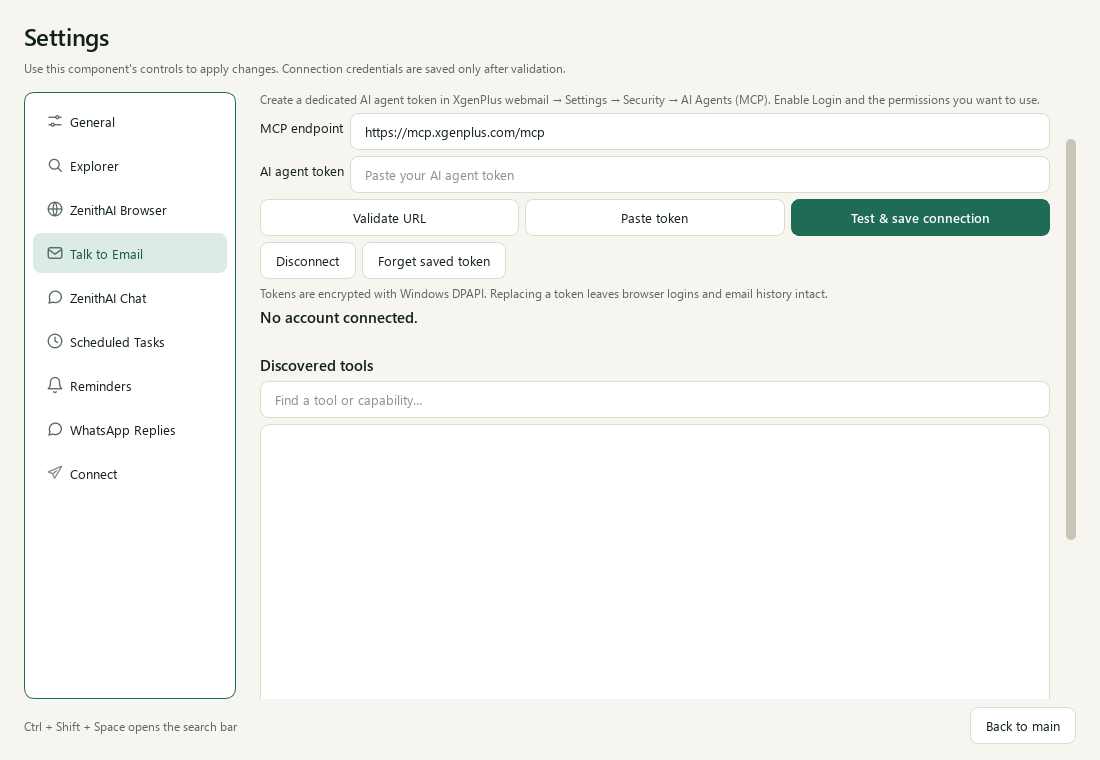
Connect your XgenPlus mailbox with a dedicated AI agent token.
What it can do
Section titled “What it can do”- Read folders and the inbox summary, list and search messages, open threads and attachments.
- Look up contacts, calendars, agenda, free time and tasks, and read your signature and out-of-office message.
- With your approval: mark, move, trash or restore messages, and create, update, delete and send drafts, replies and forwards.
Reports written in Markdown are turned into formatted e-mail. The approval card shows what the recipient will get. What the assistant can do depends on the permissions you give the token. Admin tools need the domain-admin permission.
Connect your mailbox
Section titled “Connect your mailbox”- In XgenPlus webmail, open Settings > Security > AI Agents (MCP) and create a dedicated token. Turn on Login and the permissions you want it to have.
- In ZenithAI Explorer, open Settings > Talk to Email. The endpoint is normally
https://mcp.xgenplus.com/mcp. - Paste the token into the masked field and choose Test & save connection. The page lists the tools and permissions it found.
- Ask in Talk to Email, or in Chat with the Email chip on. For example: “Summarise unread mail from today”.
Disconnect and Forget saved token are on the same page.
Approve before anything happens
Section titled “Approve before anything happens”For a send or a change, a card shows the full message: recipients, subject, body and attachments.
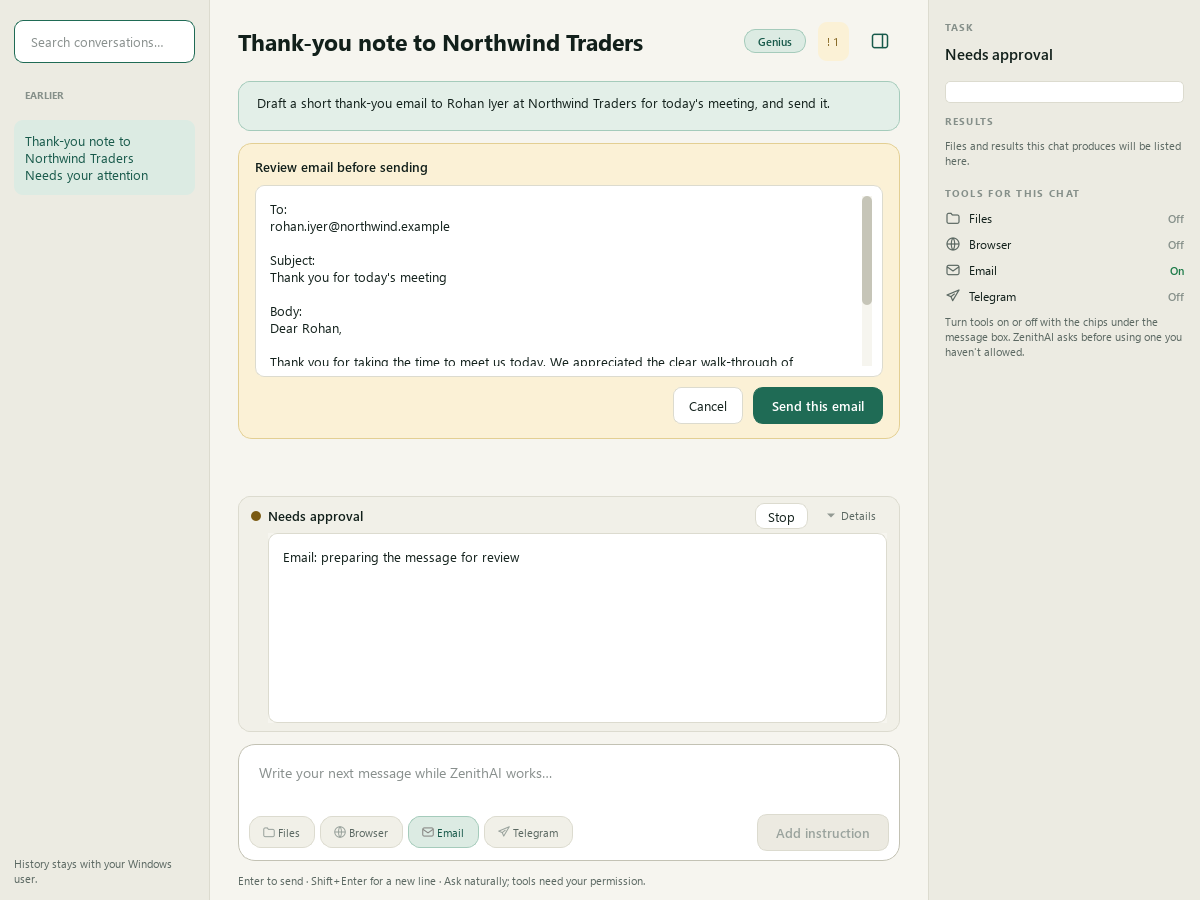
Nothing is sent until you press Send this email.
- In the Talk to Email page, the approve button reads Send this email, Save draft or Apply change, depending on the request. The other button reads Cancel for a send and Decline for anything else. Declining does nothing.
- In Chat, the card shows Send this email or Approve change, with Cancel. Cancel does nothing.
There are two exceptions. A scheduled task with a standing e-mail permission that you approved yourself sends on its own, for fixed recipients and a fixed subject. And the shipped XgenPlus Send mail recipe, run from a prompt in the ZenithAI Browser panel, sends without an approval card unless something is doubtful, in which case the app asks Run this task?.
Mail requests go to the email tool
Section titled “Mail requests go to the email tool”With Email connected, a mail request in Chat is meant for the email tool and its approval card, not for a webmail login in the browser. The browser task never types or asks for a password, PIN or code. If you describe a webmail site instead of the tool, the browser can stop at its sign-in page. Ask again for “our email tool”. Whether the live model always follows this routing has not been verified.
What it needs
Section titled “What it needs”- An XgenPlus mailbox and an AI agent token.
- The ZenithAI key from first-run setup. The assistant reasons with the ZenithAI model, so the mail content needed to answer your request is sent to it.
Status and limits
Section titled “Status and limits”- Not verified live: sending, moving, drafting and attachments were tested with sample data, not against a live mailbox. The same applies to whether the XgenPlus server accepts HTML bodies and how they look in other mail apps.
- Reading a message does not mark it as read. Message HTML is shown as text, without scripts, images or tracking requests.
- Attachments are saved only through a file picker and are never opened automatically.
- When you ask Chat to email a CSV it saved, the card lists each attached file with its size, and every such e-mail needs Send this email. If the mailbox tools do not accept attachments, the file is not attached. Chat says where the file is saved, and for a short list it can put the CSV text in the e-mail body instead. Nothing goes out without Send this email.
- Held sends must be reviewed in webmail. An uncertain send is never repeated.
- Available actions depend on the token’s permissions.
- Your token is kept encrypted for your Windows user on this PC.
Related pages
Section titled “Related pages”- Recipes and Teach a task sends a standard e-mail through webmail without the AI model.
- Scheduled Tasks
- Automations and safety
Common questions
Will ZenithAI send an e-mail without asking me?
No. Every send, draft change, move or delete shows an approval card with the full message. Nothing happens until you press the approval button. The exceptions are a scheduled task with a standing permission that you approved yourself, and the shipped XgenPlus Send mail recipe run from a browser prompt.
Which mailbox does Talk to Email work with?
XgenPlus. You create a dedicated AI agent token in XgenPlus webmail, paste it into Settings, Talk to Email, and choose Test & save connection. For other webmail, see Recipes, where a recipe can be created for any webmail.
What can I ask Talk to Email to do?
Read folders and the inbox summary, search and open messages, read attachments, look up contacts, calendar and tasks, and read your signature. With your approval it can also draft, reply, forward, send, move and delete.
Does reading a message mark it as read?
No. Reading a message through Talk to Email does not mark it read. Message HTML is shown as text, without scripts, images or tracking requests, and attachments are saved only when you pick a place in a file picker.
Is my mail sent to ZenithAI?
The assistant reasons with the ZenithAI model, so the mail content needed to answer your request is sent to it. XgenPlus performs the mailbox actions. Switch the Email tool off, or do not connect, to keep mail out of it.
What if a send result is uncertain?
An uncertain send is never repeated. You are told the outcome is unknown, and you check the Sent folder or the held items in webmail. This protects you from the same message going out twice.