
ZenithAI Browser
ZenithAI Browser is a dedicated browser that comes with ZenithAI Explorer. The assistant uses it to read websites for you, and you use it to sign in to the sites you need. It is separate from your everyday browser and keeps its own profile, so your sign-ins stay in it.
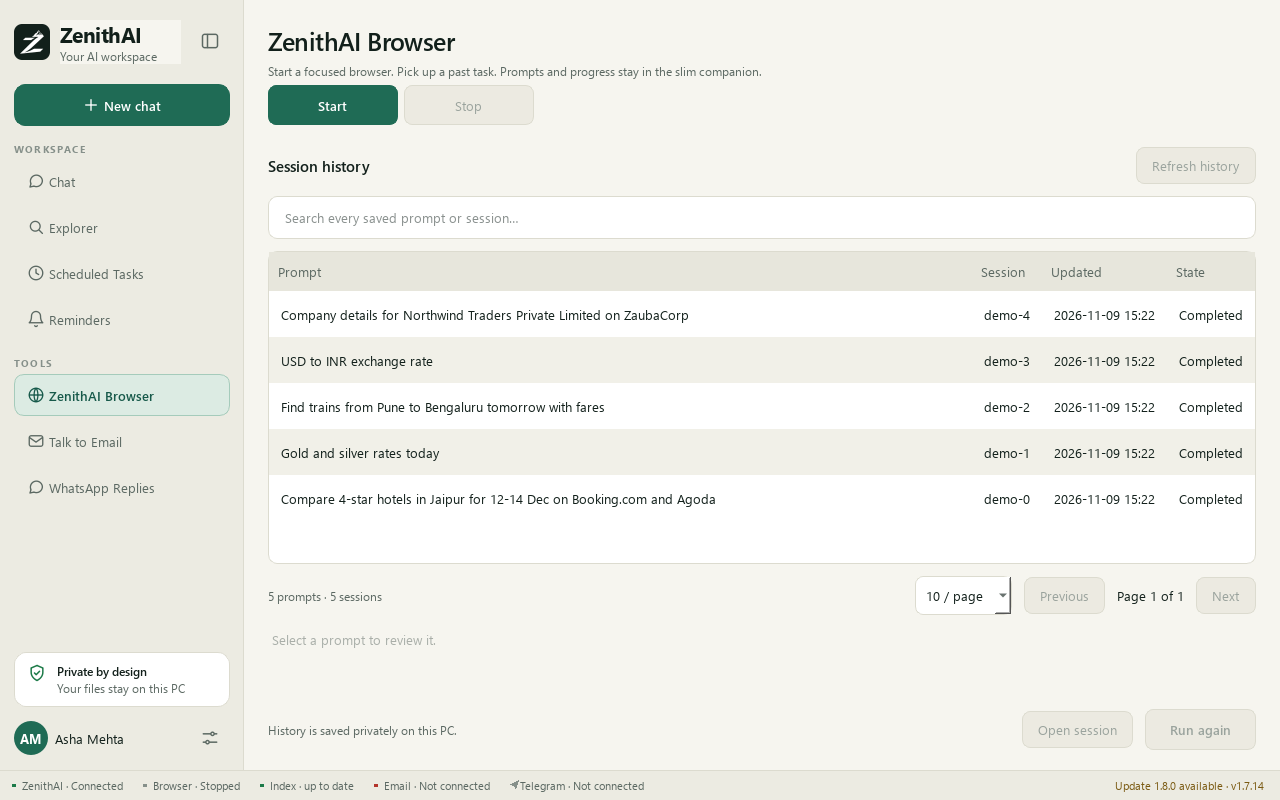
ZenithAI Browser: start the dedicated browser and pick up a past task.
Three ways it works
Section titled “Three ways it works”- Tasks from Chat or the companion panel. You describe the job in plain words, for example “compare hotel prices in Jaipur for next weekend on Booking.com and Agoda”. The assistant works through the sites and reports back.
- Site playbooks. For known sites, the app ships short written rules: a verified link and a quick way to read the results. A task that names several sites runs one short session per site, and the app builds one comparison for you.
- Recipes. Recorded steps replayed exactly, without the AI model, including tasks you teach yourself with the round record button on the companion panel. See Recipes and Teach a task.
Start and use it
Section titled “Start and use it”- Open ZenithAI Browser in the sidebar and press Start.
- On first use, accept the browser’s first-use notice. Pairing finishes by itself, and the page then shows “Connected to ZenithAI MCP” and “Ready to use”.
- Sign in to the websites you need. You do this yourself, in this browser.
- Type a task in the companion panel that sits beside the browser, or in Chat with the Browser tool on. Follow the progress, answer questions, and approve or cancel when asked.
- To cancel, press the Stop task icon in the companion panel, or Stop Task on the Conversation tab of the ZenithAI Browser page. To return to the main app, press the Full window icon in the panel.
The page keeps a searchable, encrypted history of your prompts on your PC. Run again runs a saved prompt once, as a new task.
Each new browser task typed in the companion panel or on the ZenithAI Browser page also carries a short working note for the assistant, and a known site’s playbook. Neither is shown. Browser tasks started from Chat do not carry the working note. Your history, its search, the task views and the titles show only what you typed, also for tasks saved earlier.
Guidance sent with each task
Section titled “Guidance sent with each task”The wording of that working note is under Settings > ZenithAI Browser > Advanced. You can edit it (up to 2,000 characters) and press Save guidance. To put the built-in text back, press Restore default, then Save guidance.
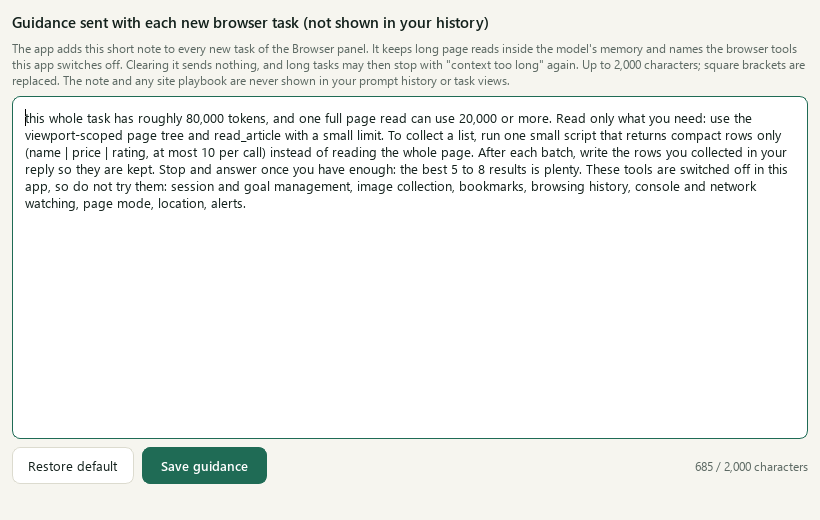
Settings > ZenithAI Browser > Advanced: the guidance sent with each new browser task.
If you clear the box, the note is not sent, and long tasks may stop with “context too long” again.
When a task stops with “context too long”
Section titled “When a task stops with “context too long””The browser assistant has a limited amount of input for each request, and a heavy page such as a travel results page or a webmail inbox can use much of it within a few steps. Since version 1.7.17 the app handles this in three ways:
- Only the two newest page reads of a task are sent in full. Older ones are sent as a short reference, and the assistant can read the original back.
- One page read is capped at 10,000 characters.
- A request that still does not fit is sent in smaller pieces instead of failing the task.
If a task still runs out of room, the side panel offers Continue in a fresh task, which keeps your goal and what was done so far. This was measured in a replay with the real assistant, not yet on a full live run of a travel or webmail task. The assistant can lose the full text of older page reads unless it writes down what it needs from them.
What it needs
Section titled “What it needs”- The ZenithAI key you entered at first-run setup, because the browser’s assistant uses it.
- An internet connection.
- The first-use acceptance in the browser.
Websites with built-in guidance
Section titled “Websites with built-in guidance”Booking.com, Agoda, Trip.com, ixigo, MakeMyTrip, Screener, NSE, BSE, ZaubaCorp, MCA, currency rates, gold and silver rates, Amazon.in, Flipkart, IRCTC, airline sites, XgenPlus webmail and WhatsApp Web. Some of these sites may block automated browsing. MCA gives guidance only, because it needs a sign-in. Any other site you can open also works, without ready-made guidance.
Websites that block automated browsing
Section titled “Websites that block automated browsing”Some websites show a robot check or refuse automated browsers. The browser watches every page for this. It recognises a CAPTCHA or a page such as “Just a moment” or “Access denied”, a site that refuses the browser’s requests as automated, a page that keeps reloading itself, and a page that says “You are offline” while your connection works.
When that happens:
- A task from Chat or the companion panel stops at once. In the panel it ends with “Blocked by the site” and a message. Chat shows “The website blocked automated browsing (a robot check, or it refused the ZenithAI browser), so the task was stopped and not retried.” You can do it yourself in the browser window, try later, use another site, or verify or sign in by hand and ask again. The assistant is not allowed to retry or reword the request.
- A taught task stops the same way and shows Blocked by the site in the Taught tasks list.
- WhatsApp Replies stops its batch. Deep research skips that source and names it under Evidence gaps. A scheduled task skips its next run and pauses after three blocks in a row.
- For 30 minutes the app remembers the site, by address and a short reason, in memory only. It answers at once that the site blocked automation a few minutes ago. To try once more, say “try anyway” in Chat, or start the companion-panel prompt with
Try anyway:. - A site that blocks a Chat browser task or deep research is also put on the list of websites to avoid, which is kept on your PC for 14 days. See the next section.
The app never tries to get past these checks. It has no CAPTCHA solving and does not hide that it is automated. Some travel sites blocked the browser in checks on 13 November 2026, and websites change, so results can differ later.
Detection is based on what the page and the site’s answers show. A very short page that quotes a phrase such as “are you a robot” can be taken for a robot check, and a site that blocks silently, with empty results, is not recognised. The detector itself was checked live. The full Chat path for a real block was tested with fakes only.
Websites to use or avoid
Section titled “Websites to use or avoid”When a website blocks the ZenithAI browser (a robot check, or “too many requests”) during a Chat browser task or deep research, the app adds it to a list and uses other websites for 14 days. After that it tries the site once more. Chat names the site and says it was put on the list, so asking again uses other sites. Deep research skips links to listed sites and names them under Evidence gaps. If your usual search engine is on the list, the browser is told to use another one.
Pages that deep research or a company list reads without trouble mark their site as Works well, and those sites are preferred. Other Chat browser tasks learn blocks but not “works”.
See and change the list under Settings > ZenithAI Browser > Websites. The table shows each website, its Status (Works well, Avoid, Suggested, or Will try again once the 14 days have passed), who set it (You, Learned or Built-in) and why or when it was last checked.
- Type a website and press Use this site or Avoid this site to add your own choice. The app never changes your choices by itself.
- Remove selected removes your entry, and anything the app learned, for that website. It is not available for built-in rows.
- Forget what the app learned removes every entry the app added by itself. Your own choices stay.
The app ships with a start list of 38 websites: 29 Works well and 4 Avoid, each checked on 13 November 2026 with a real browser task, and 5 Suggested sites that are not confirmed. Websites change, so the list can be out of date. The list is stored on your PC, with the website name, a short reason and the date. Nothing here gets past a site’s protection.
If the browser does not start
Section titled “If the browser does not start”If Start ends with “Start failed - START_FAILED”, also after a restart, the browser may be holding a cache of an older extension. Version 1.7.19 fixes this. The app now notices that the extension changed since the browser last started and clears that cache itself before starting. This matters after updating from 1.7.15 or older. Your sign-ins, history and settings are kept. If you renamed folders by hand to fix this earlier, nothing more is needed. If the message still appears, see Diagnostics & logs in Settings.
Limits
Section titled “Limits”- The assistant stops at CAPTCHAs and sign-in pages. It does not bypass bot checks.
- Some travel and airline sites block automated browsers, and others sometimes do. Agoda shows only part of a city per visit.
- The shipped travel and shopping site rules tell the assistant to stay read-only: not to book, pay or enter traveller or payment details. These are instructions to the assistant.
- Native browser permission prompts need a real click from you in the browser.
- Results & downloads in the companion menu lists the browser’s downloads. Local paths are shown as text and are never run.
- Only one automation uses the browser at a time: a task, a recipe, a recording or a WhatsApp Replies run. The others wait with a clear message.
- Website changes can break a playbook. There is no automatic alert for that yet.
Related pages
Section titled “Related pages”- Recipes and Teach a task
- WhatsApp Replies
- Scheduled Tasks can run browser tasks on a timetable.
Common questions
Is ZenithAI Browser my normal Chrome or Edge?
No. It is a separate browser that comes with ZenithAI Explorer and has its own profile, so your website sign-ins stay inside it. Your everyday browser is not used or changed. You start and stop it from the ZenithAI Browser page.
Does ZenithAI Browser enter my passwords or pay for things?
No. The assistant is instructed never to type passwords, PINs, one-time codes or card numbers, and you sign in yourself. The shipped travel and shopping site rules tell the assistant to stay read-only and never book, pay or enter traveller or payment details.
Why did the browser say a site blocked automated browsing?
The site showed a robot check or refused the browser as automated, so the task stopped and was not retried. Chat says the website blocked automated browsing; the panel says Blocked by the site. Do that part yourself, or try later.
Why does it say a site blocked automation a few minutes ago?
For 30 minutes the app remembers a blocking site in memory and answers at once. The app also keeps a list of sites to avoid for 14 days, under Settings > ZenithAI Browser > Websites. To try once more, say try anyway in Chat.
Why did a long browser task stop with "context too long"?
Heavy pages can fill the model's memory. Since version 1.7.17 the app sends only the two newest page reads in full and caps each read. For tasks started in the companion panel, check that the guidance under Settings, ZenithAI Browser, Advanced was not cleared. If it still stops, press Continue in a fresh task in the side panel.
Can I stop a browser task that is running?
Yes. In the companion panel beside the browser, press the Stop task icon. On the ZenithAI Browser page, press Stop Task on the Conversation tab. Questions and approvals also appear in the panel, so you stay in control of what happens.
Where is my browser history kept?
The ZenithAI Browser page keeps a searchable, encrypted list of your past prompts on your PC, showing only what you typed. Select one and press Open session to look at it, or Run again to run the saved prompt once as a new task.
Which websites have built-in guidance?
Booking.com, Agoda, Trip.com, ixigo, MakeMyTrip, Screener, NSE, BSE, ZaubaCorp, MCA, currency rates, gold and silver rates, Amazon.in, Flipkart, IRCTC, airline sites, XgenPlus webmail and WhatsApp Web. Some of these sites may block automated browsing.