
Chat in ZenithAI Explorer
Chat is where most work in ZenithAI Explorer starts. Ask in plain words, the way you would ask a colleague. The assistant can answer from its own knowledge, or use the tools you switch on for that chat.
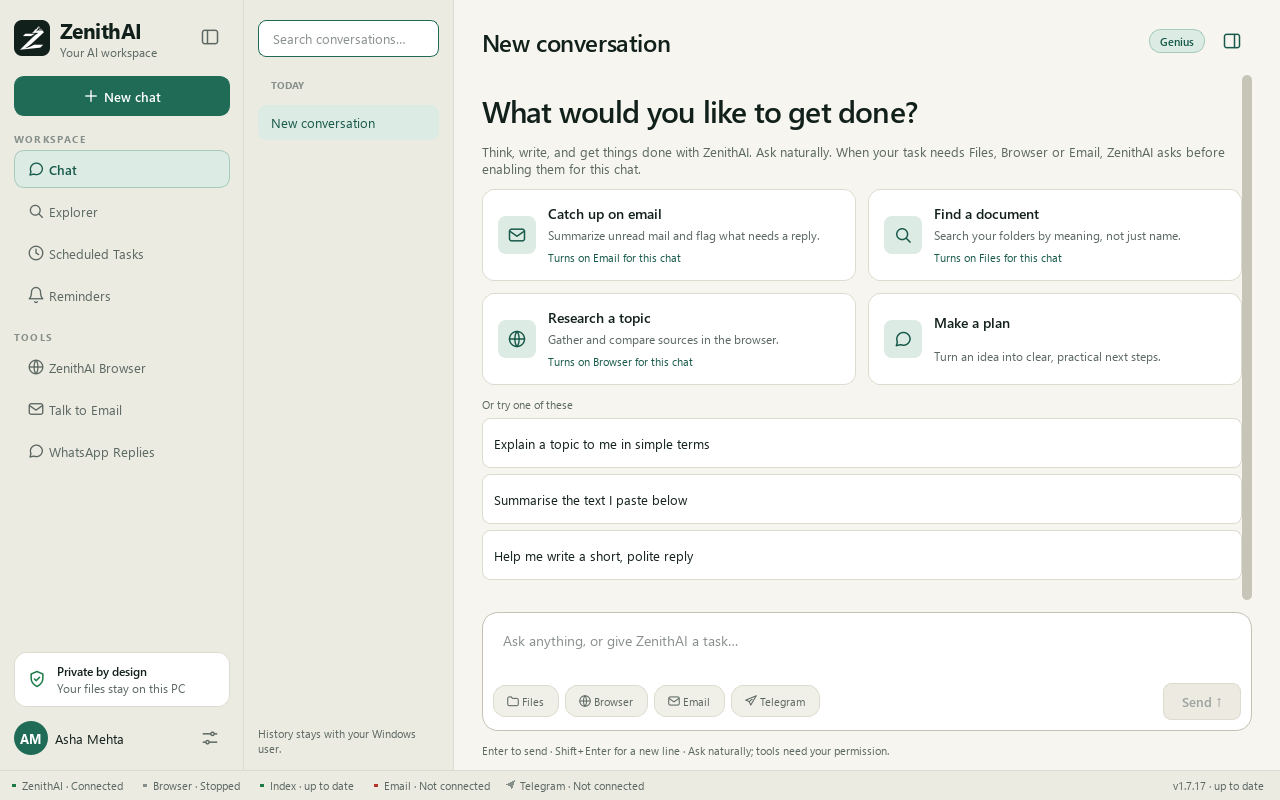
A new chat: pick a starter or type your request, and switch on only the tools it needs.
The four tools
Section titled “The four tools”| Tool | What it does |
|---|---|
| Files | Searches the folders you chose in Explorer, by exact words and by meaning. Answers that use files list their sources as links that show the file in Windows File Explorer. Chat reads the recognised text of scanned PDFs and pictures, and marks each result as strong, related or partial. Files are never run. |
| Browser | Hands a website task to ZenithAI Browser: open sites, read pages, click, fill forms and download files. |
| Works with your XgenPlus mailbox: read, search, threads, contacts, calendar, drafts, replies, forwards and send, with approval cards for changes. | |
| Telegram | Sends a short plain-text message to your own paired Telegram chat, at most 10 per run. |
When Email is on, the assistant is told to use the Email tool for mail rather than a webmail login in the browser, and the browser agent is told never to type or ask for a password, PIN or code.
Each tool needs its own setup. Files needs a folder chosen in Settings > Explorer. Browser needs ZenithAI Browser. Email needs Talk to Email. Telegram needs Settings > Connect.
Use Chat
Section titled “Use Chat”- Open Chat in the sidebar, or press Ctrl+N for a new chat.
- Type your request. Enter sends. Shift+Enter adds a line.
- Switch on a tool if you need one. Use its chip under the message box, or approve the Enable … for this chat card when it appears.
- Follow the progress in the status line above the message box. Open Details to see the steps.
- Approve or cancel any approval card that appears.
- Use Copy on the answer. Long answers, and answers with a heading or table, also have .docx.
New chats show four starter cards: Catch up on email, Find a document, Research a topic and Make a plan. Clicking a card fills the message box and turns on the tool it names for this chat: Email, Files and Browser for the first three, and none for Make a plan. Each card that turns on a tool says so. Research a topic starts a deep research run (60 to 90 minutes) once you add a topic and press Send. You still press Send. The three or four suggestions under Or try one of these only fill the message box.
Tools are off until you allow them
Section titled “Tools are off until you allow them”Tools start off in every new chat. The one exception is a starter card, which turns on the tool it names when you click it. A tool that is off is not in the list the assistant can use, so it cannot switch one on by itself. If a request needs one, Chat shows a card.

A tool is switched on only after you allow it, for this chat only.
Approvals
Section titled “Approvals”Every e-mail send, draft change, move or delete shows an approval card with the recipients, subject, body and attachments. Send this email is the approval. Cancel does nothing.
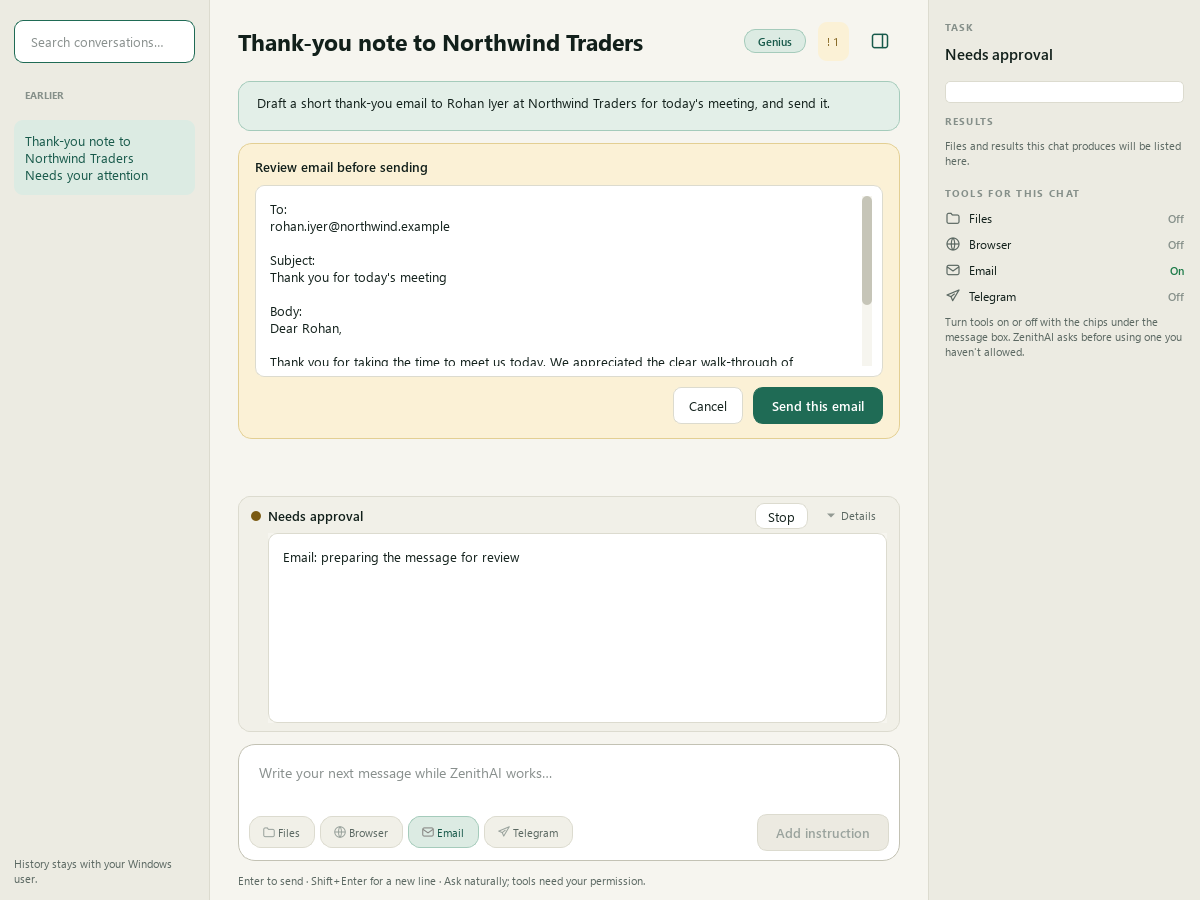
Nothing is sent until you press Send this email.
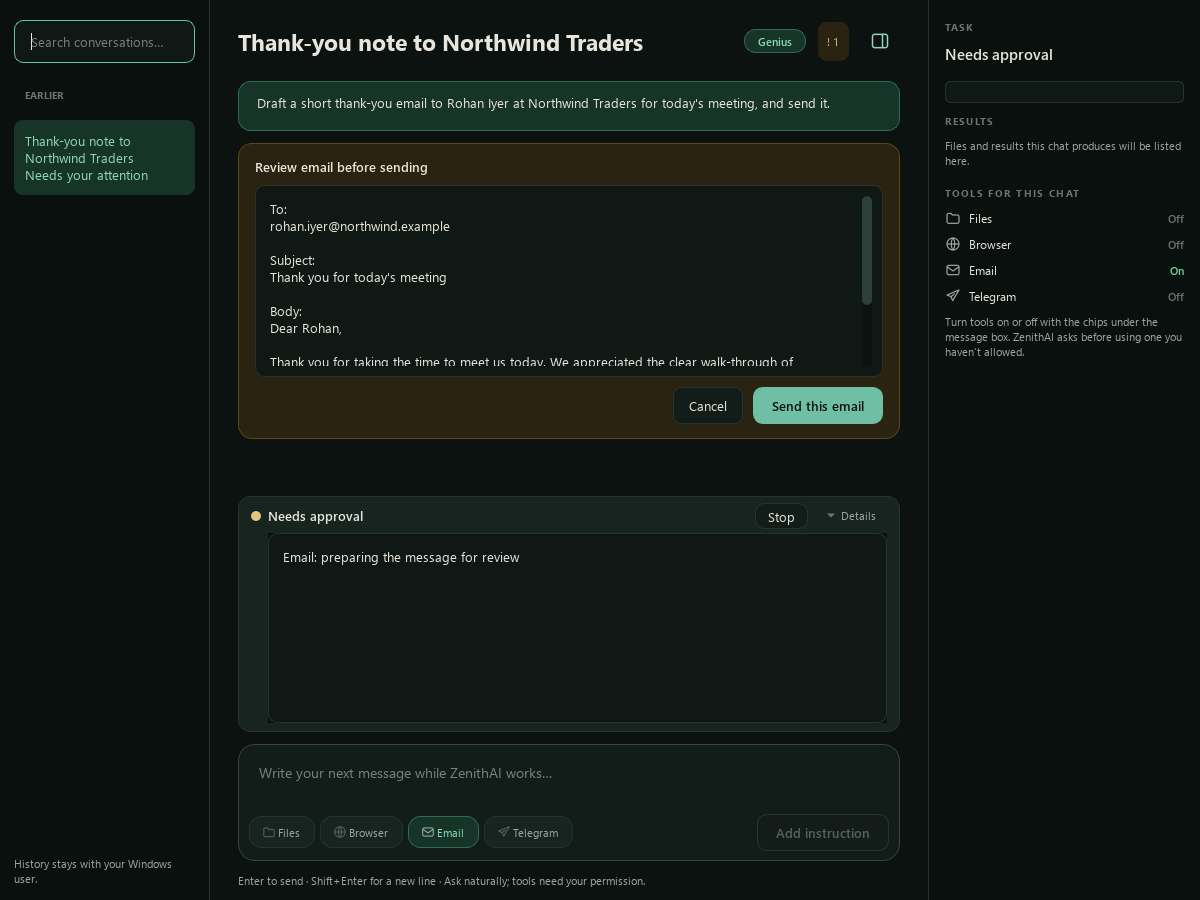
The approval card in the dark theme.
Sends are never retried blindly. If the result of a send is uncertain, Chat reports it as unknown and tells you to check your Sent folder. Read more in Automations and safety.
Copy and Word
Section titled “Copy and Word”- Copy under an answer pastes into Word and Outlook with headings, bold, lists and tables.
- For long answers and reports (500 characters or more, or with a heading or table), the .docx button saves a formatted Word file. See Research reports and deep research.
Save a CSV and email it
Section titled “Save a CSV and email it”Ask Chat for “a CSV of this data” and it saves the file on your PC, in the app’s exports folder. You see Saved name.csv (N rows) with Open folder. No tool chip or approval is needed, because Chat only creates a new file there and never replaces one. The file opens correctly in Excel, Hindi and other scripts included. A cell that starts with =, +, - or @ gets a leading apostrophe, so a spreadsheet never runs it as a formula (plain numbers such as -12.5 are left alone).
The limits are 5,000 rows, 50 columns and 2 MB. A single answer holds far fewer rows in practice.
Add “and email this file to …” and Chat attaches the saved file, if your connected mailbox accepts attachments. The approval card lists every attached file with its size. Every such e-mail needs Send this email: a standing permission on a scheduled task never covers an attachment. If the mailbox does not accept attachments, the file is not attached. Chat tells you where the file is saved, and for a short list it can put the CSV text in the e-mail body instead. Nothing goes out without Send this email.
Lists of companies, people or products
Section titled “Lists of companies, people or products”A request such as “Find 20 IT companies in Jaipur with key person, email and phone” gets a table, not a report. Chat recognises “find or list N … with fields”, “profile of X” and “compare X and Y”. The columns are the fields you name, or sensible ones for that kind of list, plus a Source column. It needs Browser, with the same card as deep research. The run card shows how far the list has got.
- Official lists first, where they exist. For colleges, real estate, jewellery and textile exporters it first reads a public official list. Otherwise it searches the web city by city, and switches search engine if one shows a robot check. For people, official websites are searched first. Websites on your avoid list and directories that block the browser are skipped. Duplicates are merged.
- Local firms, city by city. For companies in named cities it searches the way a person would, for up to five minutes, and reads first the companies that the most independent sources name. The answer says “Ranked by how many independent sources name them”. Large national and global firms are left out unless you ask for their offices or name one.
- Each entry is read from its own website. One quick search for the company’s name and place confirms the website, then Chat reads its home and contact pages. An e-mail or phone appears only when the page shows it. Otherwise the cell says “not listed”. Nothing is taken from LinkedIn, social sites or directories, nothing is guessed, and no form is ever filled in.
- Only the places you name. An entry is kept only when its own pages give one of those places. Others are named under “Dropped, outside the requested area”. An entry from an official list counts for the city its row gives and is cited to that list, even when it has no website.
- An honest count. The answer starts with a line such as “Found 12 of 20 requested; 5 have a published email and 3 a published phone number” and ends with how the list was found and which sites were skipped.
- Time. A list may take about two minutes per company asked for, 20 to 40 minutes in all. It stops at the limit and gives what it found.
Add “create a CSV and email it to …” and Chat saves the same rows as a CSV and prepares the e-mail with the file attached, or, if your mailbox cannot take attachments, with the CSV text in the body (lists of up to 50 rows). It is sent only after you approve the card. A request from Telegram gets the table only.
Other things Chat does
Section titled “Other things Chat does”- “Remind me …” in Chat sets a reminder directly. See Reminders.
- Schedule in a full chat prefills a scheduled task. See Scheduled Tasks.
- History is grouped by date and searchable, and unsent drafts are kept.
- In the chat list, a chat that waits for your answer or approval shows Waiting for you under its title. A chat whose last run failed or was interrupted shows Stopped: not opened yet until you open it.
- When a browser task asks for a permission or an answer, the steps and details fold up and the question is brought into view with its buttons.
- When the app window is not in front, you get one Windows notice when a whole Chat task ends (for tasks that used the browser, deep research, or ran 30 seconds or more), not one per browser step.
- If a website blocks automated browsing, the task stops at once with a plain message that names the site and, unless you chose to use that site, says it was put on the list of websites to avoid, and says what you can do: do it yourself in the browser window, try later or use another site. The assistant is not allowed to retry or reword the request, and the app never tries to get around the site’s protection. The site is avoided for 14 days, then tried once more, and you can change the list in Settings > ZenithAI Browser > Websites. See ZenithAI Browser and Automations and safety.
- Errors are explained in plain English with what to do next. The original code, such as
CHAT_BUSY, stays visible in small text.
Limits
Section titled “Limits”- One chat run at a time. More messages to the same run wait for its next safe step.
- A run is limited to 50 model steps and 40 minutes of active work. Time spent waiting for you is not counted. At the step limit the error card says to ask for a smaller piece or continue with a new message, and the assistant usually writes a summary above the error. Then ask it to continue. Research and company lists have their own, longer limits.
- Long chats keep the newest turns, short notes of earlier tool results and a way to look back in the same chat. Chats never see each other.
- Runs stop when Windows sleeps and do not survive quitting the app.
- Chat needs a saved ZenithAI API key. Without one, it says so. Explorer search keeps working.
Common questions
Why does the assistant ask to enable a tool in my chat?
Tools start off in every new chat. When your request needs Files, Browser, Email or Telegram, Chat shows a card asking you to enable it. Your choice applies to that chat only, and declining reads nothing from that account.
Does ZenithAI Chat send e-mail without asking?
No. Every send or mailbox change shows an approval card with the full message. Nothing happens until you press Send this email, and Cancel does nothing. The one exception is a scheduled task with a recurring-send rule you approved.
How do I save a ZenithAI Chat answer as a Word file?
Use Copy under the answer to paste it into Word or Outlook with headings, bold, lists and tables. For reports, the .docx button saves a formatted Word file.
Can I run two ZenithAI Chat requests at the same time?
One chat run goes at a time. If you send more messages to the same run, they wait for its next safe step. A run stops when Windows sleeps and does not survive quitting the app.
Can ZenithAI Chat save a table as a CSV file?
Yes. Ask for "a CSV of this data". Chat saves it in the app's exports folder on your PC and shows the file name with Open folder. It needs no approval because it only creates a new file. The limit is 5,000 rows, 50 columns and 2 MB.
Can Chat make a list of companies with their e-mail and phone?
Yes, with Browser on. Ask for a number of companies in named places and the fields you want. Chat returns a table with a Source column, reads each company's own website, and shows an email or phone only when the page shows it. A list may take 20 to 40 minutes.