
Recipes and Teach a task
Some website tasks are the same every time: send the standard e-mail, submit the weekly form. A recipe records the steps once and replays them exactly. It does not use the AI model, so it does the same thing each run.
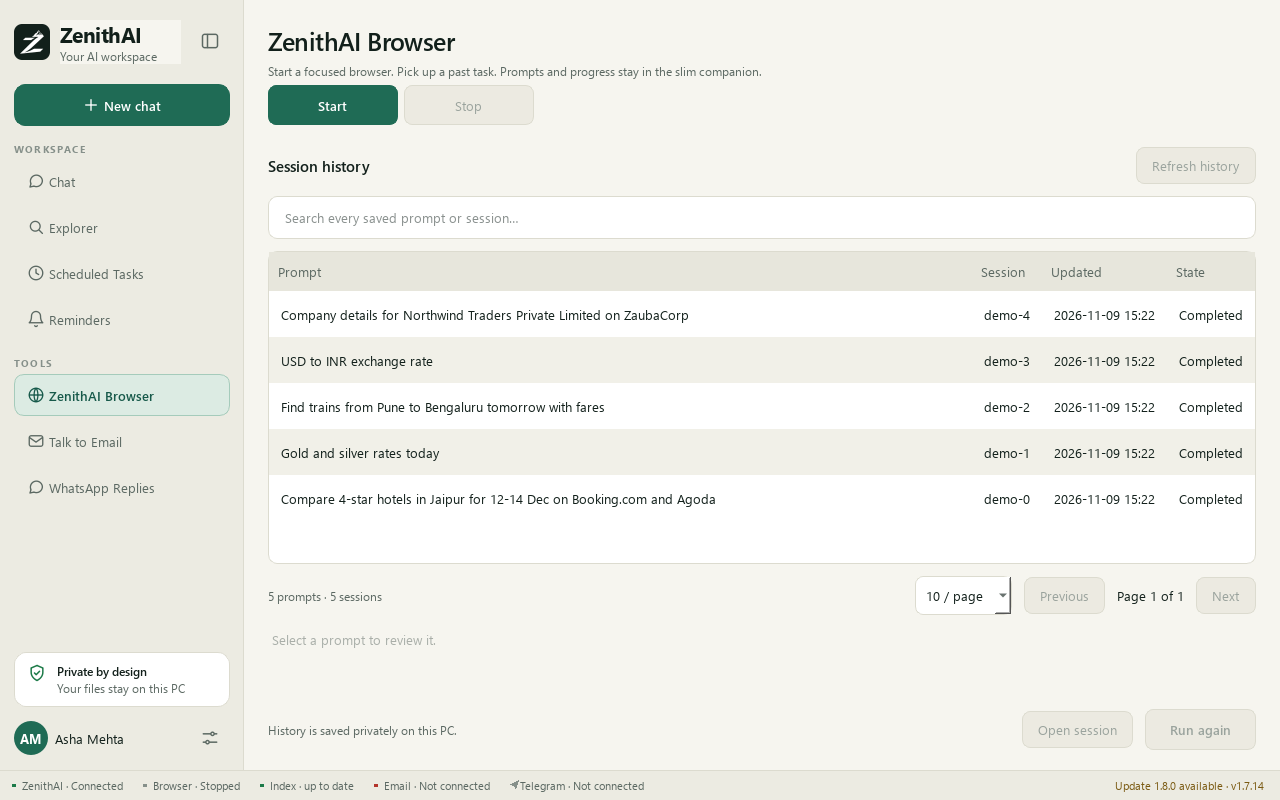
ZenithAI Browser: recipes run here, in the dedicated browser.
How a recipe runs
Section titled “How a recipe runs”- Open the ZenithAI Browser panel, the companion beside the browser or the Browser page.
- Type a prompt that names the website, for example
mail.xgenplus.com, and gives the values. Recipients go after the wordstoandcc. The shipped XgenPlus recipe takes to, cc, subject and body only, with no bcc. The other values go after a label such asSubject:andBody:. - The app finds the site’s recipe and takes your values word for word from the prompt.
- The steps replay in the browser. You sign in yourself first. The recipe never types credentials.
Example prompt, typed in the ZenithAI Browser panel:
Send an email on mail.xgenplus.com to accounts@northwind.example cc ops@northwind.example Subject: October invoices Body: Please find the October invoice summary below…
A Body: label runs to the end of the prompt, so put the body last.
A recipe send does not show an approval card. If the prompt is clear, the shipped Send mail recipe sends straight away. If something is doubtful, the app asks Run this task? first. Start with Dry run: to check without sending.
Rehearse first
Section titled “Rehearse first”Start the prompt with Dry run: and the recipe stops before the first step that commits anything,
such as sending. Use it to check your values and your sign-in.
When the recipe is not used
Section titled “When the recipe is not used”If anything is unclear, the recipe does not run. The normal assistant path runs instead, or you are asked once. Words such as “don’t send” or “draft”, a negated cc, or an address at the site’s own domain also stop the recipe.
A confirmation (“Run this task?”) appears when a value is not word for word in your prompt, when an address is not clearly to, cc or bcc, when a task that does not send may still change something on the site, or when a taught recipe sends for real for the first time.
Recipes are matched only for prompts typed in the ZenithAI Browser panel. A request typed in Chat goes to the assistant, even if it names the same site.
How a send is judged
Section titled “How a send is judged”- The send step is last and runs once.
- It is judged by the website’s own answer and by the compose form closing.
- It is never retried. If the result is not clear, you see “unknown” and are told to check the Sent folder.
- After a step that commits something, any failure is reported as “unsure, check the site”. It is never handed to the model to fix.
Possible outcomes: sent, dry run ok, ok, not sent, unknown, sign-in required, blocked (the site blocked automated browsing), failed.
Shipped recipe
Section titled “Shipped recipe”| Recipe | Site | What it does |
|---|---|---|
| Send mail | XgenPlus webmail | Composes and sends one e-mail: To, optional Cc, Subject, Body |
You sign in to XgenPlus webmail yourself in ZenithAI Browser. This is separate from Talk to Email, which connects with a token instead of a webmail sign-in.
A recipe can be created for any webmail. For a site that asks for a PIN, the recipe keeps working in your own open tab: you sign in and enter the PIN yourself. Restarting the app clears a PIN held in a tab, so sign in again before using a recipe on such a site.
Teach a task
Section titled “Teach a task”You can teach ZenithAI Explorer a task on any website: do it once while the app watches. It works out the steps, tests them at once as a rehearsal that stops before anything is sent, and saves the task. A prompt can then repeat it later without the AI model.
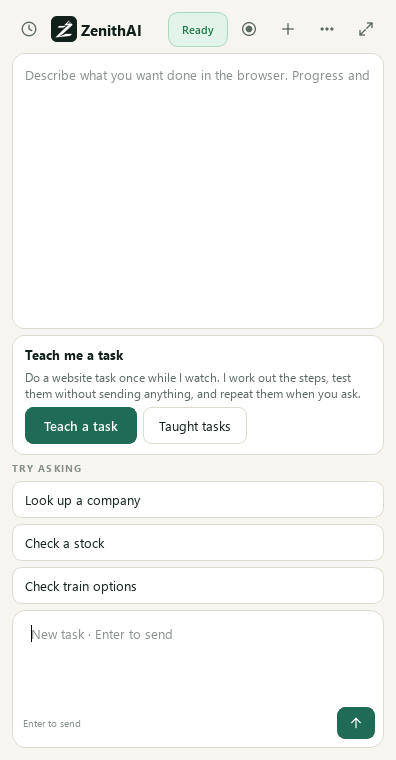
Teaching starts on the side panel: the round record button at the top, or the Teach me a task card.
Teach a task step by step
Section titled “Teach a task step by step”- In the ZenithAI Browser side panel, press the round record button or Teach a task on the Teach me a task card. The Teach a task option is also in the panel’s menu.
- Type the Website (a domain or any address on it). You can also give a Task name in short words such as
send_mail. Spaces and hyphens become_, and a name that looks like a code or a password is refused. Left empty, the name is made from what the task does. Press Start recording. Nothing is recorded before that. - A new tab opens on the site with a small Recording badge. Sign in there yourself if the site needs it, then do the task once as you normally would.
- While it records, the side panel turns red. It shows a clock, a live count of the steps learned so far and how many typed values will be asked each time. It also says what is never recorded.
- Press Finish and test, or Discard recording to drop it. The app works out the steps and replays them as a rehearsal, step by step.
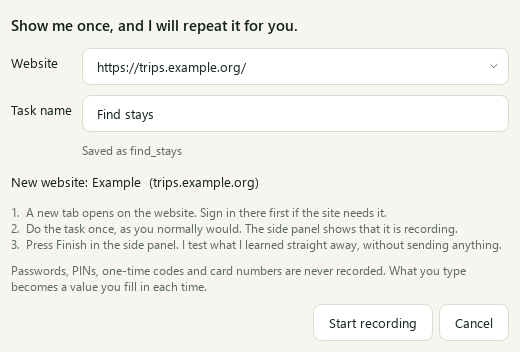
The Teach a task dialog: name the website and, if you like, the task.
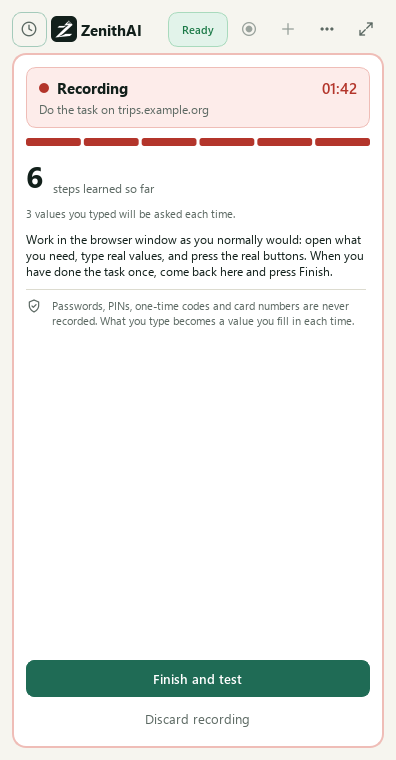
While recording, the panel is red and counts the steps it learns.
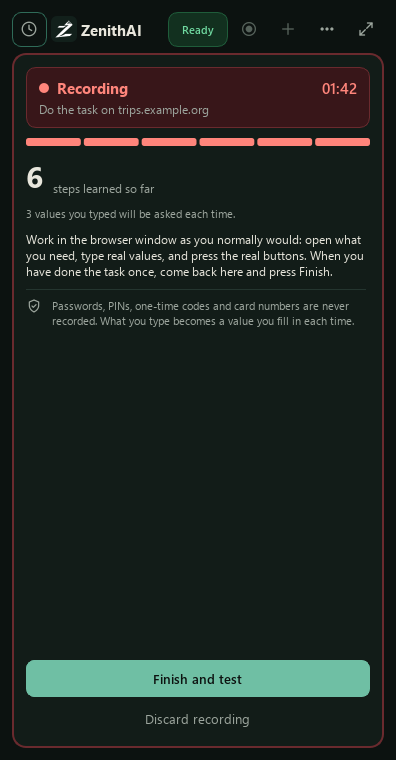
The same recording state in the dark theme.
The test, and automatic save
Section titled “The test, and automatic save”Finish and test replays the task with the values you typed. It is a rehearsal and stops before anything is sent.
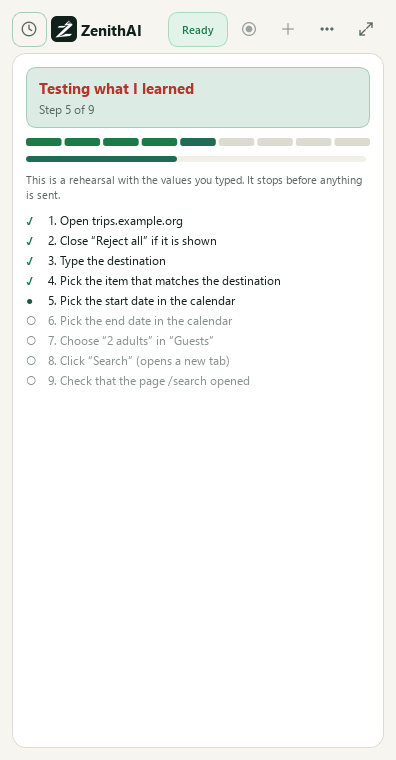
Testing what it learned: step 5 of 9, with nothing sent.
If the test passes, the task is saved at once, under the name you gave. The panel then shows what
it understood: the steps in plain words, the values it will ask for, the choices that are always the
same, where a test stops, and how sure it is. It also shows an example prompt that starts with Dry run:. Use this prompt puts that example in the message box. It is never sent by itself.
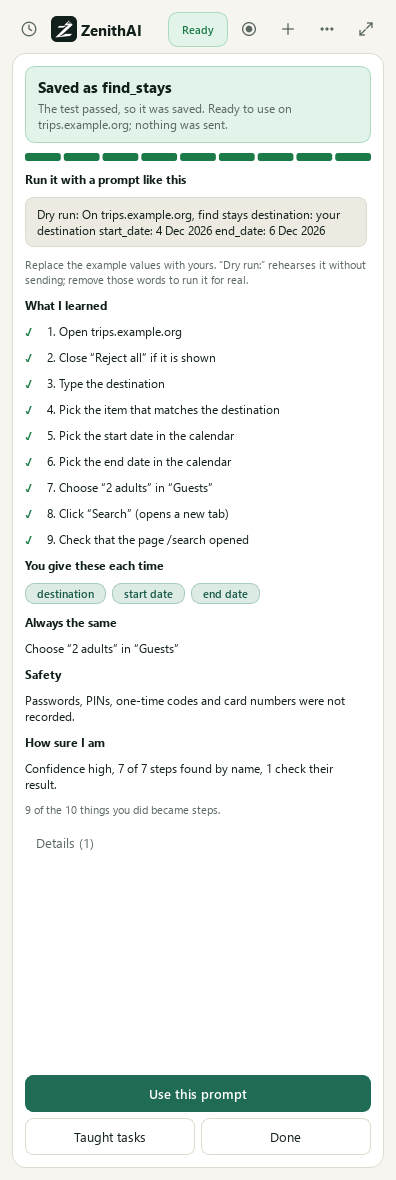
A passed test saves the task and shows a prompt that runs it.
If the name is already used by a saved task, the app asks before replacing it, with a review of what was learned. A failed test saves nothing usable (see below).
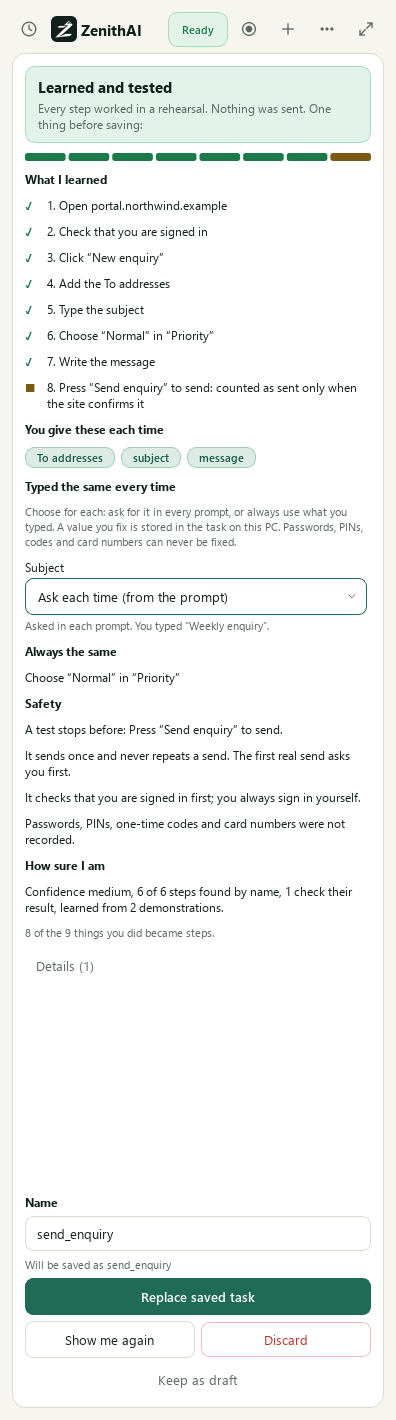
The review before replacing a saved task.
When the test stops
Section titled “When the test stops”If a step fails, nothing usable is saved and nothing is sent. The panel names the step and gives a plain reason, for example “I could not find it on the page. The page may look different now, or it only appears after something else.” You can choose Test again, Leave this step out, Teach again, Keep as draft or Discard. Keep as draft leaves it in Taught tasks as a draft that no prompt runs. Leave this step out is offered only for steps that can safely be skipped: never the start, the sign-in check, a value step, a guarded step or the send.
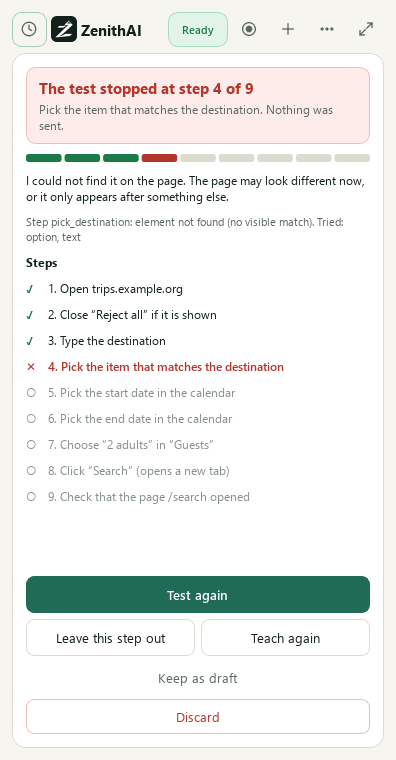
A test that stopped at step 4 of 9, with the reason and the choices.
Partly learned
Section titled “Partly learned”The review says how many of the things you did became steps. If the app kept fewer than half of them, or the test could only try the start of the task because a step that may send or submit comes early, a passed test is not saved by itself. The panel says why and offers Teach again or Save anyway. A task saved anyway shows as Partly learned, never as Tested. Teaching it again and doing each step clearly usually fixes it.
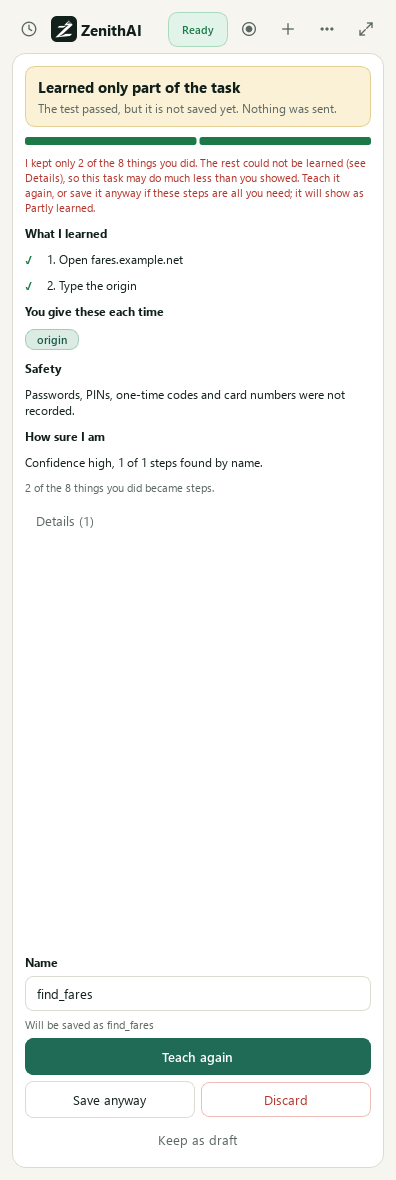
Only 2 of 8 actions were learned, so the test is not saved by itself.
Taught tasks
Section titled “Taught tasks”Taught tasks lists everything you taught on this PC, with its website, number of steps and the values it asks for. Each task has a status: Not tested, Tested, Reliable, Partly learned, Draft (kept but not usable yet), Blocked by the site or Needs a fix. It also shows the last test and the last real run. Test rehearses it (it asks for values), Use puts an example prompt in the box, and the menu has Show me again, Values typed the same (shown only when the task has such values), Rename and Delete. Show me again records the task once more. Steps done the same way each time become more reliable.
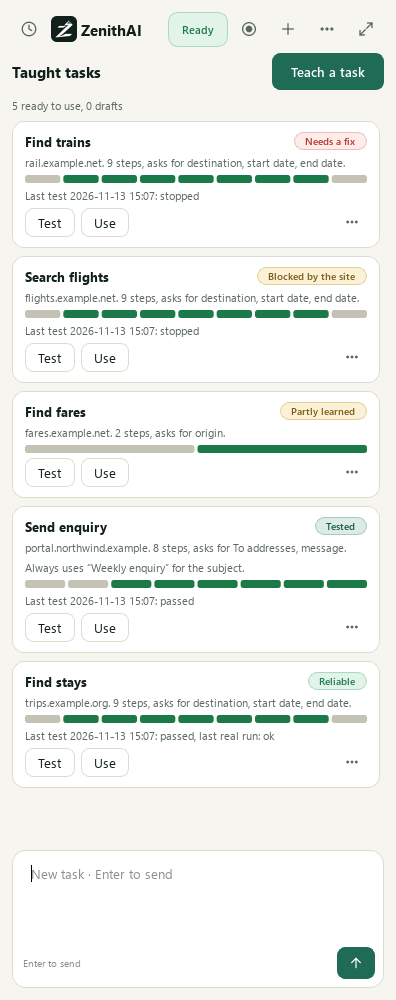
Taught tasks: everything you taught, with its status.
Values: each time, or always the same
Section titled “Values: each time, or always the same”What you type while teaching becomes a named value, such as destination or subject. It is asked
in each prompt and is not stored in the task. A date picked in a calendar becomes a date value.
Write it like 20 Dec 2026, 2026-12-20, 20/12/2026 (day first) or tomorrow.
After you show a task more than once, a value you typed the same every time can be set to Always use this value. It is then stored in the task on this PC and never asked in a prompt. Change it in the review or under Taught tasks, Values typed the same. Passwords, PINs, codes and card numbers can never be fixed this way.
Test in Taught tasks starts from the values you showed, or the ones you typed for the last test, until the app closes. They are never written anywhere, and secret-looking values are not kept at all.
What is never recorded
Section titled “What is never recorded”Passwords, PINs, one-time codes, verification codes, card fields and split one-digit code boxes are never recorded. Neither are clicks on an on-screen PIN pad or the path of a file you chose. A button that shows something you typed is stored without it. Tracking calls are not kept. The raw recording of what you did, including what you typed in ordinary boxes (never secrets), stays on this PC after saving.
Use a taught task
Section titled “Use a taught task”In the ZenithAI Browser panel, type a prompt that names the website and gives the values, as in the example prompt the panel showed. The first real send of a taught task that sends asks you once. After that it replays as taught. A real run of a task that sends nothing, such as a search, leaves the result page open in front of you. Each real run of a search opens a new result tab.
If a shipped recipe stops fitting a changed website, teach it again. Your recipe with the same name is used instead of the shipped one, but only if it has the same power, send or not send. Delete yours and the shipped one comes back.
If the site blocks the browser
Section titled “If the site blocks the browser”Some websites show a robot check or refuse automated browsers. A test or a run then stops, the task
shows Blocked by the site, and the panel says the app never tries to get past these checks. Do
that part yourself in the browser window, or try again later. For 30 minutes the app answers at once
that the site blocked automation. Start a prompt with Try anyway: to try once more. See
ZenithAI Browser for how blocked sites are handled everywhere.
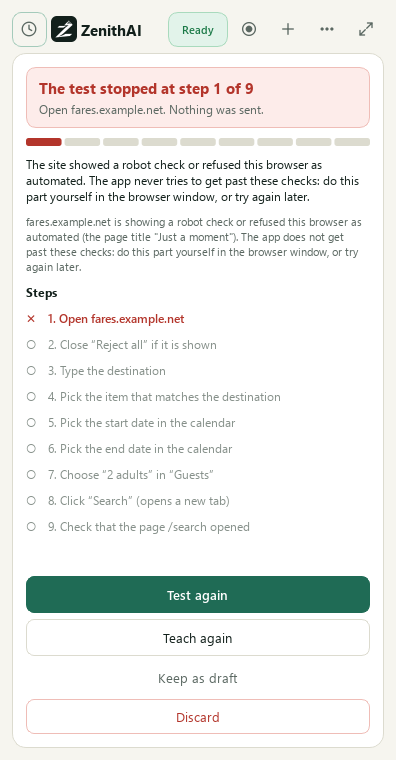
A test stopped at step 1: the site showed a robot check.
Example: teach a weekly form
Section titled “Example: teach a weekly form”This is an invented example. Karan submits the same stock report form on a supplier portal every
week. He presses the record button, types the portal’s domain and the name stock_report, signs in,
fills the form once and submits. He presses Finish and test. The rehearsal stops before the
submit step and the task is saved. Next week he types in the ZenithAI Browser panel: “On the portal,
submit the stock report with Week: 46 …”. The first real send asks once. After that it replays
exactly. Values must appear in your prompt with the labels the task expects.
Limits
Section titled “Limits”- Status: works with setup. You sign in, and you teach your own tasks once.
- Live-tested on travel searches only, on 13 November 2026, with nothing booked and no sign-in. A stays search on one travel site was taught and replayed with another city and other dates, up to the results page. A search on another travel site was taught and replayed with the same cities, but a replay with other cities failed. On some travel sites the browser was blocked, which is now reported. Websites change, so results can differ next week.
- Banking, shopping and mail sites have not been tried.
- Month arrows of a real calendar, new tabs, pop-ups that cover a button and the robot-check stops were tested on local pages shaped like real ones, not on a live site.
- Hover menus, drag and drop, file choosers and canvas pages are not learned.
- A rehearsal stops before steps that look like a commitment. Words such as Done and Apply, and the Enter key, still count as that, so a test can stop early. The review then says how much it tried.
- A click that something covers waits about 10 seconds before the pop-up is closed. The replay closes it only with the step you taught, or by refusing optional cookies on a known cookie banner. It never accepts cookies for you.
-
- There is no automatic health check or alert yet when a website changes and a recipe stops fitting.
- A taught recipe is trusted by its markers. It has no integrity stamp.
- Only one automation uses the browser at a time.
Related pages
Section titled “Related pages”Common questions
What is a recipe in ZenithAI Explorer?
A recipe is a recorded list of steps that ZenithAI Browser replays exactly, without the AI model. You name the website and give the values in your prompt, and the recipe uses them word for word. Nothing is invented on your behalf.
How do I test a recipe without sending anything?
Start your prompt with Dry run: and the recipe rehearses the steps and stops before the first step that commits anything. Use it to check the values and the sign-in before you run the real thing.
Why does my recipe not run from Chat?
Recipes are matched only for prompts typed in the ZenithAI Browser panel. A request typed in Chat goes to the assistant instead, even if it names the same website. Type the prompt in the panel and name the site.
What happens if the result of a send is unclear?
The send step runs once and is never retried. If the website's answer is not clear, the result is shown as unknown, and you are told to check the Sent folder. Nothing is sent a second time without you.
Are my passwords saved when I teach a task?
No. Passwords, PINs, one-time codes, card fields and PIN-pad digits are never recorded. The text you type while teaching becomes a value you give each time, unless you choose Always use this value. You sign in yourself.
How do I teach a task?
On the ZenithAI Browser side panel press the round record button, type the website and press Start recording. Do the task once, then press Finish and test. If the rehearsal passes, the task is saved at once.
What does Partly learned mean?
The app kept fewer than half of the things you did, or could test only the start of the task. A passed test is then not saved by itself. Choose Teach again or Save anyway, which shows the task as Partly learned.
Can I make a recipe for a webmail other than XgenPlus?
Yes. XgenPlus is the shipped example, and a recipe can be created for any webmail by teaching it once. Sites that ask for a PIN keep working in your own open tab, where you sign in and enter the PIN yourself.