
WhatsApp Replies
WhatsApp Replies helps you answer many waiting chats with one message, for example festival greetings. You choose the words to look for, check the list of who qualifies, and tick who gets your reply. It uses the WhatsApp Web tab in ZenithAI Browser, where you are already signed in. No AI model is involved.
WhatsApp Replies is meant for personal use and a small number of chats, in line with WhatsApp’s own terms and recommended norms. You stay in control: you see a preview, confirm before anything is sent, and replies go out one chat at a time. ZenithAI Explorer is not approved or endorsed by WhatsApp, and you are responsible for following WhatsApp’s terms.
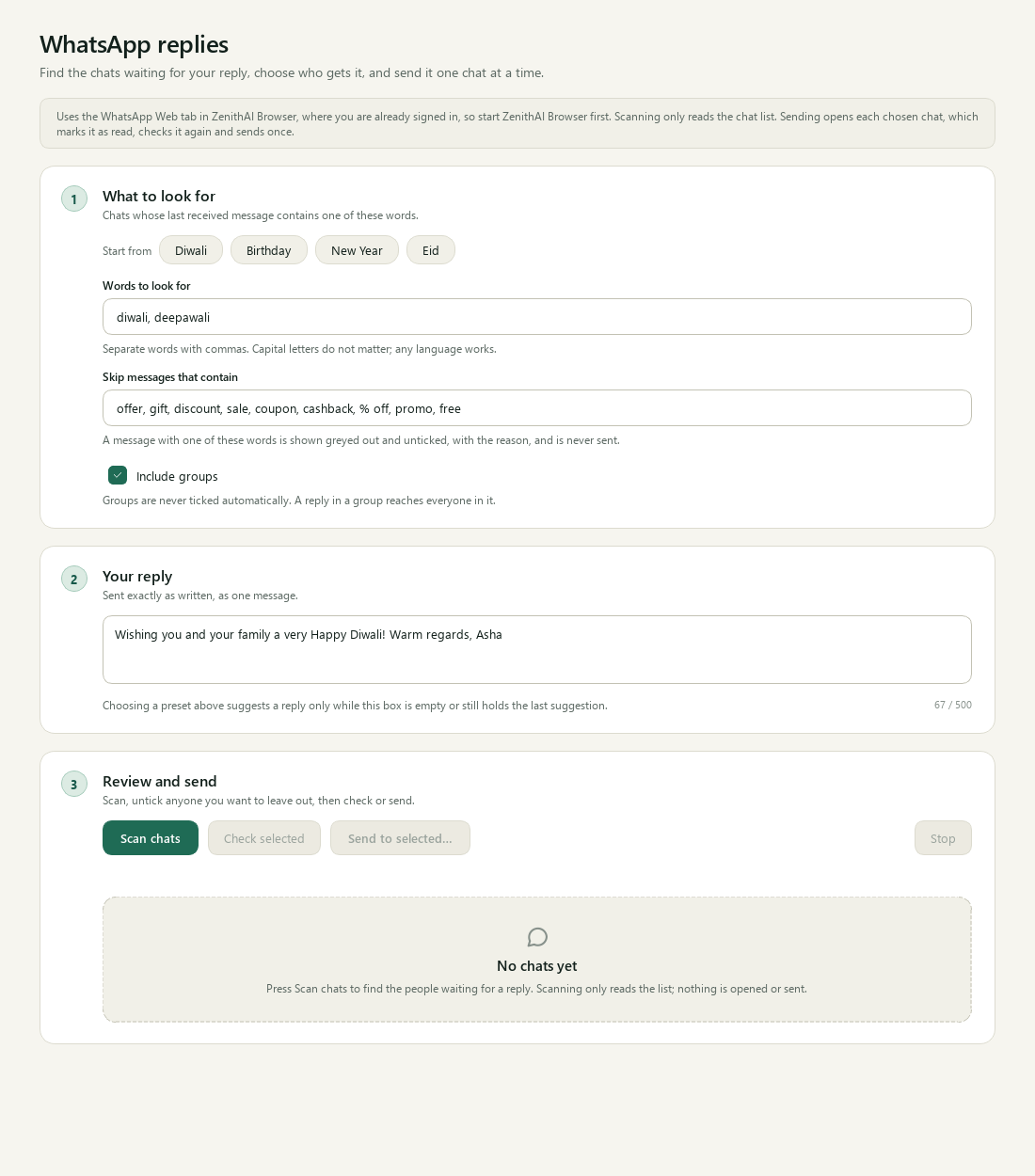
WhatsApp Replies: choose the words, write your reply, then scan.
Before you start
Section titled “Before you start”- ZenithAI Browser is running.
- WhatsApp Web is signed in inside it. Scan the QR code with your phone (WhatsApp, Linked devices).
- No other automation is using the browser at the same time.
Use it
Section titled “Use it”- Start ZenithAI Browser and make sure WhatsApp Web is signed in there.
- Open WhatsApp Replies in the sidebar, under TOOLS.
- Step 1, what to look for. The Diwali words are filled in even if you have not chosen a preset. Choose a preset (Diwali, Birthday, New Year or Eid) or type your own words and skip words. Decide whether to tick Include groups.
- Step 2, your reply. The box is already filled in, the first time with a sample text ending in the name Ajay, and your choices are remembered for next time. Read it, edit it and replace the sample name before you scan or send. It is sent exactly as written, as one message.
- Step 3, review and send. Press Scan chats. Scanning only scrolls the chat list. Nothing is opened or sent.
- Untick anyone you want to leave out. Select all ticks everyone except groups, and Select none clears the ticks.
- Optional: press Check selected. It opens each ticked chat and checks it without sending, as a dry run. Opening a chat still marks it as read.
- Press Send to N selected…, read the confirmation, which shows the exact text and warns if groups are included, and confirm. Press Stop to stop after the current chat.
How chats are chosen
Section titled “How chats are chosen”- Words to look for match anywhere in the last message you received. Capital letters do not matter, and any language works. The presets are examples. They fill in words, including Hindi keywords, and example reply text, such as a sign-off name. Edit all of it before you send.
- Skip words always win. A message with a skip word is shown greyed out and unticked, with the reason. The pre-filled skip words are offer, gift, discount, sale, coupon, cashback, % off, promo and free.
- Chats where you wrote last, and chats whose last event is a reaction, are left out and never opened.
- Groups are hidden unless Include groups is on, and are never ticked for you.
- A person who already got this same reply is skipped, with the reason “Already messaged with this reply”. A different reply text, such as a New Year message, is tracked separately.
- Two chats with the same name are flagged and skipped, because the app cannot tell which one you mean.
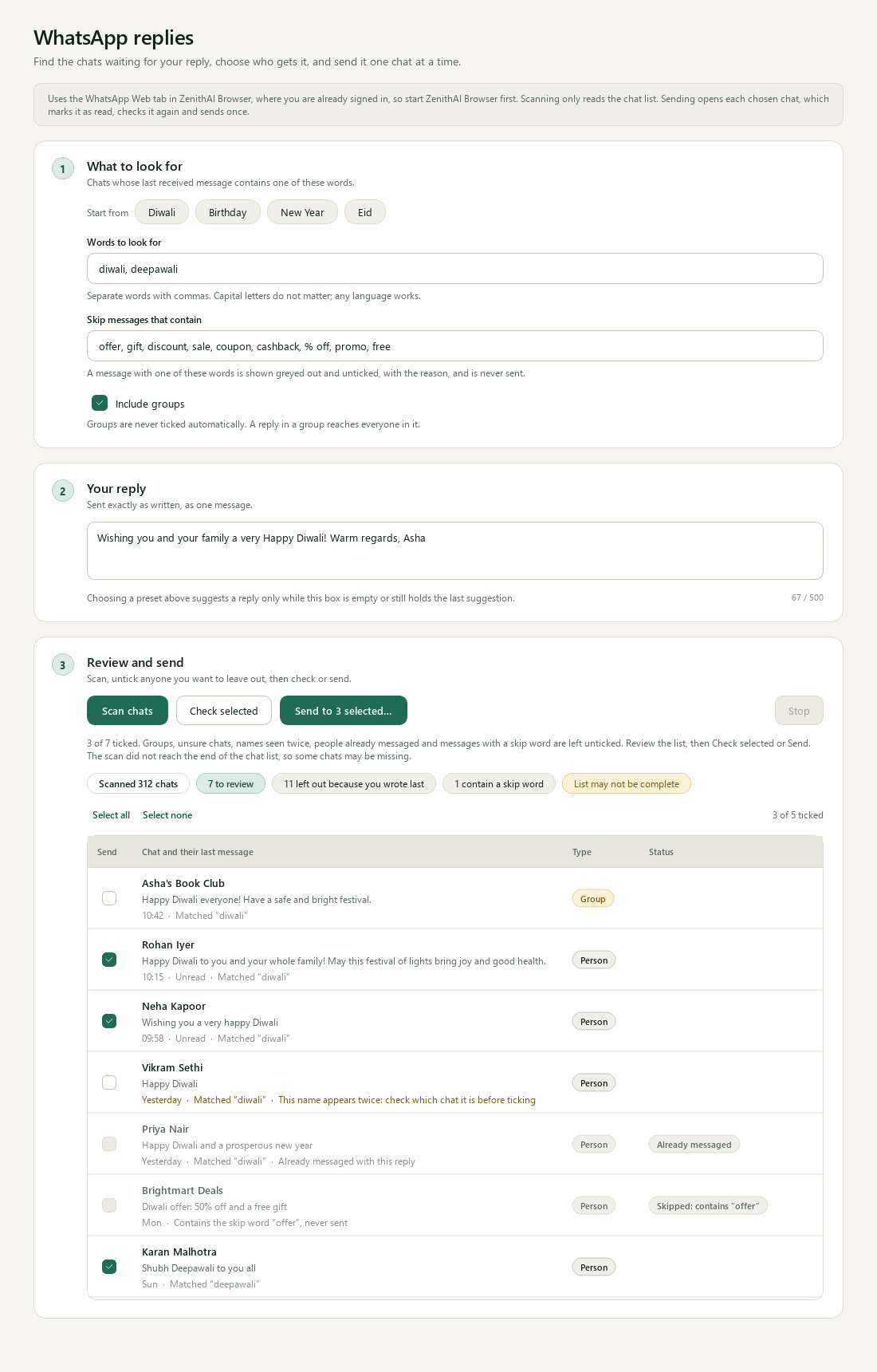
You see who qualifies, and why others were left out, before anything is sent.
The summary chips show how many chats were scanned, how many are to review, how many were left out because you wrote last, and how many contain a skip word. “List may not be complete” means the scan did not reach the end of the chat list.
Sending
Section titled “Sending”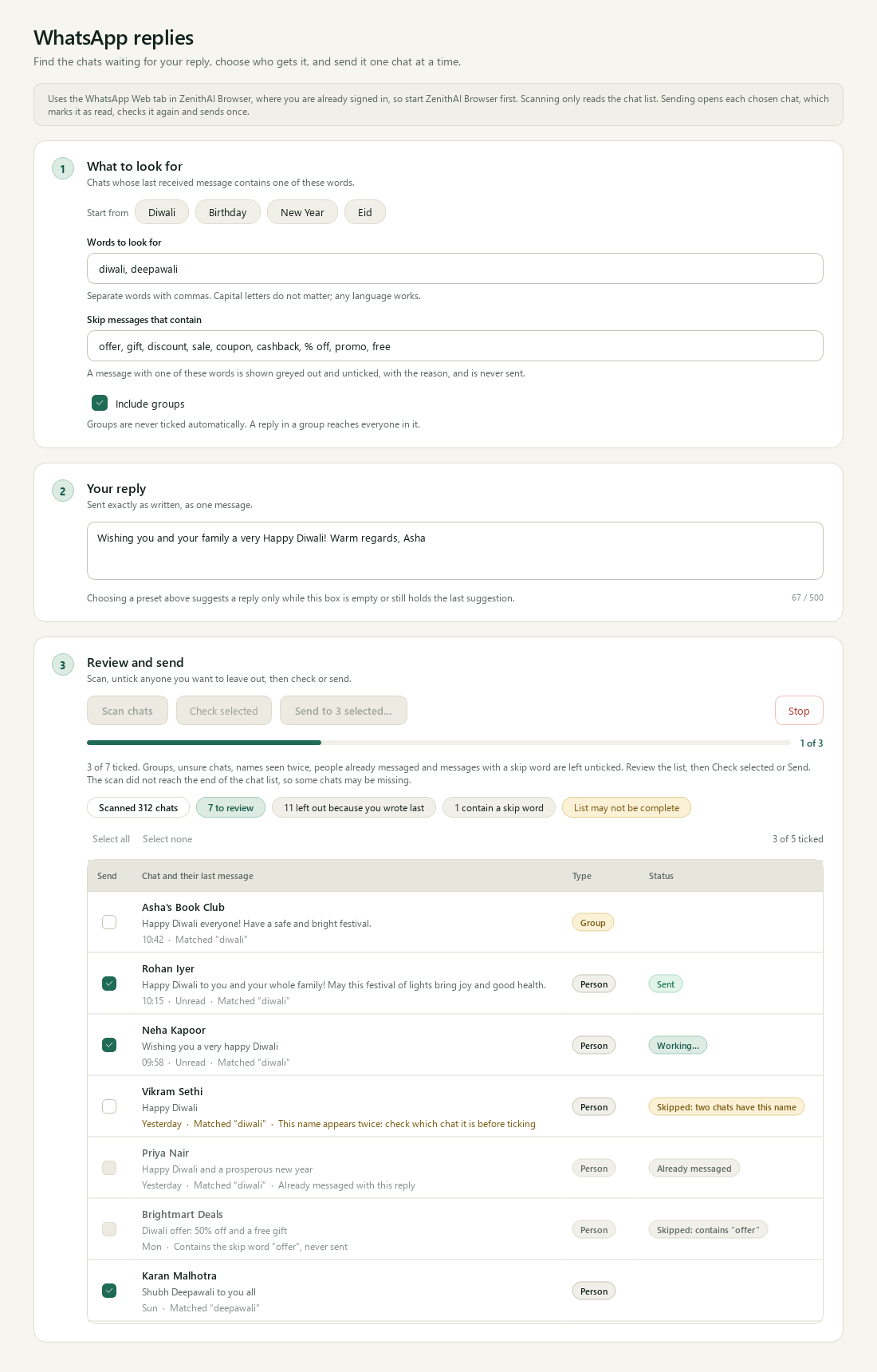
Replies go out one chat at a time, a few seconds apart. Stop at any moment.
Before each send, the app opens the chat and checks again that it is the right person, that the last message is theirs, that it still matches and that you have not already replied. It then sends once.
- Sends are 6 to 14 seconds apart.
- A send counts as done only when a new outgoing message with exactly that text appears.
- If that cannot be confirmed, the result is “unknown”, it is not retried, and the rest of the batch stops. Open WhatsApp and look at that chat before doing anything else.
- To find a chat further down the list, the app uses WhatsApp’s own search, which takes about 10 seconds per chat.
- If WhatsApp Web blocks automated browsing, the batch stops: “WhatsApp Web blocked automated browsing, so nothing was sent and the batch stopped. Use WhatsApp yourself, or try again later.” The app does not try to get around the site’s protection.
- A local record remembers who received which reply text, so the same person never gets the same reply twice. This record is kept on this PC as a plain file and is not encrypted.
When something is wrong
Section titled “When something is wrong”The page explains problems in plain words and offers the next step.
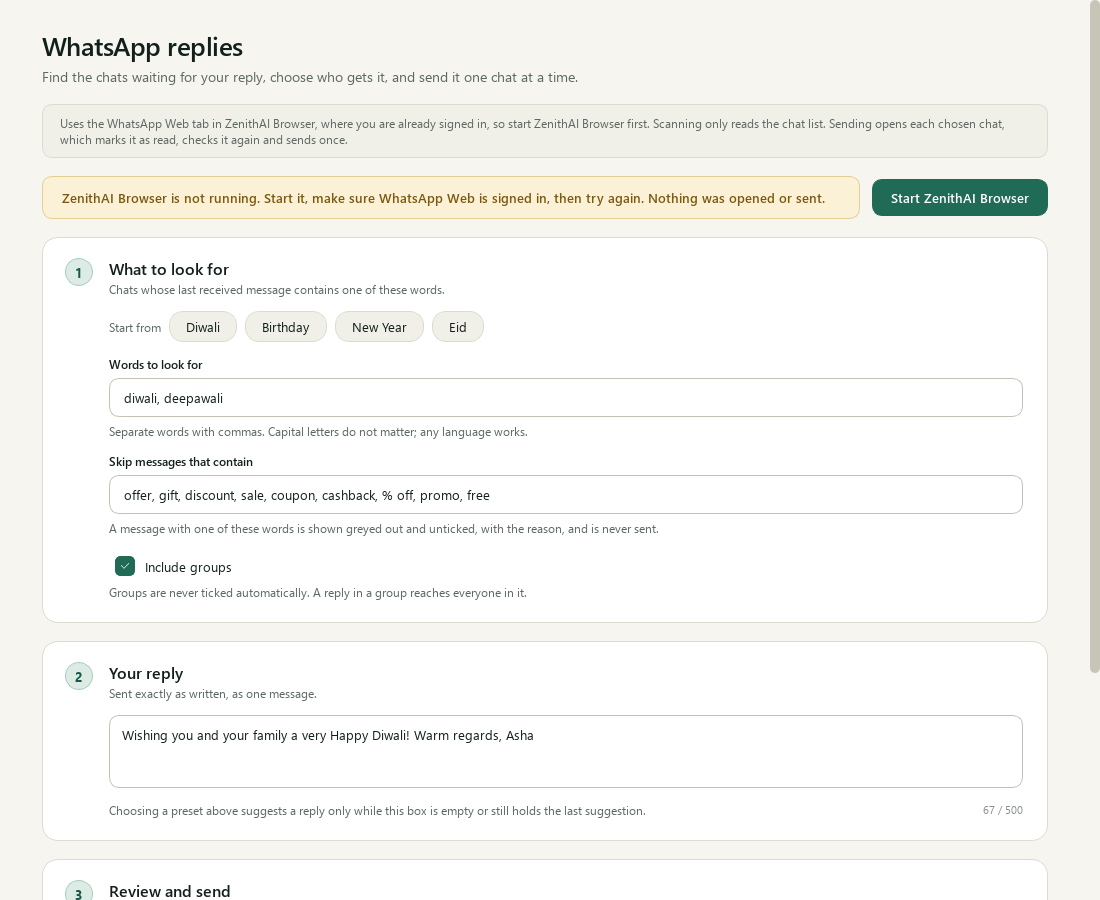
Problems are explained in plain words, with the next step.
| Message | What to do |
|---|---|
| ZenithAI Browser is not running | Press Start ZenithAI Browser, then scan again. Nothing was opened or sent. |
| Another automation is using ZenithAI Browser | Wait for it to finish or stop it on the Browser page, then press Check again. |
| WhatsApp is open in another window | Close the other WhatsApp tab in ZenithAI Browser, then Check again. |
| WhatsApp Web is asking for a QR code | Scan the code with your phone, then Check again. |
| The chat list did not appear | Wait until WhatsApp Web has loaded, then Check again. |
| WhatsApp Web blocked automated browsing | Nothing more is sent and the batch stops. Use WhatsApp yourself, or try again later. |
| Your words changed since the last scan | Press Scan chats again so the list matches your words. |
Limits
Section titled “Limits”- Opening a chat marks it as read in WhatsApp.
- The reply is plain text only. Placeholders such as a name are not supported by design.
- The app depends on WhatsApp Web’s page layout. A change on WhatsApp’s side can stop it working.
- Only one automation uses ZenithAI Browser at a time.
Related pages
Section titled “Related pages”Common questions
Does WhatsApp Replies use the AI model?
No. It works by the words you choose and the rules on the page. It scans the chat list in the WhatsApp Web tab inside ZenithAI Browser, where you are already signed in, and sends your reply exactly as you wrote it.
Will anything be sent before I confirm?
No. Scanning only scrolls the chat list. Nothing is opened or sent. Sending needs you to tick people, press the send button and confirm in a dialog that shows the exact text and the number of chats.
Will people see that I read their message?
Yes. Sending, and the Check selected dry run, open each chat, which marks it as read in WhatsApp. Scanning does not open chats, so it does not mark anything as read.
Why is someone missing from the list?
They are left out if you wrote last, if their last event is a reaction, if their last received message has none of your words, or if they are a group and groups are off. Chats with a skip word, or that already got this reply, are listed but greyed out and locked.
Can I stop while it is sending?
Yes. Press Stop and sending ends after the current chat. Replies go out one chat at a time, 6 to 14 seconds apart. If one chat cannot be confirmed, the rest of the batch stops and nothing is retried.
What if WhatsApp Web blocks the automation?
The batch stops and nothing more is sent. The app says WhatsApp Web blocked automated browsing and does not try to get around the site's protection. Use WhatsApp yourself, or try again later.
Can I use my contacts' names in the reply?
No. Personalised replies such as Hi and a name were left out on purpose, because saved names are often nicknames or numbers. Every selected chat gets the same text, sent as a single message.