
Use cases for ZenithAI Explorer
These scenarios show what ZenithAI Explorer can do. Every person, company and address is made up.
Status labels
- Works today: uses features in version 1.7.20 with only the basic setup, which is your ZenithAI key and the tools switched on in the chat.
- Works with setup: needs a one-time connection, such as an XgenPlus token, a Telegram bot, a sign-in to a site in ZenithAI Browser, a WhatsApp Web sign-in, or a task you taught once.
- Idea: not possible in 1.7.20. Listed so you know what not to expect.
Reply and respond
Section titled “Reply and respond”1. Reply to Diwali wishes, only to the right people
Section titled “1. Reply to Diwali wishes, only to the right people”Status: Works with setup (ZenithAI Browser running, WhatsApp Web signed in).
Asha has dozens of greetings waiting. She wants to thank the people who wished her, but not shops sending “Diwali offer” messages, and not groups.
- Open WhatsApp Replies and choose the Diwali preset. Words such as diwali, deepawali and deepavali are filled in, and skip words such as offer, gift, discount and sale are pre-filled.
- Write the reply, for example “Thank you, and wishing you and your family a very Happy Diwali! Warm regards, Asha”.
- Press Scan chats. Rohan Iyer and Neha Kapoor are ticked, and “ShopMart” is greyed out with the reason “Contains the skip word offer”. Groups are never ticked.
- Untick anyone you want to answer personally. Optionally press Check selected for a dry run.
- Press Send to 12 selected… and confirm. Messages go out one at a time, 6 to 14 seconds apart.
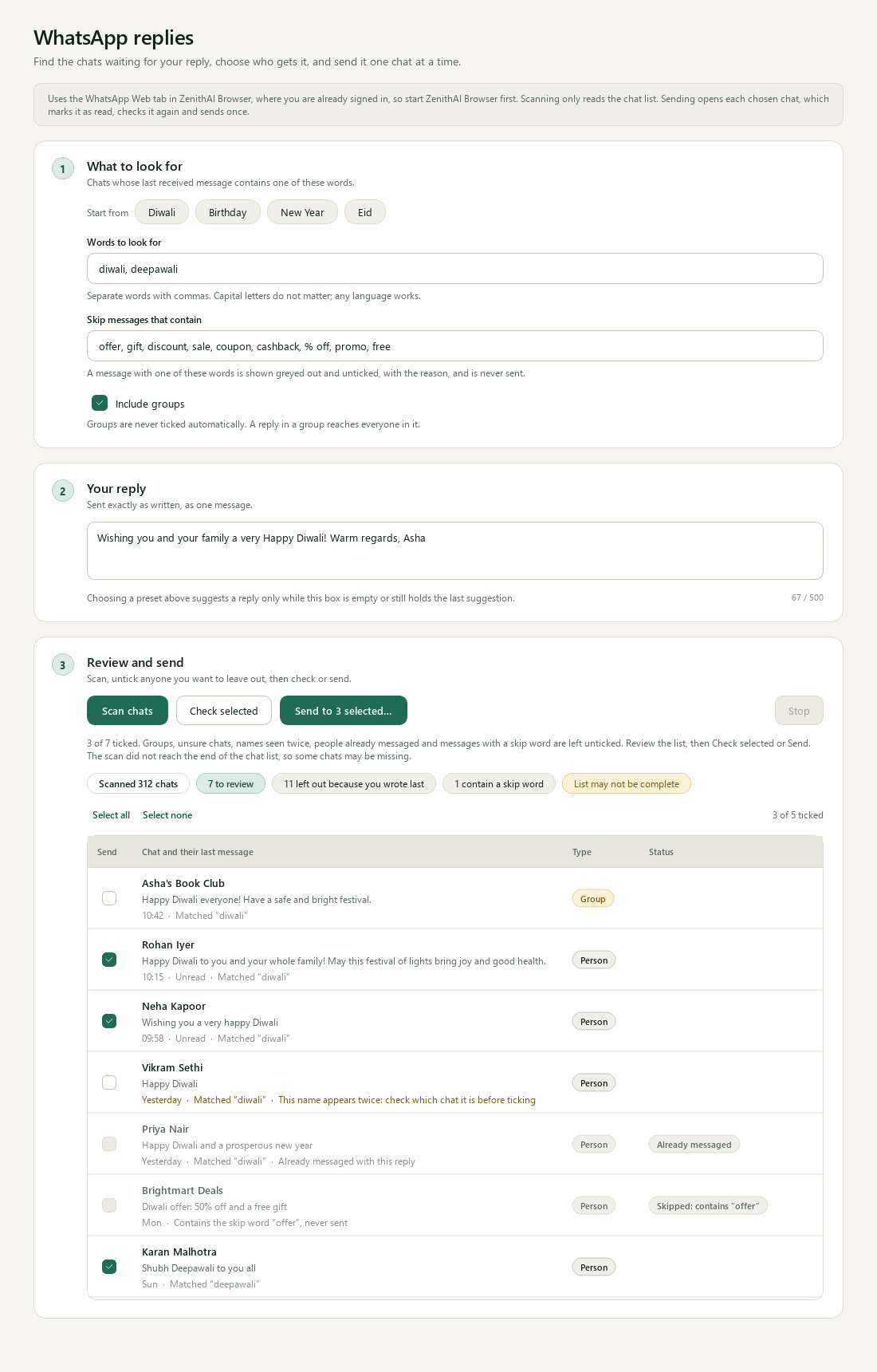
You see who qualifies, and why others were left out, before anything is sent.
Result. Each chosen chat gets exactly one reply. People you wrote last to, chats that end with a reaction, and people who already got this reply are left out. If a send is uncertain, the batch stops and the page says which chat to look at. See WhatsApp Replies.
2. Thank everyone for birthday wishes
Section titled “2. Thank everyone for birthday wishes”Status: Works with setup (as above).
Choose the Birthday preset, write “Thank you so much for the birthday wishes! Asha”, scan, review and send. Each reply text is tracked separately, so people who got the Diwali reply can still get this one.
3. Draft and send an e-mail through the XgenPlus mailbox
Section titled “3. Draft and send an e-mail through the XgenPlus mailbox”Status: Works with setup (XgenPlus token in Settings > Talk to Email). Sending has been tested with synthetic data, not live.
Draft a polite reply to the latest e-mail from Vikram at Bluefin Logistics confirming Thursday’s delivery slot, and send it.
The assistant finds the message, writes the reply and shows an approval card with the recipients, subject, body and attachments. Nothing is sent until you press Send this email. See Talk to email.
4. Send a standard e-mail through webmail, the same way every time
Section titled “4. Send a standard e-mail through webmail, the same way every time”Status: Works with setup (signed in to XgenPlus webmail in ZenithAI Browser).
Type this in the ZenithAI Browser panel. In Chat the same words go to the assistant instead.
Send an email on mail.xgenplus.com to accounts@northwind.example cc ops@northwind.example Subject: October invoices Body: Please find the October invoice summary below…
The prompt names the site and gives every value, so the shipped recipe runs step by step without the AI. One e-mail is sent once. If the result is unclear you are told to check Sent, and it is never retried. Start the prompt with Dry run: to rehearse. See Recipes.
5. Teach a task once and replay it
Section titled “5. Teach a task once and replay it”Status: Works with setup (you teach it once and sign in to the site yourself). Only sites that do not block automated browsers can be taught. Live-tested on travel searches only; shopping, banking and mail sites have not been tried. A taught task with a sign-in or a real submit has not yet been run on a live site.
Karan sends the same weekly stock report form on a supplier portal (portal.acme-supplies.example).
- In the ZenithAI Browser side panel, press the round record button, or Teach a task on the Teach me a task card. Type the website and the task name
send stock report, then press Start recording. - In the tab that opens, sign in yourself, fill the form once and press the real Submit button. The panel turns red, counts the steps it learns and shows a clock.
- Press Finish and test. The app works out the steps, so what you typed becomes values such as
weekandnotes. It then rehearses them at once, ticking “Step 1 of 8”, “Step 2 of 8” and so on, and stops before Submit. Nothing is sent. - The test passed, so the task is saved straight away. The panel shows the steps in plain words, the values you give each time, where a test stops and how sure it is.
Next week, press Use in Taught tasks. An example prompt that names the website and each value by its label (for example week: and notes:) goes into the side-panel box, starting with Dry run:. Replace the values, rehearse, then remove Dry run: to run it for real. The first real send asks you once. Passwords, PINs and one-time codes are never recorded.
Values must appear in the prompt with the labels the task expects, or the normal assistant takes over or asks you once. A test stops before anything that looks like a commitment, including buttons named Done or Apply, so it may test only part of a long form. The review then says so. See Recipes.
5a. Teach a search you repeat with other values
Section titled “5a. Teach a search you repeat with other values”Status: Works with setup. Tried live on 13 November 2026 on booking.com, where a stays search was taught and then replayed with another city and other dates up to the results page, with nothing booked (moving the calendar to another month was tested on sample pages, not yet on a live site). Websites change, and a site that blocks automated browsers cannot be taught.
Neha checks hotel prices for different cities and dates on a travel site (trips.example.org here). She teaches the task once, with the website trips.example.org and the name find stays. In the tab she closes the cookie banner, types a city and picks it from the suggestion list, picks two dates in the calendar, chooses 2 adults and presses Search. After Finish and test the app learns steps such as “Close “Reject all” if it is shown”, “Pick the item that matches the destination” and “Pick the start date in the calendar”, tests them and saves the task as find_stays.
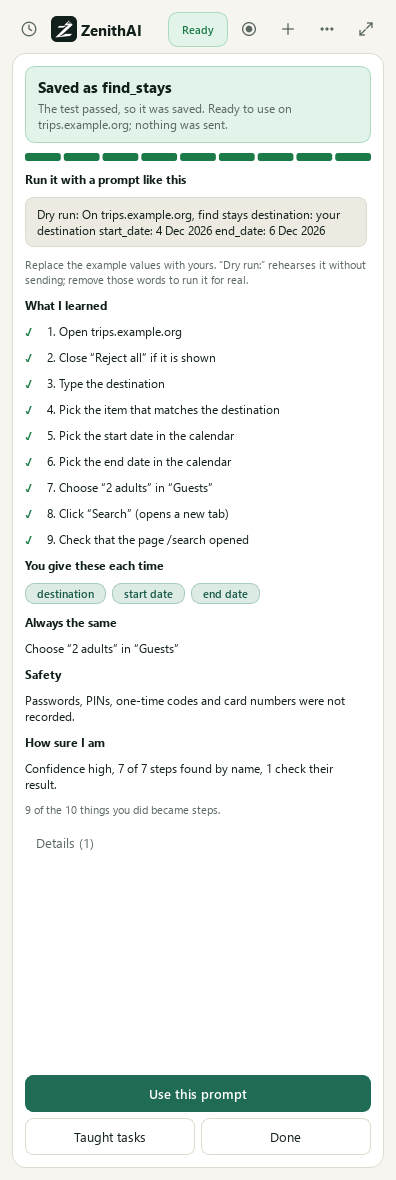
A passed test saves the task at once and shows a prompt that runs it.
Later, in the side panel:
On trips.example.org, find stays destination: Udaipur start_date: 20 Dec 2026 end_date: 22 Dec 2026
The search runs step by step without the AI model, moves the calendar to December by itself and leaves the results page open in front of you. Nothing is booked. If a site shows a robot check, the app stops and tells you, and you do that part yourself in the browser window. See Recipes and ZenithAI Browser.
Find and research
Section titled “Find and research”6. A researched competitive report as a Word file
Section titled “6. A researched competitive report as a Word file”Status: Works today (the redesigned engine has not yet been seen on a full live run). Deep research was run live on 9 November 2026. The redesigned report engine has been tested with simulated runs and replays, not yet on a full live run. Results depend on the sources found, and a run takes about 60 to 90 minutes.
deep research: Research the market for cloud accounting software for small businesses in India. Compare the main providers, pricing, features and data residency, and give me a detailed report with links.
The app first looks at what the web holds on the subject, then designs the sections this report needs, planned with at least three searches per section (dropped ones are listed under Evidence gaps). It keeps numbered notes, writes each section from its notes and removes any number or citation not found in them. A site that blocks the browser is skipped and listed under Evidence gaps. The report opens with a short “How far to trust this” line and an “Answers to your questions” table when your request lists three or more numbered points; a point with no evidence says so and points to Evidence gaps. Press .docx for a Word file or Copy to paste into Word or Outlook. Check important figures against the cited links. See Research reports.
6a. A list of local companies with contacts, as a table and a CSV
Section titled “6a. A list of local companies with contacts, as a table and a CSV”Status: Works with setup (Browser on; Email connected for the e-mail part). Results depend on what each company’s own website shows, and a list may take 20 to 40 minutes.
Find 10 IT companies in Jaipur and Udaipur with key person, email and phone, then create a CSV and email it to accounts@northwind.example
Chat searches city by city, reads first the companies that the most independent sources name, and leaves out large national and global firms unless you ask for them. Each company’s own website is confirmed by a search for its name and place, then read. An e-mail or phone shows only when the page shows it, otherwise the cell says “not listed”. The answer opens with a count such as “Found 7 of 10 requested; 4 have a published email and 2 a published phone number” and names the entries dropped for being outside Jaipur and Udaipur. The CSV is saved in the exports folder. The e-mail, with the file attached or, if your mailbox cannot take attachments, with the CSV text in the body (lists of up to 50 rows), is sent only after you press Send this email. Jewellers, steel, garments, real estate, hotels, colleges and universities work too, and an official list is read first where one is public. See Chat.
7. Find a document by meaning, not by name
Section titled “7. Find a document by meaning, not by name”Status: Works today (folders chosen, search model downloaded).
the signed agreement about office cleaning services
Matching files are ranked by meaning and words. In Chat with Files on, each source is a link that opens the file in Windows Explorer. Nothing is uploaded to search. With Chat, only the passages used for the answer go to the AI. See Explorer search.
8. Find the moment in a recording
Section titled “8. Find the moment in a recording”Status: Works today (search by meaning on).
Search audio: budget approval or video: product demo login screen. Results show the matching moment, and Enter plays it from there.
9. Compare hotels across sites in one go
Section titled “9. Compare hotels across sites in one go”Status: Works today (Browser on). Results depend on the sites, and Agoda lists only part of a city per visit. A site that blocks automated browsers stops the task with “Blocked by the site” and is not retried.
Compare 4-star hotels in Udaipur for 12 to 14 December for two adults on all sites, cheapest first.
One short session runs per site (Booking.com, Agoda, Trip.com), and the app builds one comparison. Nothing is booked.
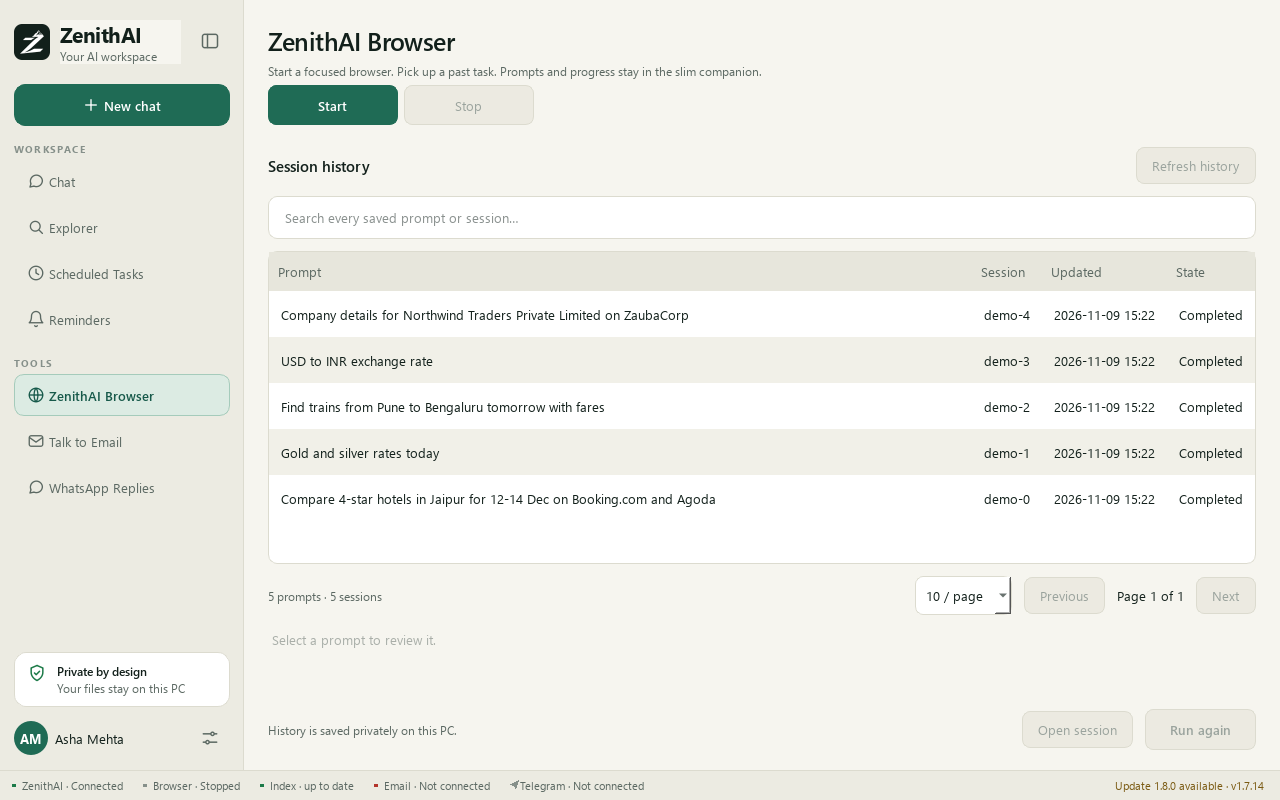
ZenithAI Browser: start the dedicated browser and pick up a past task.
10. Check train options
Section titled “10. Check train options”Status: Works today (Browser on). IRCTC may need you to sign in yourself.
Trains from Jaipur to Delhi on 20 November with available 3A class and fares
The IRCTC rule reads the class and fare for each train. Nothing is booked.
11. Company lookup
Section titled “11. Company lookup”Status: Works today (Browser on).
Company details, directors and registered address for Northwind Ledger Private Limited
This uses ZaubaCorp, because the government company register needs a login. It is read-only.
12. Catch up on e-mail after leave
Section titled “12. Catch up on e-mail after leave”Status: Works with setup (XgenPlus token).
Use the Catch up on email starter in Chat, or type:
Summarize my unread email from the last working day and highlight anything that needs a reply.
You get a short summary with what needs action. Reading does not mark messages as read.
Schedule, remind and work from your phone
Section titled “Schedule, remind and work from your phone”13. “Remind me tomorrow 9am …”
Section titled “13. “Remind me tomorrow 9am …””Status: Works today.
remind me tomorrow 9am to pay the office rent
At once, without an AI call, the reply states what was understood, the due time with the weekday, and how it will be delivered. See Reminders.
14. A scheduled morning briefing on your phone
Section titled “14. A scheduled morning briefing on your phone”Status: Works with setup (Telegram connected, PC on and ZenithAI Explorer running at that time).
In Scheduled Tasks > New task:
- Name: Morning market brief
- Task: “Check today’s gold and silver rates and the USD to INR exchange rate, and give me a five-line summary.”
- Tools: Browser
- Schedule: daily, 08:00
- Tick Send the answer to my Telegram when a run finishes, then Enable this schedule.
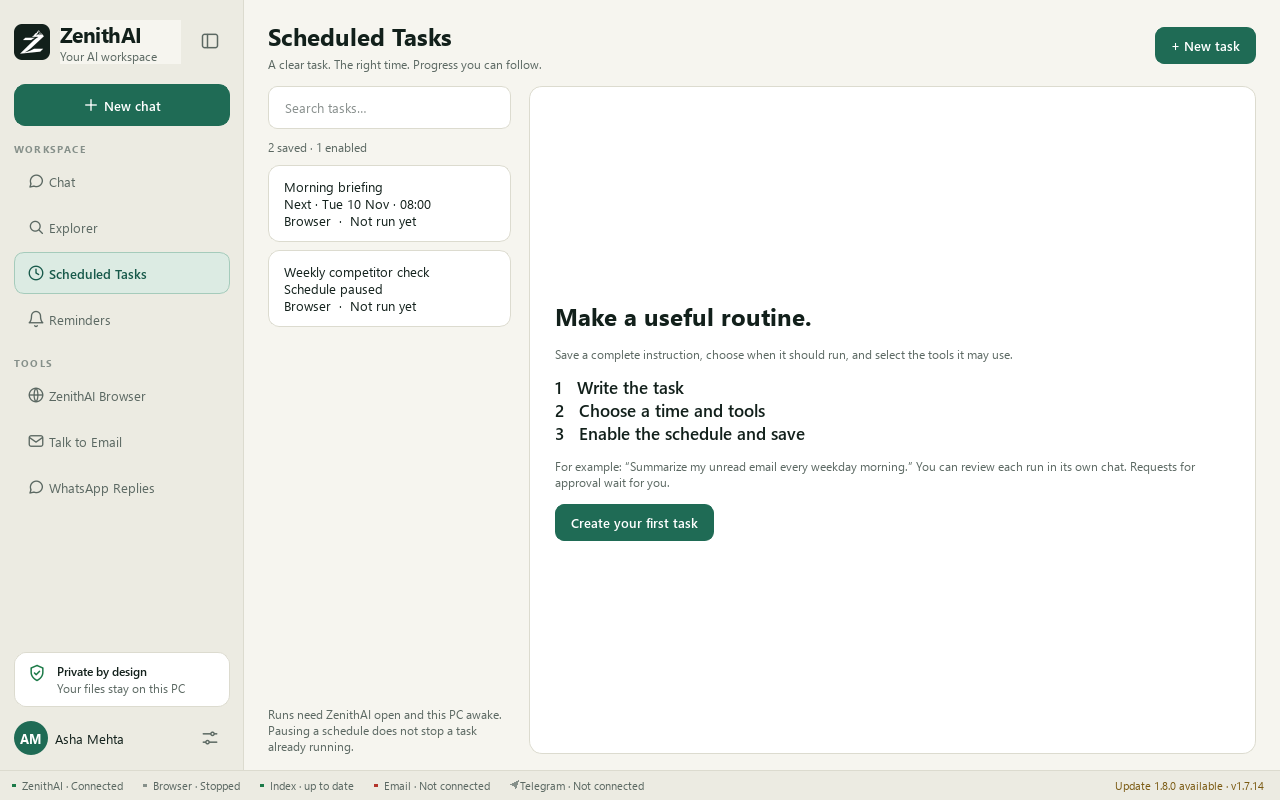
Scheduled Tasks: a clear task, the right time, progress you can follow.
Each morning a fresh chat runs the task and the answer arrives in your Telegram chat. If the PC was asleep at 08:00, the task runs once when it wakes and the app is running. See Scheduled Tasks.
15. Ask from your phone
Section titled “15. Ask from your phone”Status: Works with setup (Telegram paired, commands switched on, tools ticked). The PC must be on with ZenithAI Explorer running.
/zprompt find the latest price list for Orion Paints in my documents and summarise the changes
The task runs on the PC with only the tools you ticked, and the answer comes back to Telegram, as a Word file if it is long. Anything needing approval waits at the PC. Requests older than 5 minutes are dropped.
16. Set a reminder from your phone
Section titled “16. Set a reminder from your phone”Status: Works with setup (Telegram). Notifications and commands have been tried on a real phone.
/reminder 6pm call the auditor
The bot reads back what it understood, with the time, its weekday and the text. Nothing is set until you reply YES. At 6 pm a plain message arrives on Telegram and a notice shows on the PC.
17. A weekly status e-mail that sends itself
Section titled “17. A weekly status e-mail that sends itself”Status: Works with setup (XgenPlus token, and a task with a standing e-mail permission). Not verified live from start to finish.
Create a scheduled task: “Every Monday 9:00, summarise last week’s files in the Projects folder and e-mail the summary to the team”, with tools Files and Email. Tick No further permission required to send this email, set To to team@northwind.example and Subject to “Weekly project summary”, then press Approve and save task.
Each Monday the body is freshly written and sent to exactly those recipients with exactly that subject, at most once per run. Any other recipient or subject goes back to normal approval. Revoke future-send permission stops it.
Ideas, not available yet
Section titled “Ideas, not available yet”| Status | Idea | Why it is not possible today |
|---|---|---|
| Idea | Reply to each person by name (“Hi Rohan, …”) | Personal placeholders were left out on purpose, because saved names are often nicknames or numbers. |
| Idea | Ask the bot to message a colleague when the report is ready | Chat’s Telegram tool can message only your own chat. Contacts are messaged from Settings > Connect. |
| Idea | “Install the update for me” | The app only tells you an update is available. You download the full installer or the small update installer and run it yourself. |
| Idea | Run my morning brief even when the laptop is shut | Schedules run only while the PC is awake and ZenithAI Explorer is running. |
| Idea | “Book the cheapest hotel” | Site rules are read-only: no booking or payment. |
| Idea | Get past the CAPTCHA and finish the search | The app never works around bot protection. It stops and you do that part yourself in the browser window. |
| Idea | Back up my ZenithAI data and restore it on a new laptop | There is no backup or restore option in 1.7.20. |
| Idea | Teach it to hover over a menu or drag a file | Hover menus, drag and drop, files and canvas pages are not learned. |
Common questions
What do the status labels on the use cases mean?
Works today needs only the basic setup, which is your ZenithAI key and the tools switched on in the chat. Works with setup needs a one-time connection, such as a mailbox token or a Telegram bot. Idea is not possible yet.
Are the names in the examples real?
No. All people, companies and addresses in these examples are made up, and the screenshots show invented data. Replace them with your own details when you try a prompt.