
Explorer FAQ and troubleshooting
Answers here come from the messages the app shows in version 1.7.20. Quoted text is what the app displays. Codes such as CHAT_BUSY appear in small text under the plain-English explanation in Chat. Where something has not been checked on a live site, the answer says so.
The eight questions above are the most common. The rest are grouped below.
General
Section titled “General”Why did my scheduled task not run?
Section titled “Why did my scheduled task not run?”Schedules run only while ZenithAI Explorer is open or in the tray, and the PC is awake and signed in. They stop after Quit. A missed run happens once when the app resumes. A task that failed or was interrupted pauses its future runs until you review it. Also check that Enable this schedule is ticked, and read the note on the Scheduled Tasks page: a task can be skipped or paused because a website blocked automated browsing (see “My scheduled task says Blocked by the site” below).
Why did my reminder come late?
Section titled “Why did my reminder come late?”Reminders fire only while the app is running. If the PC was off or asleep, the reminder is sent when the app runs again and is marked late on the Reminders page.
“Telegram is not connected, so reminders will only show as a notice on this PC.”
Section titled ““Telegram is not connected, so reminders will only show as a notice on this PC.””Reminders work without Telegram. To get them on your phone too, connect your bot in Settings > Connect. See Telegram.
Can I back up and restore my data?
Section titled “Can I back up and restore my data?”Not in 1.7.20: there is no backup or restore option. Your data is kept when you uninstall or update. See Uninstall and your data.
Can Chat read a scanned PDF?
Section titled “Can Chat read a scanned PDF?”Yes, since 1.7.18. Chat gets the recognised text of a scanned page or picture, and Explorer still shows the page image. For each file Chat gets the passage that holds your words, with its page, and each result is marked strong, related or partial. When a search finds nothing, Chat tries one simpler search and then says so plainly instead of guessing. A picture, song or video without readable text is said to have none. See Explorer search.
How do I get a CSV file from Chat?
Section titled “How do I get a CSV file from Chat?”Ask for “a CSV of this data”. Chat saves it in the app’s exports folder on this PC and shows Saved name.csv (N rows) with Open folder. No approval is needed, because it only creates a new file and never replaces one. The limits are 5,000 rows, 50 columns and 2 MB. A cell that starts with =, +, - or @ gets a leading apostrophe so a spreadsheet never runs it (plain numbers such as -12.5 are left alone). See Chat.
Can Chat email the CSV?
Section titled “Can Chat email the CSV?”Yes, if the connected mailbox accepts attachments. Say “and email this file to …”. The approval card lists each attached file with its size, and you press Send this email. A standing scheduled-email permission never covers an attachment. For a plain CSV request, if the mailbox does not accept attachments, the file is not attached; Chat says where it is saved, and for a short list it can put the CSV text in the body instead. Nothing goes out without Send this email.
My list of companies is shorter than I asked for.
Section titled “My list of companies is shorter than I asked for.”The answer starts with an honest count, such as “Found 12 of 20 requested; 5 have a published email and 3 a published phone number”. Chat keeps an entry only when its own website gives one of the places you named, and a company whose website a name-and-place search does not confirm is skipped. Dropped entries are counted under “Dropped, outside the requested area”, and sites that blocked are named. A list stops at its time limit and gives what it found.
Why does a company list take so long?
Section titled “Why does a company list take so long?”About two minutes per company asked for, so 20 to 40 minutes. For companies in named cities, Chat first searches city by city for up to five minutes, then reads each company’s own website, within a time limit per site. Large national and global firms are left out unless you ask for their offices or name one. Add the places you need and ask for a smaller number if you want it faster.
Why does a list say “not listed” for an e-mail or phone?
Section titled “Why does a list say “not listed” for an e-mail or phone?”Chat shows an e-mail address or phone number only when the page it read shows it exactly. It never guesses addresses, and takes nothing from LinkedIn, social sites or directories. When a company’s pages publish several numbers or addresses, you see all of them: numbers for your city and mobiles first, then other Indian numbers, then numbers abroad marked with their country, and general addresses such as info@ before named people’s.
“ZenithAI is already working on another task.” (CHAT_BUSY)
Section titled ““ZenithAI is already working on another task.” (CHAT_BUSY)”One chat run works at a time. Wait for it to finish or press Stop, then send your message again. It was not queued.
“That tool is turned off for this chat, so ZenithAI did not use it.” (CHAT_TOOL_DENIED)
Section titled ““That tool is turned off for this chat, so ZenithAI did not use it.” (CHAT_TOOL_DENIED)”Switch on the Files, Browser, Email or Telegram chip under the message box and ask again. Tools start off in every new chat by design. Only a starter card turns one on for you.
“No ZenithAI key is saved yet.” or “Your ZenithAI key is missing or was not accepted.”
Section titled ““No ZenithAI key is saved yet.” or “Your ZenithAI key is missing or was not accepted.””Open Settings > General > ZenithAI connection, press Change API key…, save a valid key, then send the message again.
“This conversation has grown too long for ZenithAI to read in one go.” (CHAT_CONTEXT_LIMIT)
Section titled ““This conversation has grown too long for ZenithAI to read in one go.” (CHAT_CONTEXT_LIMIT)”Start a new chat or ask a shorter question. The full history stays saved. Older parts of a long chat are summarised or looked up when needed, and oversized tool results are shortened before this message is ever shown.
“ZenithAI used up the steps allowed for one task.” or “This task ran out of time.”
Section titled ““ZenithAI used up the steps allowed for one task.” or “This task ran out of time.””A run has at most 50 AI steps and 40 minutes of active work. Time spent waiting for you does not count. At the step limit the assistant usually writes a summary above the error. Then ask it to continue, or ask for a smaller piece. At the time limit, open the task details to see what was done, then ask ZenithAI to continue.
“ZenithAI is receiving too many requests right now.”
Section titled ““ZenithAI is receiving too many requests right now.””Wait a minute and send the message again.
“An earlier action in this chat was interrupted, so ZenithAI paused to avoid doing it twice.” (CHAT_UNSETTLED)
Section titled ““An earlier action in this chat was interrupted, so ZenithAI paused to avoid doing it twice.” (CHAT_UNSETTLED)”Something was interrupted, for example the app closed mid-task. Turn that tool off for general questions, or open the task details and choose Check task status. Nothing is repeated automatically.
A chat says “Interrupted” after a restart.
Section titled “A chat says “Interrupted” after a restart.”Unfinished runs are marked Interrupted when the app restarts. They are never resubmitted by themselves. Review the chat and ask again if needed.
What do “Waiting for you” and “Stopped: not opened yet” mean in the chat list?
Section titled “What do “Waiting for you” and “Stopped: not opened yet” mean in the chat list?”“Waiting for you” means the chat needs your answer or approval. “Stopped: not opened yet” means its last run failed or was interrupted and you have not opened the chat since. “Stopped: not opened yet” clears when you open the chat. “Waiting for you” stays until you answer.
“The answer stopped before it was finished.” (CHAT_INCOMPLETE)
Section titled ““The answer stopped before it was finished.” (CHAT_INCOMPLETE)”The model’s reply was cut off before it was complete. Send the message again. Nothing from the cut-off reply is kept, and no half-finished action was run.
“This answer reached the length limit of one reply and stops here.”
Section titled ““This answer reached the length limit of one reply and stops here.””A long text answer is kept and marked at the length limit of one reply. Say “continue” to get the rest. No half-finished action was run.
“No email account is connected.”
Section titled ““No email account is connected.””Open Settings > Talk to Email, enter your XgenPlus AI Agent token and choose Test & save connection. See Talk to email.
“Your email account did not accept the sign-in.”
Section titled ““Your email account did not accept the sign-in.””The token may have been revoked or may lack Login permission. Create a new token in XgenPlus webmail under Settings > Security > AI Agents and reconnect.
“An email action was interrupted, so its outcome is unknown.”
Section titled ““An email action was interrupted, so its outcome is unknown.””Open your mailbox and check Sent or Drafts before trying again. The app never resends an uncertain e-mail.
“The standing approval for scheduled sending no longer applies.”
Section titled ““The standing approval for scheduled sending no longer applies.””The task, token, account or endpoint changed since you approved it, so nothing was sent. Open Scheduled Tasks to approve again, or send the message once yourself.
I asked Chat to send mail “on our webmail site” and the browser stopped at a PIN or password page.
Section titled “I asked Chat to send mail “on our webmail site” and the browser stopped at a PIN or password page.”With Email connected, the assistant is told to use the Email tool for mail, with its approval card, rather than a webmail login in the browser, and the browser agent is told never to type or ask for a password, PIN or code. If a request describes a webmail site and the browser stops at its sign-in, ask again for “our email tool”. Whether the live model always follows this has not been verified.
ZenithAI Browser
Section titled “ZenithAI Browser”The browser will not start, or Chat says “The ZenithAI browser took too long to start.” or “could not be started.”
Section titled “The browser will not start, or Chat says “The ZenithAI browser took too long to start.” or “could not be started.””Open the ZenithAI Browser page and press Start. The causes seen so far:
- First use: the browser waits for its first-use notice. Accept it in the browser window and pairing finishes by itself.
- Profile in use: “Another application instance owns the automation profile. Close its browser service first.” See the next question.
- Start failed: “Could not start the packaged browser. Check runtime versions, profile access, and port availability.” The reason is written to the browser’s log. Open Settings > ZenithAI Browser > Diagnostics & logs to restart it or read the log.
- Start failed after updating from 1.7.15 or older: “Start failed - START_FAILED”, even after a restart. Version 1.7.19 fixes this: the app clears the old extension cache itself before it starts the browser, and your sign-ins, history and settings are kept. If you are on an older version, install 1.7.20 with the update installer (from 1.7.13 on) or the full installer. If you renamed folders by hand to fix this, nothing more is needed.
- Stuck at “Connecting”: the side panel shows Retry connection. It reloads only the connection page and never submits a task.
When Chat starts the browser for you, it tolerates a brief “Disconnected” for 20 seconds before saying it took too long.
If it still fails, quit ZenithAI Explorer completely from the tray and start it again. See ZenithAI Browser.
“Another application instance owns the automation profile. Close its browser service first.”
Section titled ““Another application instance owns the automation profile. Close its browser service first.””Something else is holding the ZenithAI Browser profile, usually an earlier session that is still shutting down. Wait a few seconds and start the browser again. If it persists, quit ZenithAI Explorer completely from the tray, check that no ZenithAI process is still running, and start it again.
Why does it say “Blocked by the site”?
Section titled “Why does it say “Blocked by the site”?”The website showed a robot check (a CAPTCHA, “Just a moment”, “Access denied”), refused the ZenithAI browser’s requests as automated, kept reloading itself, or said “You are offline” while your connection works. The task was stopped at once and not retried. In Chat the message is: “The website blocked automated browsing (a robot check, or it refused the ZenithAI browser), so the task was stopped and not retried. Open the site yourself in the browser window, try later, or use another site. The app never tries to get past such checks.” (CHAT_SITE_BLOCKED)
This is by design. Some travel sites do this to automated browsers: in checks on 13 November 2026, a flight search and a hotel and flight site were stopped this way. Block detection was checked on live sites with the detector itself, but the full Chat path was tested with simulated blocks only. See ZenithAI Browser for how blocked sites are handled everywhere.
It says the site “blocked automated browsing N minutes ago” and did not even try.
Section titled “It says the site “blocked automated browsing N minutes ago” and did not even try.”For 30 minutes after a block, the app remembers the site (only its address and a short reason, in memory) and answers at once instead of asking the site again. To try once more, say “try anyway” in Chat, or start the side-panel prompt with Try anyway:. If the site asks you to verify or sign in, do that by hand in the browser window first. The app also puts the site on its Websites list for 14 days (see below).
What is the Websites list in Settings?
Section titled “What is the Websites list in Settings?”When a website blocks the ZenithAI browser (a robot check, or “too many requests”), the app remembers it across restarts and uses other websites for 14 days, then tries it once more. Open Settings > ZenithAI Browser > Websites to see the list. You can add a site to use (Use this site) or avoid (Avoid this site), remove your own entries, or press Forget what the app learned. The app never changes your own choices. A list of websites ships with the app. Other Chat browser tasks learn blocks, but only deep research and company lists mark a site as “Works well”.
Could the app get past the robot check for me?
Section titled “Could the app get past the robot check for me?”No. There is no CAPTCHA solving, no stealth setting and no proxy rotation. Do that part yourself in the ZenithAI Browser window, try later, or use another site.
“This task used up the model’s memory before it finished.”
Section titled ““This task used up the model’s memory before it finished.””Press Continue in a fresh task in the side panel. It keeps your goal and what was done so far. Since 1.7.17 this should be rare: older page reads are sent as short references, one page read is capped, and a request that does not fit is sent in smaller pieces. This was measured in a replay and has not yet been checked on a live heavy site.
“The ZenithAI browser was busy with something else, so nothing was started.”
Section titled ““The ZenithAI browser was busy with something else, so nothing was started.””Another automation (a side-panel task, a recipe, a recording or WhatsApp Replies) is using the browser. Wait for it to finish or stop it, then ask again. Nothing was submitted.
“The ZenithAI browser was not ready, so nothing was started.”
Section titled ““The ZenithAI browser was not ready, so nothing was started.””Open the Browser page to check it (start it, accept the first-use notice), then ask again.
“The browser task did not finish.”
Section titled ““The browser task did not finish.””Open the Browser page to see where it stopped, then try again or do that step yourself. The app does not repeat a browser task that may have clicked or typed something, because the outcome on the website is unknown.
The browser stopped at a sign-in page.
Section titled “The browser stopped at a sign-in page.”This is by design. The browser agent is instructed never to type passwords, PINs or one-time codes. Sign in yourself in the browser window, then reply in Chat or ask again.
Why don’t I see the “working-memory note” in my prompt history?
Section titled “Why don’t I see the “working-memory note” in my prompt history?”Each new side-panel task carries a short note (and, for a known site, its playbook) that keeps long page reads inside the model’s memory. Since 1.7.17 it is never shown: history, search, task views and titles show only what you typed, also for tasks saved earlier. You can read and change it in Settings > ZenithAI Browser > Advanced, under “Guidance sent with each new browser task (not shown in your history)”. Press Restore default to put the built-in text back, then Save guidance. If you clear the box, the note is not sent, but long tasks may stop with “context too long” again.
A recipe e-mail said the result is unknown.
Section titled “A recipe e-mail said the result is unknown.”The send step runs once and is never retried. Look in the webmail’s Sent folder to see whether it went. If your webmail asks for a PIN, restarting the app clears the PIN held in its tab, so sign in and enter the PIN again first.
Teach a task
Section titled “Teach a task”Teach a task is covered in full on the Recipes page. It has been tried live on travel searches only, and websites change.
How do I teach a task?
Section titled “How do I teach a task?”In the ZenithAI Browser side panel press the round record button, or Teach a task on the Teach me a task card. Type the website, optionally a task name, and press Start recording. Do the task once in the tab that opens, then press Finish and test. If the test passes, the task is saved at once.
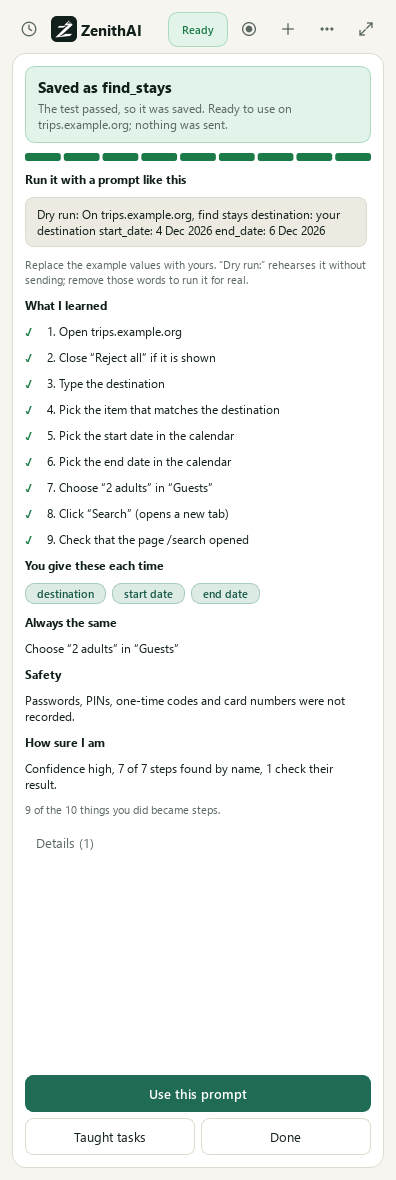
A passed test saves the task at once and shows a prompt that runs it.
How do I stop a recording?
Section titled “How do I stop a recording?”Press Finish and test in the red side panel to stop and test what was learned, or Discard recording to throw it away (“Nothing of it is kept.”). If you close the recording tab, the panel says “The recording tab was closed. Finish with what was captured, or discard it.” The recording also stops taking events when it is full (“The recording is full. Finish now”).
What is never recorded?
Section titled “What is never recorded?”Passwords, PINs, one-time codes, verification codes and card numbers (also split one-digit code boxes), the digits you press on an on-screen PIN pad, and the path of a file you choose. What you type in other boxes becomes a value you fill in each time and is not stored in the task. The raw recording of what you did, including what you typed in ordinary boxes (never secrets), stays on this PC after saving.
Why does it ask me for the value each time?
Section titled “Why does it ask me for the value each time?”What you typed while teaching becomes a value of the task, for example the destination or the dates, so the same task can run with other values. If you typed exactly the same value in every demonstration (show the task again with Show me again), you can choose Always use this value in the review, or later in Taught tasks > ⋯ > Values typed the same…. That value is then stored in the task and never asked. Passwords, PINs, codes and card numbers can never be fixed.
Why did my taught task show “Partly learned”?
Section titled “Why did my taught task show “Partly learned”?”The app kept fewer than half of the things you did as steps (“I kept only 2 of the 8 things you did”), or its test could only try the start of the task because a step that may send or submit comes early (“Tested only the start”). Such a task is not saved by itself even if its test passed. The panel offers Teach again or Save anyway, and a task saved anyway shows as Partly learned, never as Tested. Teaching it again, doing each step clearly, usually fixes it.
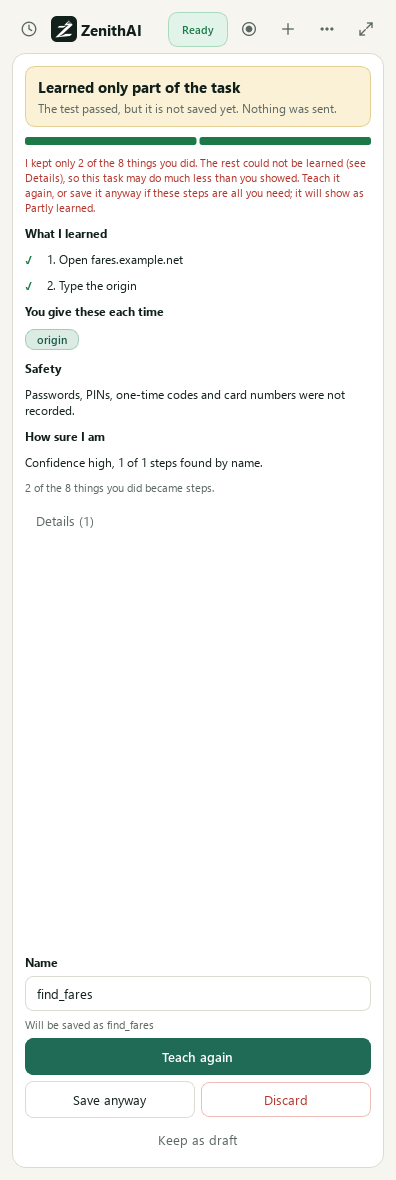
When it learned only part of what you did, a passed test is not saved by itself.
“The test stopped at step 4 of 9”. What now?
Section titled ““The test stopped at step 4 of 9”. What now?”Nothing was saved and nothing was sent. Read the reason under the title, then choose Test again (for example after closing a pop-up), Leave this step out, Teach again, Keep as draft or Discard. Leave this step out is offered only for steps that can safely be skipped, never the start, the sign-in check, a value step, a guarded step or the send. Common reasons:
- “I could not find it on the page. The page may look different now, or it only appears after something else.”
- “Something on the page (a pop-up or banner) covered it. Close it in the browser window, then test again.”
- “The site asked you to sign in (or for a PIN). Sign in in the browser window yourself, then test again.”
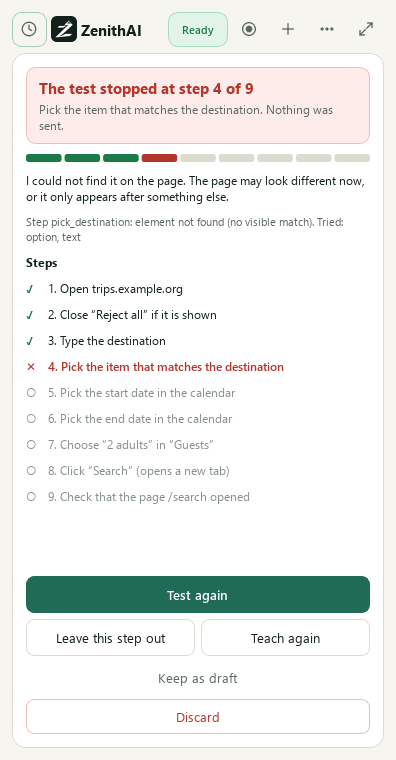
If a step fails, you see which one and why, and choose what to do. Nothing is saved or sent.
“The date could not be read.”
Section titled ““The date could not be read.””Write dates like 20 Dec 2026, 2026-12-20, 20/12/2026 (day/month) or tomorrow. “I could not find that date in the site’s calendar” or “The site does not let you choose that date (a past or sold-out date?)” means the calendar did not offer it.
Will a test send anything?
Section titled “Will a test send anything?”No. A test is a rehearsal. It fills in everything and stops before any step that may send or submit, which the review shows as “a test stops here”. Words such as Done, Apply and the Enter key also count as such a step, so a test can stop earlier than you expect. The review says how much it tried.
How do I run a taught task?
Section titled “How do I run a taught task?”Open Taught tasks and press Use. An example prompt goes into the side-panel message box, starting with Dry run:. Replace the example values with yours. Leave Dry run: in to rehearse, or remove it to run for real. The first real send of a taught task asks you once. Recipes are matched only from the ZenithAI Browser side panel, not from Chat. See Recipes.
My taught task does not run from a prompt.
Section titled “My taught task does not run from a prompt.”Type the prompt in the ZenithAI Browser panel, because recipes are not matched from Chat. Name the website in the prompt and give every value with the labels the task expects (to, cc, bcc, Subject:, Body:, or the value names shown in Taught tasks, such as destination:). If a value is missing, or the wording says “draft” or “don’t send”, the recipe is not used. Use Use in Taught tasks to get a prompt in the right form, and start with Dry run: to test.
Can I teach a task on a bank, mail or booking site?
Section titled “Can I teach a task on a bank, mail or booking site?”What has been tried: travel searches on booking.com (a stays search, replayed with another city and other dates) and yatra.com (replayed with the same values only; a replay with other cities failed). Shopping, banking and mail sites have not been tried. Whatever the site, you always sign in yourself, passwords, PINs, codes and card numbers are never recorded, a test never presses a step that may send, pay or submit, and the first real send asks you once. Sites that block automated browsers cannot be taught: the panel says so. Shipped site rules for travel sites are read-only and never book or pay. See Recipes.
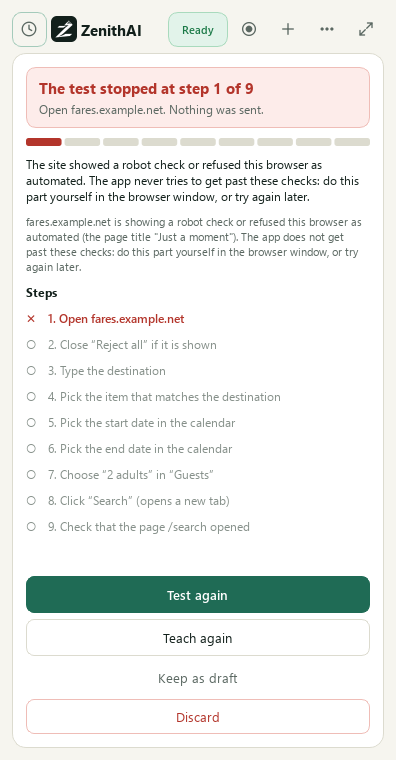
A website that blocks automated browsers is named, and the app stops.
Each run of my taught search leaves a tab open.
Section titled “Each run of my taught search leaves a tab open.”A real run of a task that sends nothing, such as a search, leaves its result page in front of you on purpose. Each run opens a new result tab, so close old ones yourself. Rehearsals close what they opened.
Scheduled tasks and research
Section titled “Scheduled tasks and research”My scheduled task says “Blocked by the site”.
Section titled “My scheduled task says “Blocked by the site”.”“Blocked by the site: the next run was skipped so the site is not asked again at once.” After three blocks in a row you see “Blocked by the site three times in a row: paused. Run it again yourself when the site lets the browser in.” The Telegram alert says “blocked by the site” with the host.
My research report lists “Sources that blocked automated browsing”.
Section titled “My research report lists “Sources that blocked automated browsing”.”Deep research skips a source that blocked the browser and lists it under Evidence gaps instead of stopping the whole report. See Research reports.
How long does deep research take?
Section titled “How long does deep research take?”A full run is expected to take 60 to 90 minutes. The limit is 2 hours, and searching stops when 20 minutes remain so the report is still written. The redesigned report engine has not yet been seen on a full live run.
WhatsApp Replies
Section titled “WhatsApp Replies”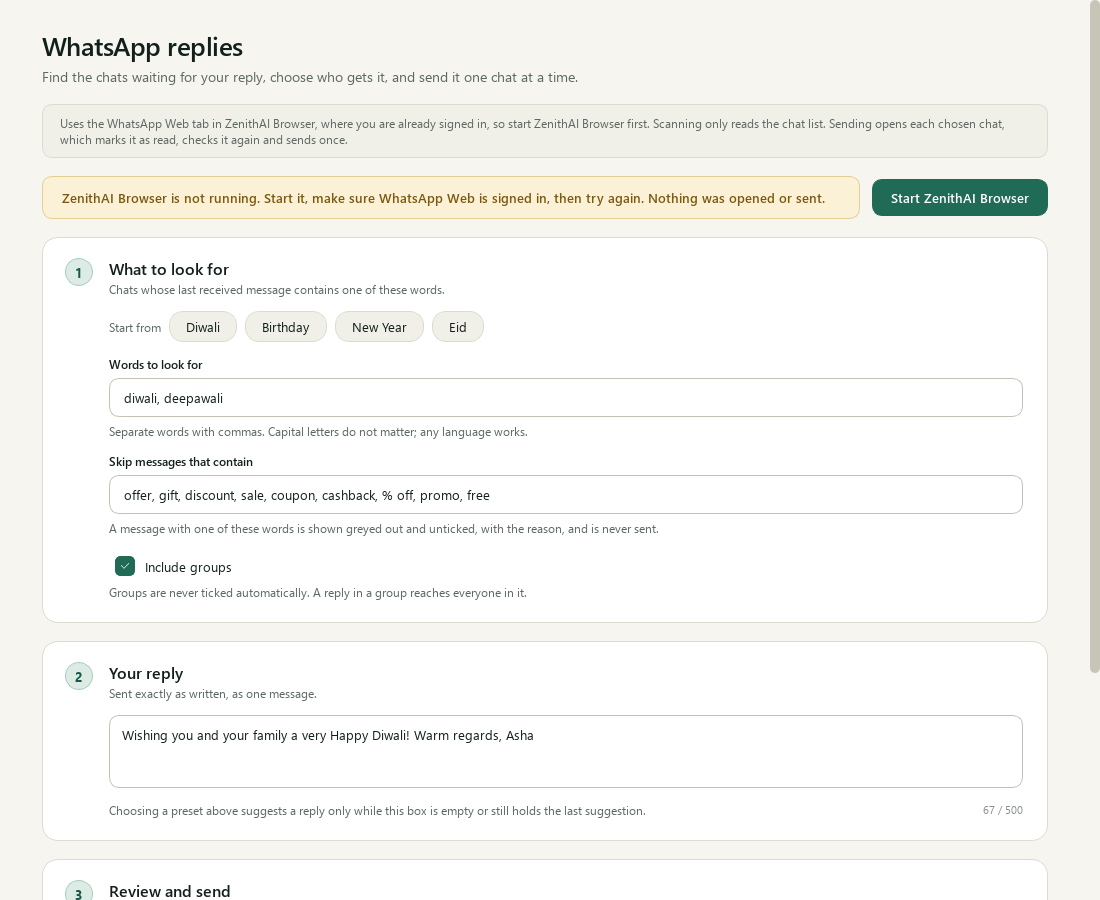
Problems are explained in plain words, with the next step.
“ZenithAI Browser is not running. Start it, make sure WhatsApp Web is signed in, then try again.”
Section titled ““ZenithAI Browser is not running. Start it, make sure WhatsApp Web is signed in, then try again.””Press Start ZenithAI Browser on the notice. When it says the browser is running, open WhatsApp Web in it if needed, then press Scan chats.
“Another automation is using ZenithAI Browser right now.”
Section titled ““Another automation is using ZenithAI Browser right now.””Two automations in one browser would clash. The other one may be a browser task, a saved recipe or a recording. Wait for it to finish, or stop it on the Browser page, then press Check again.
“WhatsApp is open in another window of ZenithAI Browser.”
Section titled ““WhatsApp is open in another window of ZenithAI Browser.””Close the other WhatsApp tab in ZenithAI Browser, then press Check again.
“WhatsApp Web is asking for a QR code.”
Section titled ““WhatsApp Web is asking for a QR code.””Open WhatsApp in ZenithAI Browser and scan the QR code with your phone (WhatsApp > Linked devices), then press Check again.
“WhatsApp’s chat list did not appear.”
Section titled ““WhatsApp’s chat list did not appear.””Wait until WhatsApp Web has finished loading in ZenithAI Browser, then press Check again.
“WhatsApp Web blocked automated browsing, so nothing was sent and the batch stopped.”
Section titled ““WhatsApp Web blocked automated browsing, so nothing was sent and the batch stopped.””Use WhatsApp yourself, or try again later. The app does not try to get around the site’s protection.
“One chat has an unknown result, so the rest were not attempted.”
Section titled ““One chat has an unknown result, so the rest were not attempted.””The app could not confirm that the reply appeared in one chat. It does not retry. Open WhatsApp and look at that chat before doing anything else.
Why is someone missing from the list?
Section titled “Why is someone missing from the list?”They are left out if you wrote last, if their last event is a reaction, if their last received message has none of your words, or if they are a group and Include groups is off. A chat with a skip word, or one that already got this same reply, is still listed, but greyed out and locked, with the reason. “List may not be complete” means the scan did not reach the end of the chat list.
“This name appears twice: check which chat it is before ticking”
Section titled ““This name appears twice: check which chat it is before ticking””Two chats have the same saved name. The app will not guess, so they are not ticked and are skipped when sending. Rename one in your phone’s contacts if needed.
“Your words changed since the last scan. Press Scan chats again before checking or sending.”
Section titled ““Your words changed since the last scan. Press Scan chats again before checking or sending.””The words you are looking for changed after the scan. Scan again so the list matches. See WhatsApp Replies.
Updates
Section titled “Updates”“Could not check for updates just now. It will try again later.”
Section titled ““Could not check for updates just now. It will try again later.””The update file could not be reached or was not valid. The app tries again later and nothing else is affected. You can switch the check off in Settings > General > Updates. See Updates.
Which installer do I use to update?
Section titled “Which installer do I use to update?”If the bottom-right corner of the window shows 1.7.13 or later, use the one small update installer. Close ZenithAI Explorer first. It checks every file before replacing it, puts everything back if anything fails, and leaves your data, sign-ins and settings alone. If you are on 1.7.12 or older, or the installation was changed, it changes nothing and points you to the full installer. On 1.7.20 it says the app is up to date. New installs use the full installer. See Updates.
What does the update check send?
Section titled “What does the update check send?”A plain request for one small file on the ZenithAI docs site. No account, key, machine name or file information.
Telegram
Section titled “Telegram”I sent /zprompt and nothing happened.
Section titled “I sent /zprompt and nothing happened.”Commands are off until you switch on Accept Telegram commands in Settings > Connect. Only your paired private chat is accepted. Commands older than 5 minutes are dropped, and the bot replies “Ignored: that command is more than 5 minutes old. Send it again.”, and there is a limit of 20 commands per hour. The PC must be on with ZenithAI Explorer running.
My /reminder was not set.
Section titled “My /reminder was not set.”Telegram reads it back first, and nothing is set until you reply YES within 10 minutes. Slash dates are day/month, so 9/11 means 9 November.
“That does not look like a bot token.”
Section titled ““That does not look like a bot token.””A bot token comes from @BotFather and looks like 123456789:AA.... Paste only the token. See Telegram.
A report never arrived on Telegram.
Section titled “A report never arrived on Telegram.”Check that the app was running and Telegram is connected. Since 1.7.17, a report or message that Telegram did not accept is recorded in the app’s log (the code, the error type and the task id, never the text or the token), so it can be traced.
More help
Section titled “More help”For data and removal questions, see Uninstall and your data. For what each switch does, see the Settings reference.
Common questions
Do my files get uploaded?
Not for search. Explorer indexes and searches your chosen folders on your PC. Passages from your files go to the ZenithAI AI only when the Files tool is on in a chat, a scheduled task or a Telegram request, and only the passages relevant to that request.
Does ZenithAI Explorer work offline?
Explorer search works offline once the search files are downloaded. Chat, ZenithAI Browser tasks, taught tasks, Talk to Email, Telegram, deep research and update checks need the internet.
Do I need an API key?
Yes. First-run setup asks for a ZenithAI API key and does not finish until the key is validated. It is stored encrypted for your Windows user. You get it in your ZenithAI account, under Settings > API Keys, and can change it later in Settings > General.
I closed the window. Is ZenithAI Explorer still running?
Yes. The X hides it to the tray so scheduled tasks and reminders keep running. To exit, choose Quit in the account menu at the bottom of the sidebar or in the tray menu.
Why did my scheduled task not run?
Schedules run only while the app is open or in the tray, and the PC is awake and signed in. A missed run happens once when the app resumes. Also check that Enable this schedule is ticked.
Will the assistant send an e-mail without asking me?
Not from Chat or Talk to Email without an approval card. Exceptions you set up yourself: a scheduled task with a standing permission, and a recipe or taught task run from the ZenithAI Browser panel (a taught task asks once, on its first real send).
Will people see that I read their WhatsApp message?
Yes. Sending, and Check selected, opens each chat, which marks it as read in WhatsApp. Scanning does not open chats.
Does the Update available message mean it will install itself?
No. The app only tells you. Click the corner to open the release notes, then download the full installer, or the small update installer if you are on 1.7.13 or later. Close ZenithAI Explorer and run it. Your data is kept.